

Dosare
Un dosar este un spațiu de lucru, nu un rând dintr-o listă. Fiecare angajament al clientului, caz, tranzacție sau proiect există ca atare, iar tot ce este creat din interiorul său se leagă automat de acesta.
Unitatea de bază a muncii
Legal Matters în bara laterală din stânga, sub Administrarea cazurilor, alături de Hearings, Court Reviews și Jurnalul de servicii. Dosarul conectează documente, sarcini, ședințe, pontaje, facturi, evenimente de calendar și atribuiri de echipă într-un singur loc. Dosarele sunt organizate pe file pe domenii de practică: All Matters, Corporate, M&A, GC, Securities & Capital Markets, Corporate Governance, Disputes & Litigation, Employment & Labor și Wealth Management.
Crearea unui dosar nou
Faceți clic pe „+ Adăugați dosar” sau utilizați Adăugare rapidă.
| Câmp | Obligatoriu | Descriere |
|---|---|---|
| Titlu | Da | Nume descriptiv pentru angajament. |
| Domeniu de practică | Da | Stabilește în ce filă apare dosarul. |
| Client | Da | Legat de Contacte. Începeți să tastați pentru a căuta. |
| Stare | Da | Starea actuală a dosarului (Activ, În așteptare, Închis…). |
| Data deschiderii | Da | Data la care dosarul a fost deschis oficial. |
| Partea adversă | Nu | Cealaltă parte din dosar. |
| Membru de echipă atribuit | Nu | Avocatul principal responsabil pentru acest dosar. |
| Câmpuri personalizate | Nu | Câmpuri specifice cabinetului configurate de administratorul dumneavoastră (avocatul părții adverse, data scrisorii de angajament, stadiul verificării conflictului de interese). |
Un client nou sună cu un litigiu comercial
Faceți clic pe „+” → Dosar nou. Titlu: „Al Rashidi v. Gulf Trading LLC”. Domeniu de practică: Litigii și Soluționarea Disputelor. Client: căutați și selectați sau creați contactul pe loc. Stare: Activ. Atribuit: dumneavoastră. Salvați.
Dosarul este deschis. Puteți începe imediat să înregistrați timpul, să creați sarcini, să încărcați documente și să programați audieri, toate fiind legate de acest dosar.
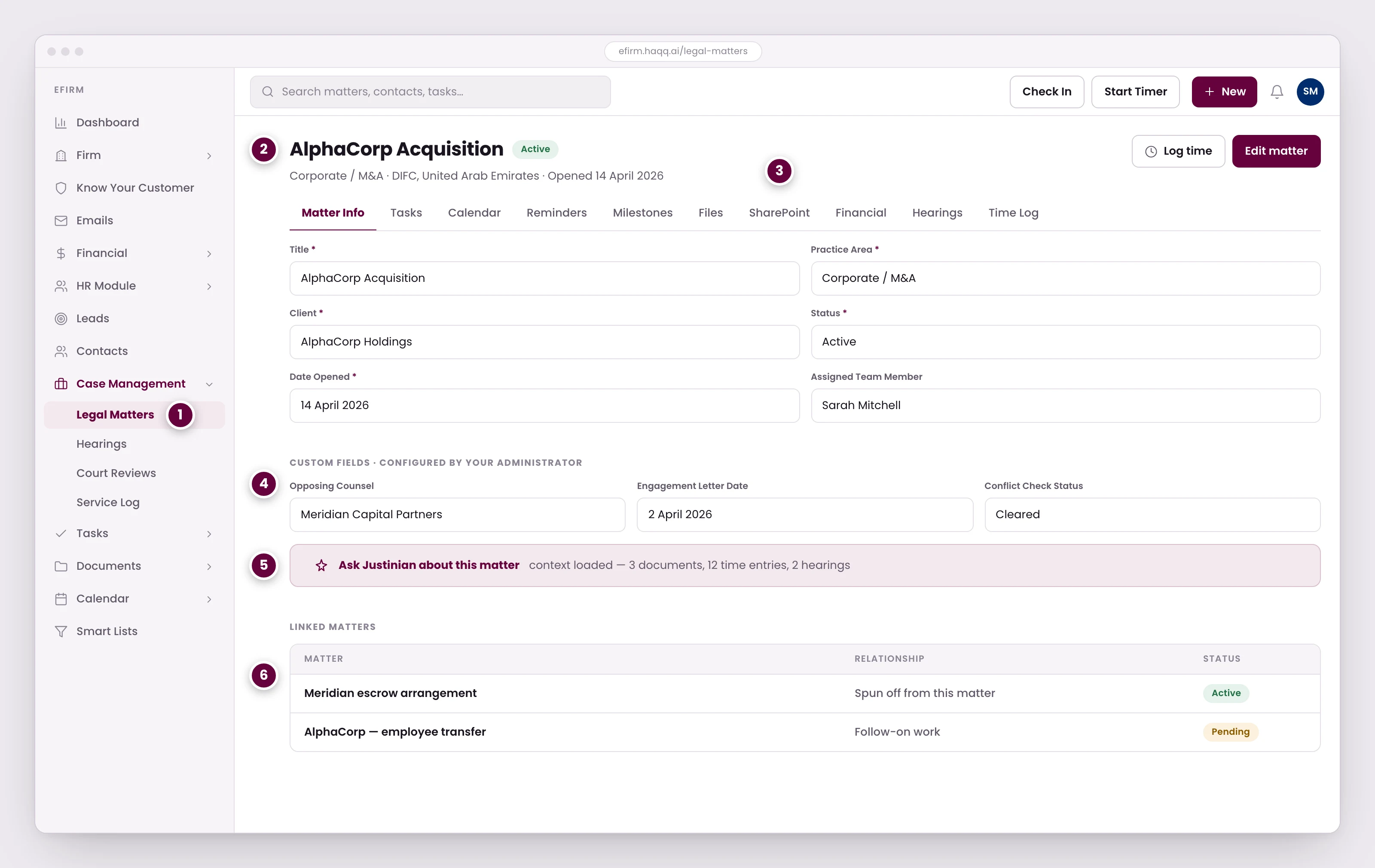
- Dosarele se află în secțiunea Gestionare dosare din bara laterală stângă, alături de Ședințe, Revizuiri ale instanțelor și Jurnalul de servicii.
- Titlul dosarului, statutul său, precum și domeniul de practică și jurisdicția sub care a fost deschis.
- Zece file sunt atașate fiecărui dosar. Orice creați din interiorul unui dosar este asociat automat acestuia.
- Câmpuri personalizate configurate de administratorul dumneavoastră, cum ar fi avocatul advers, data scrisorii de angajament și statutul verificării conflictelor.
- Bara Legal AI. Justinian are deja încărcate documentele dosarului, înregistrările de timp și ședințele ca context.
- Dosarele asociate mențin angajamentele conexe legate, în timp ce facturarea și timpul rămân separate.
Configurarea formularului pentru fiecare tip de dosar
Formularul dosarului nu este fix. Fiecare tip are propriul set de câmpuri, iar munca utilă de configurare constă în eliminare: setul implicit presupune un caz litigios în instanță, iar majoritatea tipurilor de dosare nu sunt de acest fel. Un formular care cere numele unui judecător pentru un dosar ce nu va ajunge niciodată în fața unui judecător îi învață pe oameni să lase câmpurile goale, iar astfel un registru își pierde credibilitatea.
| Tipul dosarului | De eliminat | De păstrat sau de înlocuit |
|---|---|---|
| Proceduri guvernamentale | Instanța, numărul dosarului în instanță, judecătorul (nu este implicată nicio instanță). | Împotriva cui este depusă cererea și pe cine reprezintă cabinetul. |
| Proceduri administrative | Judecător și câmpurile pentru avocatul advers, chiar dacă nu există unul. | Instanța și numărul de dosar, deoarece acestea sunt încă depuse. |
| Arbitraj | Judecător. Nu există judecător. | Înlocuiți-l cu tribunalul arbitral, care ocupă același loc pe formular. |
| Corporate și consultanță | Instanța, numărul dosarului, judecătorul, partea adversă, avocatul advers: niciunul nu se aplică în cazul activității necontencioase. | Client, etapă, specializare, avocat desemnat, note. |
| Proprietar și chiriaș | Nimic structural. Se comportă ca un dosar contențios standard. | Setul complet de litigii, inclusiv partea adversă și avocatul acesteia. |
Ordinea câmpurilor este configurație, nu decor. Puneți ceea ce identifică dosarul în partea de sus (client, etapă, specializare) și coborâți descrierea și notele. Oamenii completează un formular de sus în jos și îl abandonează pe parcurs; ceea ce se află deasupra pliului este ceea ce se capturează efectiv. Configurați tipurile pe care cabinetul le utilizează cu adevărat și nimic mai mult: fiecare câmp lăsat pe un formular este unul pentru care cineva trebuie să decidă la fiecare dosar pe care îl deschide.
Vizualizarea detaliată a dosarului
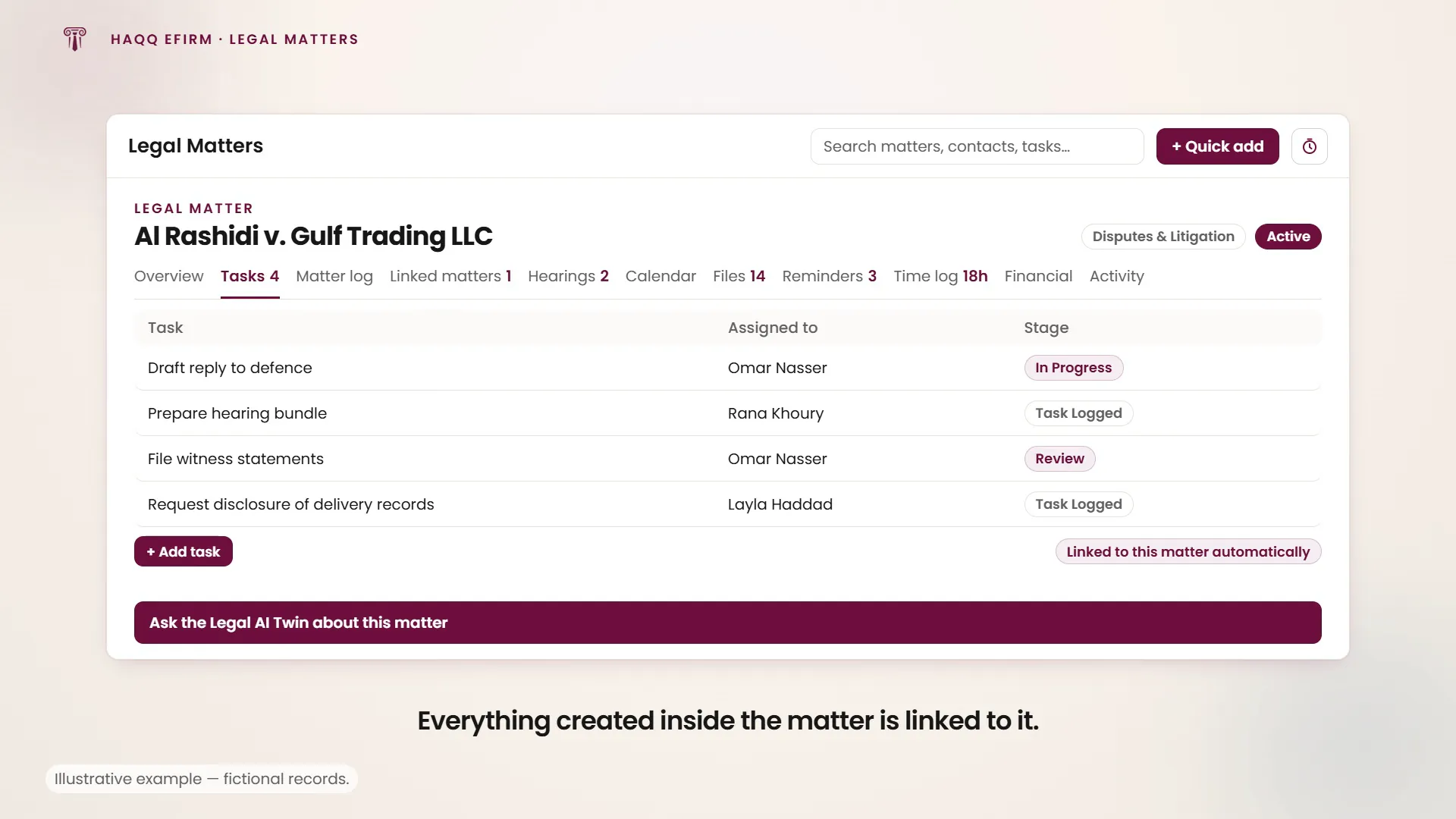
Unsprezece file atârnă de fiecare dosar și acestea sunt motivul pentru care un dosar este un nod central, nu o simplă înregistrare: orice creați din interiorul unuia se atașează automat acestui dosar.
| Filă | Ce conține |
|---|---|
| Prezentare generală | Dosarul însuși: statutul, specializarea, persoana de contact, echipa desemnată și fiecare câmp personalizat pe care Section Builder îl definește pentru acest tip de dosar. |
| Sarcini | Lucrări atribuite acestui dosar. Crearea unei lucrări aici o leagă fără a selecta dosarul. |
| Jurnalul dosarului | Narațiunea continuă a dosarului. Ce s-a întâmplat și când, în cuvintele echipei. |
| Dosare conectate | Alte dosare conexe acestuia, astfel încât un grup de dosare conectate să poată fi navigat ca un grup. |
| Ședințe | Fiecare ședință a acestui dosar, cu instanța, judecătorul și data. |
| Calendar | Datele dosarului sub formă de calendar, nu ca listă. |
| Fișiere | Documentele stocate în dosar și care pot fi citite de AI Twin. |
| Reamintiri. | Reamintiri specifice acestui dosar. |
| Jurnal de timp | Înregistrările de timp înregistrate pentru dosar: sursa a ceea ce se facturează. |
| Financiar | Cheltuielile și facturile atașate dosarului. |
| Activitate | Pista de audit: cine a modificat ce și când. |
AI în dosar
Din orice dosar, faceți clic pe bara Legal AI pentru a începe o conversație cu Justinian. Acesta are deja dosarul ca context: clientul, domeniul de practică, jurisdicția, toate documentele conexe, înregistrările de timp și notele. Îi puteți cere să redacteze documente, să rezume stadiul dosarului, să recomande pașii următori, să pregătească pachete de depunere sau să redacteze comunicări către client, fără a atașa nimic manual.
Bara Legal AI apare în dosar odată ce spațiul dumneavoastră de lucru are o perioadă de încercare sau un abonament AI Engine activ. Fără aceasta, dosarul funcționează în continuare ca un registru complet de gestionare a cabinetului (documente, sarcini, ședințe, timp și facturare), iar bara AI devine disponibilă de îndată ce perioada de încercare începe. Consultați HAQQ Legal AI.
Dosare conectate
Dosarele pot fi conectate la angajamentele corelate. Când un client are mai multe cazuri interconectate, sau o tranzacție generează lucrări ulterioare, dosarele conectate mențin totul legat, în timp ce facturarea și timpul rămân separate.
Următorii pași
Delegați munca prin Sarcini, facturați-o prin Financiar, arhivați documentele în Documente și urmăriți datele de judecată în Ședințe.