

Legal Matters
A matter is a workspace, not a row in a list. Every client engagement, case, transaction or project lives as one, and everything created from inside it links to it automatically.
The core unit of work
Legal Matters in the left sidebar, under Case Management alongside Hearings, Court Reviews and the Service Log. The matter connects documents, tasks, hearings, time entries, invoices, calendar events and team assignments into one place. Matters are organised by practice-area tabs: All Matters, Corporate, M&A, GC, Securities & Capital Markets, Corporate Governance, Disputes & Litigation, Employment & Labor, and Wealth Management.
Creating a new matter
Click "+ Add Matter", or use Quick Add.
| Field | Required | Description |
|---|---|---|
| Title | Yes | Descriptive name for the engagement. |
| Practice Area | Yes | Determines which tab the matter appears in. |
| Client | Yes | Linked to Contacts. Start typing to search. |
| Status | Yes | Current state of the engagement (Active, Pending, Closed…). |
| Date Opened | Yes | When the matter was formally opened. |
| Opposing Party | No | The other side in the matter. |
| Assigned Team Member | No | Primary lawyer responsible for this matter. |
| Custom Fields | No | Firm-specific fields configured by your administrator (opposing counsel, engagement letter date, conflict check status). |
New client calls with a commercial dispute
Click "+" → New Matter. Title: "Al Rashidi v. Gulf Trading LLC". Practice Area: Disputes & Litigation. Client: search and select, or create the contact on the spot. Status: Active. Assigned: yourself. Save.
The matter is open. You can immediately start logging time, creating tasks, uploading documents and scheduling hearings, all linked to this matter.
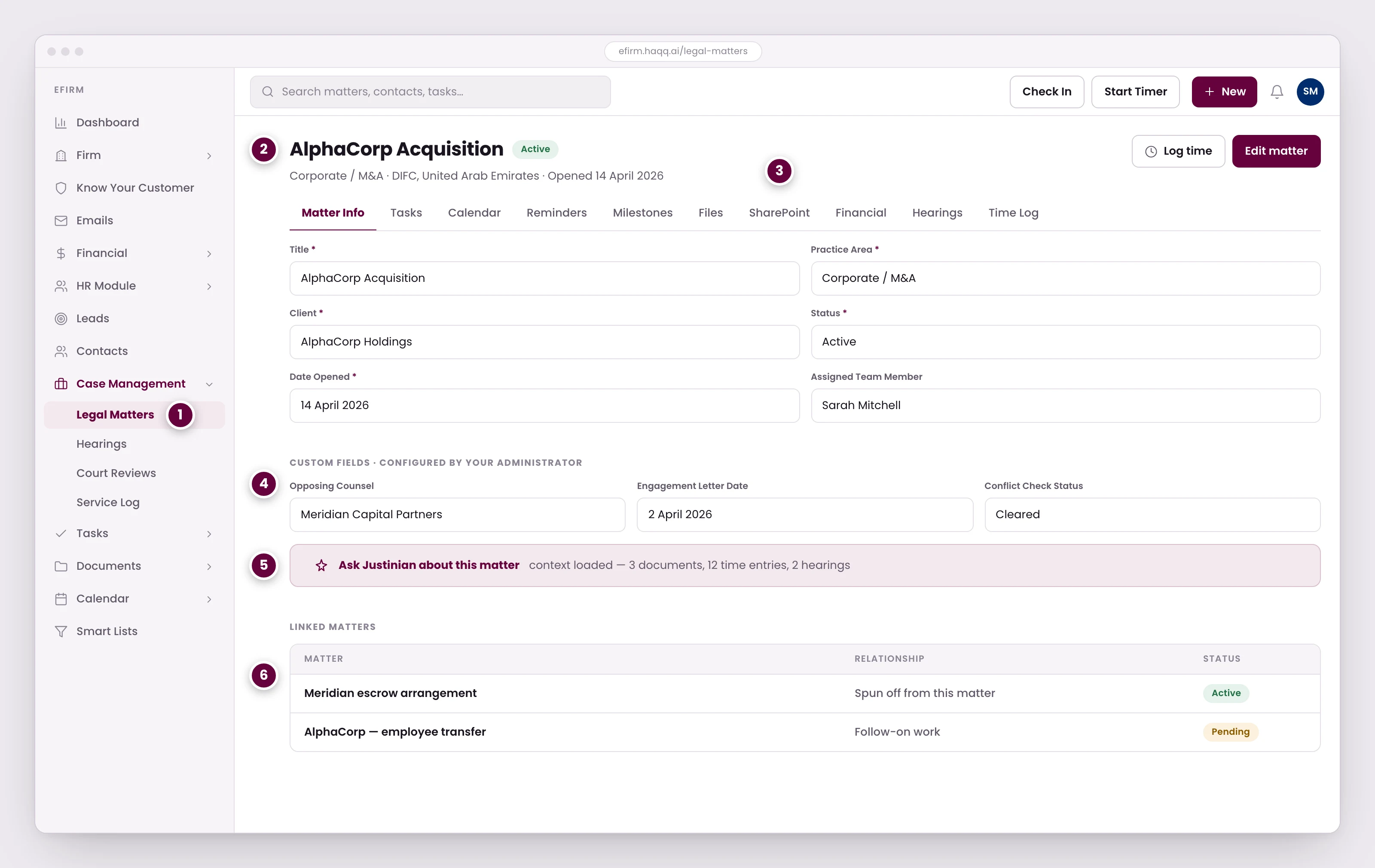
- Matters live under Case Management in the left rail, alongside Hearings, Court Reviews and the Service Log.
- The matter title, its status, and the practice area and jurisdiction it was opened under.
- Ten tabs hang off every matter. Anything you create from inside one is linked to this matter automatically.
- Custom fields your administrator configures, such as opposing counsel, engagement letter date and conflict check status.
- The Legal AI bar. Justinian already has the matter's documents, time entries and hearings loaded as context.
- Linked matters keep related engagements connected while their billing and time stay separate.
Shaping the form per matter type
The matter form is not fixed. Each type carries its own set of fields, and the useful configuration work is subtraction: the default set assumes a contested court case, and most matter types are not one. A form asking for a judge on a matter that will never see a bench trains people to leave fields blank, which is how a directory stops being trustworthy.
| Matter type | Drop | Keep or swap |
|---|---|---|
| Government procedures | Court, court case number, judge (there is no court in the loop). | Who it is filed against, and who the firm represents. |
| Administrative proceedings | Judge, and the opposing-counsel fields where no counsel appears. | Court and case number, since these are still filed. |
| Arbitration | Judge. There is no judge. | Swap it for the arbitral tribunal, which occupies the same slot on the form. |
| Corporate and advisory | Court, case number, judge, opponent, opposing counsel: none apply to non-contentious work. | Client, stage, specialisation, assigned lawyer, notes. |
| Landlord and tenant | Nothing structural. It behaves like a standard contested matter. | The full litigation set, including opponent and their counsel. |
Field order is configuration, not decoration. Put what identifies the matter at the top (client, stage, specialisation) and push description and notes down. People fill a form top-down and abandon it partway; what sits above the fold is what actually gets captured. Configure the types your firm genuinely runs and no more: every field left on a form is one somebody has to decide about on every matter they open.
The matter detail view
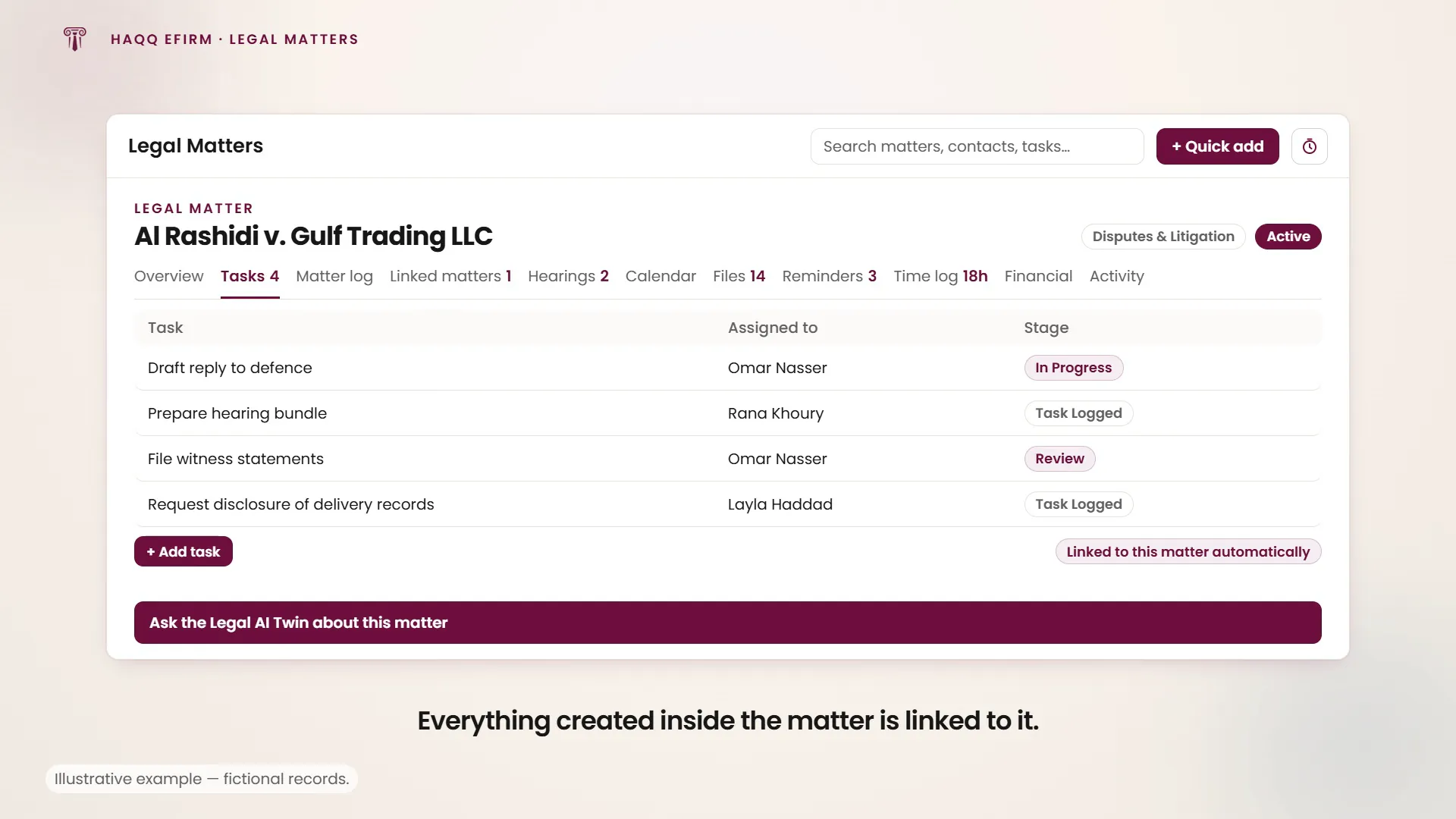
Eleven tabs hang off every matter, and they are the reason a matter is the hub rather than a record: anything you create from inside one is attached to this matter automatically.
| Tab | What it holds |
|---|---|
| Overview | The matter itself: status, specialization, point of contact, assigned team and every custom field the Section Builder defines for this matter type. |
| Tasks | Work assigned against this matter. Creating one here links it without you choosing the matter. |
| Matter log | The running narrative of the matter. What happened and when, in the team's own words. |
| Linked matters | Other matters related to this one, so a group of connected files can be navigated as a group. |
| Hearings | Every hearing on this matter, with court, judge and date. |
| Calendar | The matter's dates in calendar form rather than as a list. |
| Files | Documents stored on the matter and readable by the AI Twin. |
| Reminders | Reminders scoped to this matter. |
| Time log | Time entries recorded against the matter: the source of what gets billed. |
| Financial | Expenses and invoices attached to the matter. |
| Activity | The audit trail: who changed what, and when. |
AI inside the matter
From any matter, click the Legal AI bar to start a conversation with Justinian. It already has the matter as context: the client, practice area, jurisdiction, all related documents, time entries and notes. Ask it to draft documents, summarise case status, recommend next steps, prepare filing packages or draft client communications, without attaching anything by hand.
The Legal AI bar appears inside a matter once your workspace has an active AI Engine trial or subscription. Without one, the matter still works as a full practice-management record (documents, tasks, hearings, time and billing), and the AI bar becomes available as soon as the trial starts. See HAQQ Legal AI.
Linked matters
Matters can be linked to related engagements. When a client has several interconnected cases, or a transaction spawns follow-on work, linked matters keep everything connected while their billing and time stay separate.
Where to go next
Delegate work through Tasks, bill it through Financial, file the paperwork in Documents, and track the court dates in Hearings.