

Quick Add (+)
Quick Add is the + in the eFirm top bar. It creates any of seven record types from wherever you already are, without loading a module first.
What it does
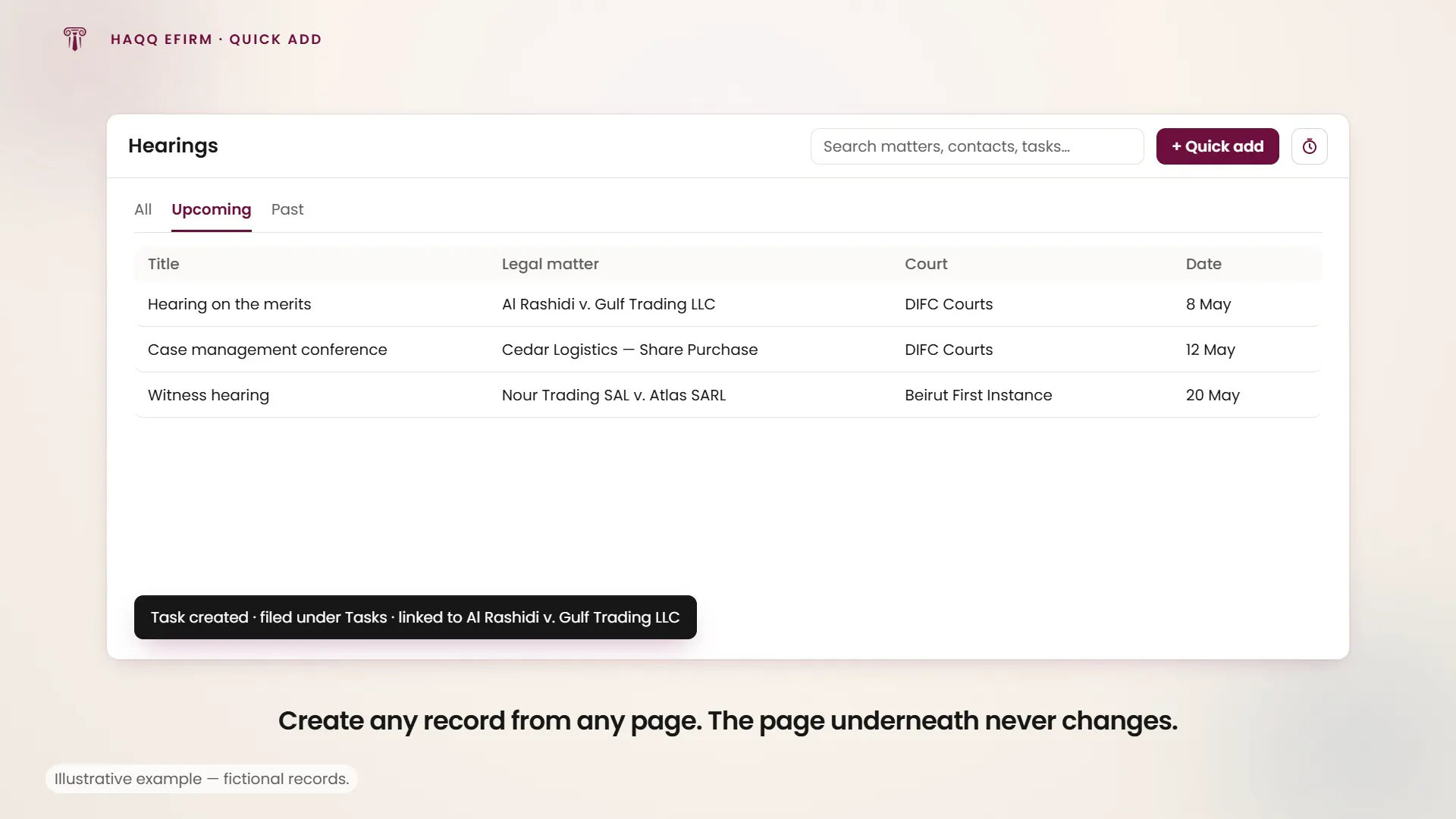
The Quick Add button is the fastest way to create records in HAQQ without leaving the page you are on. It lives in the top navigation bar and is reachable from anywhere in eFirm: a matter list, a document, a client record, the dashboard. The page underneath does not change and nothing you were doing is lost.
It sits in the same top bar as global search and the timer, and the three together cover the actions a lawyer performs dozens of times a day: find something, create something, log the time it took. Quick Add is a shortcut into the modules, not a parallel store. A record created here is the same record, in the same place, with the same permissions, as one created from inside its module.
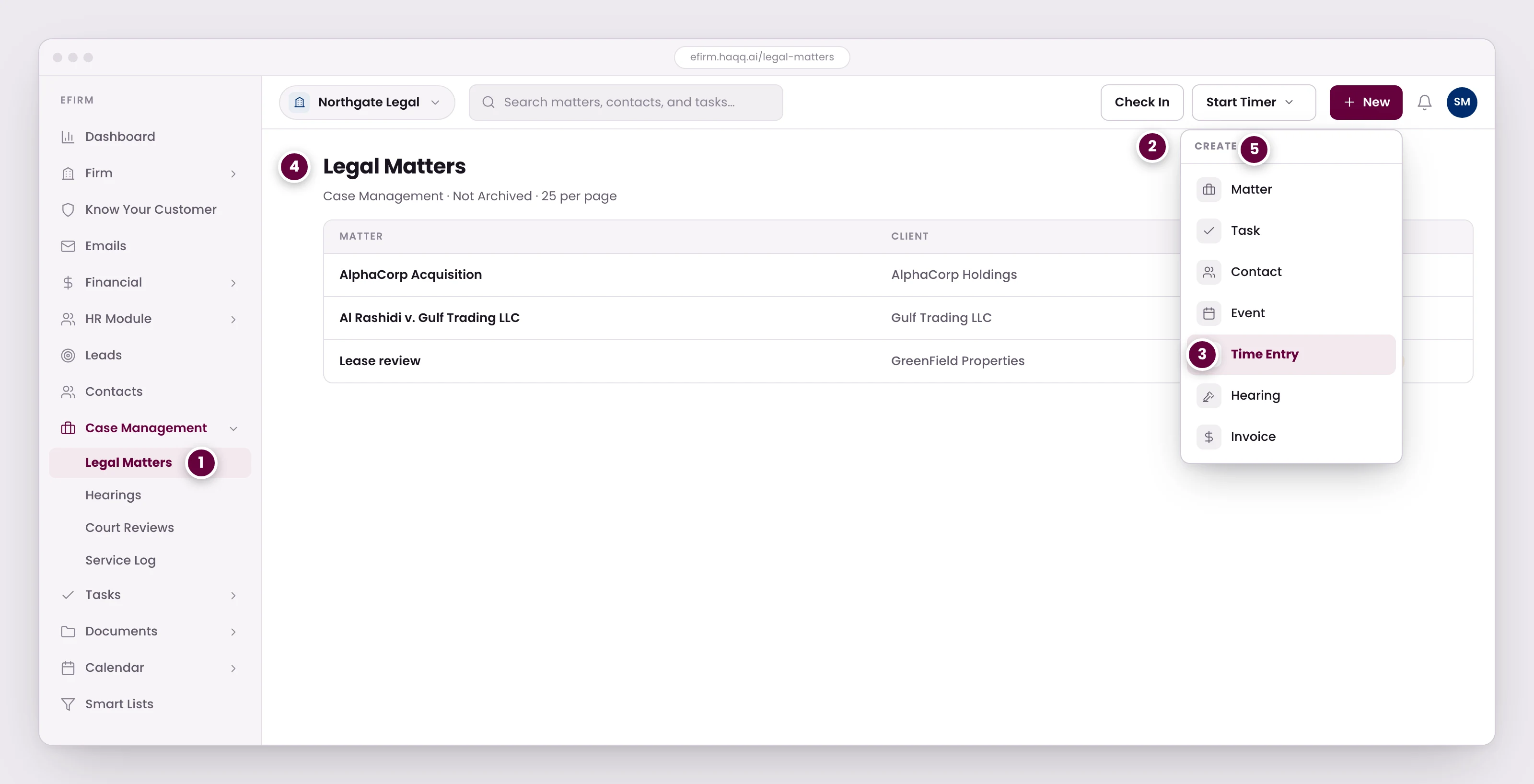
- Quick add works from anywhere in eFirm. The page underneath does not change and nothing you were doing is lost.
- Seven record types, the ones a firm creates most often: matter, task, contact, event, time entry, hearing, and invoice.
- Time entries are the reason this menu exists. If logging one takes longer than a few seconds people skip it, and the hour is never billed.
- The form adapts to the record type, and what you save is filed into the right module and linked from there.
- The timer sits beside it, for work you are starting rather than work you have already finished.
The seven record types
Quick Add covers the records a firm creates most often. Each has a full page in this documentation; Quick Add is a shortcut to creating one, not a different way of storing it.
| Record type | Documented under |
|---|---|
| Matter | Legal Matters |
| Task | Tasks |
| Contact | Contacts |
| Event | Calendar |
| Time entry | Financial |
| Hearing | Hearings |
| Invoice | Financial |
The form adapts to the record type you pick, and what you save is filed into the right module and linked from there. A task raised from Quick Add is the same task, in the same place, as one raised from inside the Tasks module.
How it works
- Click the + button in the top navigation bar.
- Select the record type you want to create.
- Fill in the required fields. The form changes to match the record type.
- Save. The record is created and linked to the appropriate section.
Four steps, and nothing pulls you off the page you started on. You land back where you were, and that is the whole design.
The Start Timer shortcut
Next to Quick Add sits Start Timer, which is the same idea applied to time. It gives instant access to time tracking in three modes:
| Mode | Use it when |
|---|---|
| Timer | A live clock. You are starting the work now and want it counted as it happens. |
| Manual | You enter the hours directly, after the fact. |
| Range | You set a start time and an end time for work already done. |
The split is worth understanding: Quick Add's time-entry form is for work you have already finished, and the timer beside it is for work you are starting. Both produce a time entry.
Why it matters
In a law firm, the speed of data capture decides whether capture happens at all. If logging a time entry or creating a task takes more than a few seconds, people skip it, and an hour that is never logged is an hour that is never billed. Quick Add removes that friction. You stay on the page you are working on, capture what you need, and move on.
Related controls
Global search sits in the same top bar and does the opposite job of finding a record rather than creating one. Both are described in the eFirm overview. What each role is allowed to create is set in Roles & Permissions. Every module Quick Add creates into carries its own Create permission there.