

RRHH
HAQQ eFirm carries a human-resources module for the firm itself: attendance, paid leave, holidays, training and internal policies, so a practice does not need a second system for the people who run it.
What is in the HR module
HR is a set of screens rather than one, reached from the HR dropdown in the breadcrumb at the top of the page. These seven are where the day-to-day work happens. The release notes describe four of them, and the other three have never appeared in a changelog at all. The configuration and scheduling screens behind them are listed further down.
| Section | Path | What it holds |
|---|---|---|
| Working Hours | /hr/working-hours | Attendance records: record type, employee, recorded-at time, date and notes. Check in connects to check out and to breaks, and the same records roll up into weekly and monthly attendance reports. A Check in button sits in the toolbar, and the table exports. |
| Leaves | /hr/leaves/leave-requests | Leave requests. Employees submit, managers approve or reject, and balances are tracked automatically by type and by year. |
| Performance Reviews | /hr/performance-reviews | Employee, reviewer, review type, year and quarter, scheduled date, status, who it is awaiting, score, reviewer feedback and career-progression notes. Reviews can be scheduled ahead or added after the fact. |
| Trainings | /hr/trainings/user-trainings | Mandatory trainings assigned with due dates. Employees mark completion and upload the certificate against the record. |
| Contracts | /hr/employment-contracts | Employment contracts held against the employee. |
| EOS liability | /hr/reports/eos-liability | End-of-service liability. A report rather than a register: it lives under HR reports. |
| Sick-Pay Report | /hr/reports/sick-pay | Per employee: requests, total days, paid days, unpaid days and compliance flags, over a period you choose. |
The rest of the HR screens
Behind the seven sit the screens a firm sets up once and then mostly leaves alone. Two of them are worth knowing about before you go looking: scheduling lives under /firm/, not /hr/, and leave configuration is a set of tabs on the Leaves screen rather than a separate menu entry.
| Screen | Path | What it holds |
|---|---|---|
| Leave types, balances and requests | /hr/leaves | Three tabs on one screen. Opening the path lands on Leave Types. |
| Leave pay schemes | /hr/leave-pay-schemes | Pay schemes a leave type can be linked to. Linking one makes the scheme, not the type, authoritative for the allowance. |
| End-of-service schemes | /hr/eos-schemes | The schemes behind the end-of-service liability report. |
| Company policies | /hr/company-policies | The versioned policy and regulations hub. |
| Teams | /hr/teams | The firm's teams, which the scheduling reports group by. |
| Work schedules | /firm/hr-schedules | Reusable shift patterns: per-weekday hours, breaks, expected hours, timezone, and an optional auto-checkout time. |
| Schedule assignments | /firm/hr-user-schedules | Which member is on which schedule, over which effective dates. Only active schedules can be assigned. |
| Public holidays | /firm/hr-holidays | The firm's holiday calendar, always scoped to one year at a time. |
| Working-hours summaries | /firm/hr-working-hours-summaries | Daily, weekly, monthly, yearly and per-team totals: first check-in, last check-out, worked against expected, overtime, breaks and a status per day. |
Attendance and working hours
Working Hours is the attendance register. Each row is a record with a type, the employee it belongs to, the time it was recorded and the date it applies to, plus free-text notes. A Check in control sits in the toolbar, so clocking in happens from the same screen that shows the history. Check in connects to check out and to breaks: the system tracks what time each user arrived, took a break and left, and rolls that into weekly and monthly attendance reports.
The table filters, sorts by any column, lets you choose which columns are shown, and exports, the same grid behaviour the rest of eFirm uses.
Leave
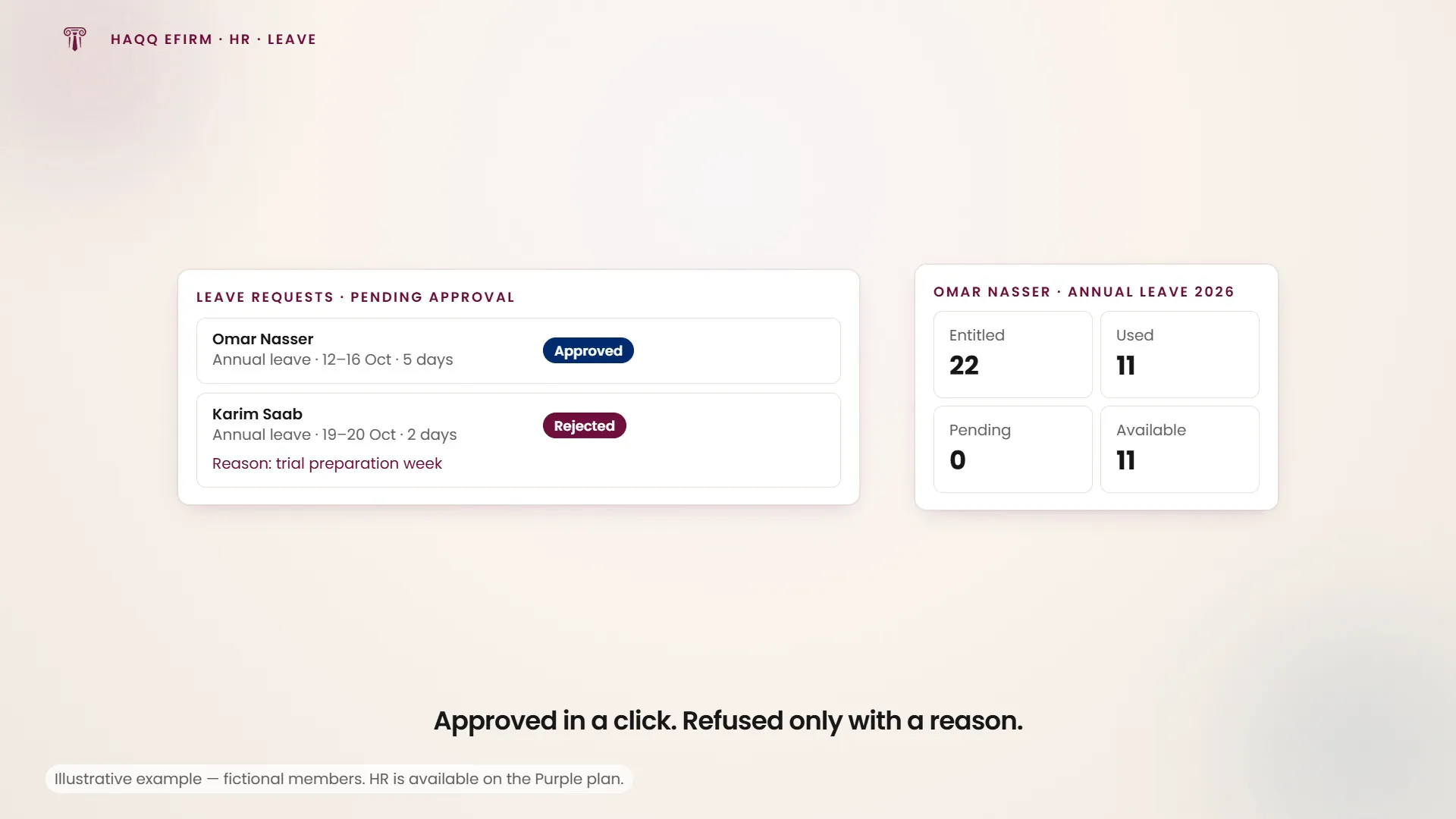
Employees submit leave requests and managers approve or reject them. Balances are tracked automatically by leave type and by year, so the balance is derived from the requests rather than kept by hand. Each request shows its computed number of days, and hovering a leave entry in the calendar shows the detail without opening it.
Approving is a manager action, not an administrator one. Approve and Reject appear only on pending requests, and only for managers. HR reviewers see leave requests from across the whole company, not only their own team. Approve applies immediately, with no confirmation step. Reject opens a dialog and will not confirm until a reason has been typed. So a refused request always carries the reason it was refused, which is the half of the audit trail firms usually lose. Once a request has left pending, both actions disappear.
Filing a request is self-service: choose a leave type from the active ones, a start and an end date, whether it is a full day or a half, and optionally a reason. It is filed against you.
Leave types are configured per firm
Opening /hr/leaves lands on Leave Types, which is where the firm's own policy is written down: each type has a name, a code, a colour, a default allowance, a maximum number of days that can be carried over, and switches for whether it is paid, whether it is active, whether it may go negative, and whether it is pro-rated for someone who joined part-way through the year. Creating and editing types is gated separately from the requests themselves, so a firm can let managers approve leave without letting them rewrite the policy.
Balances
Leave Balances is the second tab, and it is not something you fill in. Each row is one employee, one leave type, one year: entitled days, carried over, adjustments, used, pending and available. Balances are maintained by the system and can only be adjusted, never created or deleted. An adjustment will not save without both an amount and a reason, so every correction says why it happened.
What you see here depends on your permission rather than your job title: with company-wide read on leave you see everybody's balances, and without it you see your own.
Performance reviews
A review is scheduled against an employee and a reviewer, with a review type and the year and quarter it covers. It carries a status and an awaiting field naming whoever it is currently with, so a stalled review is visible rather than silently open. The outcome is a score plus two free-text fields: reviewer feedback, and career-progression notes.
A review is scored against the targets the firm has already set, not an ad hoc number: see the KPI & Targets tab on Settings and Customizations, where targets are assigned against people or sections and the dashboard reports on them.
Trainings, contracts and reports
Admins create mandatory trainings, assign them with due dates and track completion; employees mark a training done and upload the certificate against it, so the evidence sits with the record. A training assignment can be edited or deleted after it is made, and the training table shows each training's title and who it is assigned to. Employment contracts are held per employee, and the PDF you upload with a contract is saved with it.
Two HR reports sit under /hr/reports. Sick-Pay breaks each employee down into requests, total days, paid days, unpaid days and compliance flags across a period you pick. EOS liability covers end-of-service obligation.
Employee policies
A dedicated portal holds firm-wide policies and internal regulations: publish, organise and version employee policies in one place. Because policies are versioned, “which version was in force in March” is answerable.
Scheduling, and who can change it
Schedules are the shift patterns attendance is measured against: per weekday, a start and an end time, the expected hours and the break, in a named timezone. Overnight shifts are allowed: an end time earlier than the start is accepted rather than rejected. A schedule can also carry an auto-checkout time, the hour at which any attendance session still open is closed overnight; leave it blank and nothing closes automatically. The auto-checkout time can be viewed and edited on the schedule at any point, and the schedule shows its timezone next to the auto-checkout time. Assigning a schedule to a member takes an effective-from date and an optional end, and once an assignment exists only its dates can be changed. To move somebody to a different schedule you delete the assignment and make a new one.
Two separate permissions gate this. One covers work schedules and their assignments; a second, different one covers the public holiday calendar. Without the relevant permission a user still sees the data. It is read-only: no create button, no editor panel, no row actions, no bulk delete. The working-hours summaries are the exception, and deliberately so: any member can read and export them without holding any management permission at all.
Payroll
Payroll is not available yet. The Payroll tab inside Working Hours is a placeholder: it shows a coming-soon state with a short note, and carries no data and no actions. If you are evaluating eFirm as a payroll system, this is the answer.
What does exist is per-employee payroll fields, on a member's own profile alongside their position, contract type and joining date. Somebody who can edit members maintains them there, and changes are staged until saved rather than applied as you type.
What shipped when
The module arrived in three releases. If something described here is missing from your workspace, the release it belongs to is the first thing to check against Product updates.
| Release | What it added |
|---|---|
| v3.8.0, 22 February 2026 | The HR suite itself: attendance and working hours, paid leave management, holiday calendar, training records. Payroll fields also gained stricter validation in this release. |
| v3.9.0, 20 March 2026 | The employee policies portal: a centralised, versioned document hub for policies and internal regulations. Leave requests gained a computed total-days figure and calendar tooltips. |
| v3.9.1, 13 April 2026 | Polish: a tighter document-hub layout for Employee Policies and a faster initial load. |
Where to go next
Roles decide who sees the manager side of any of this; Roles & Permissions is where they are set, and Settings and Customizations holds the KPI targets performance reviews are scored against.