

Legal Libraries
Uploading a file is all it takes to make it AI-searchable. Indexing runs in the background with nothing to tag and nothing to configure.
How documents become knowledge
Every file you upload to the Documents module in eFirm is automatically indexed and becomes searchable by Justinian. This happens in the background with no manual action required. The same applies to matter notes, contact records and other structured data.
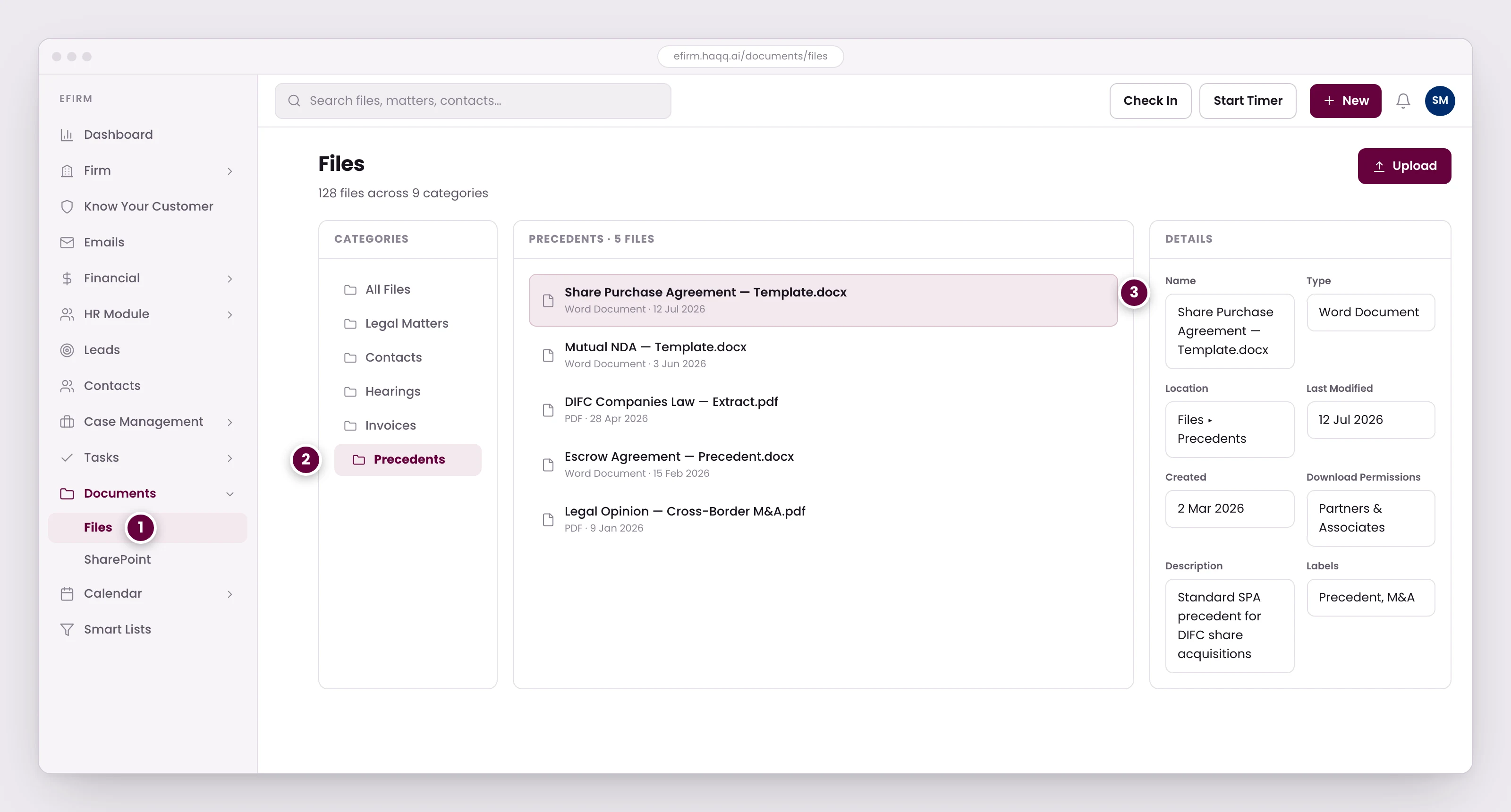
- Uploading a file is all it takes to make it AI-searchable. Indexing runs in the background with nothing to tag or configure.
- System folders are provisioned automatically; Precedents is one the firm created. This is where a firm's own standard of work is kept.
- Give the AI your best work, the agreements and opinions you would want copied, because outputs track the quality of what is in here. Download permissions still control who can take a file out.
System folders are provisioned automatically; Precedents is one the firm creates. That is where a firm's own standard of work is kept, and it is the folder that most changes what the AI produces.
| Pool | Sources | Access |
|---|---|---|
| Company Knowledge | Firm-wide documents, all matters, contacts, calendar events, tasks, billing records | All workspace members with the appropriate role permissions |
| Personal Knowledge | Your individual AI conversations, personal files, private matter notes | Only you. Never shared with other workspace members |
How knowledge indexing works
- Upload or create. Upload a file to the Documents module, create a matter note, add a contact record, or generate a document via AI drafting. Any structured data in eFirm qualifies.
- Automatic indexing. Justinian indexes the content in the background. It extracts text, identifies key entities (parties, dates, jurisdictions, clause types) and builds semantic relationships.
- Available for search. Within seconds the content is searchable via Knowledge Search. Filter results by entity type: Legal Matter, Document, Task, Calendar Event, Contact.
- AI context enrichment. When Justinian drafts, reviews or researches, it pulls relevant knowledge from both pools automatically, without you having to attach files manually.
Building a strong knowledge base
The more data in your eFirm workspace, the more useful Justinian becomes. A well-populated knowledge base is the foundation of the Legal AI Twin's effectiveness.
| Document type | Purpose | Impact on the AI |
|---|---|---|
| Precedent agreements | Your firm's standard templates and past executed agreements | Consistency in drafting: Justinian replicates your firm's style and clause preferences |
| Legal opinions and memos | Past research and analysis on legal topics | Justinian references prior work when answering similar research queries |
| Clause libraries | Clause banks organised by type and jurisdiction | Generates fallback language and alternative positions during negotiation prep |
| Client-specific documents | Engagement letters, board resolutions, compliance reports | Justinian understands client relationships and history for contextual outputs |
| Legislation and regulations | Jurisdiction-specific laws relevant to your practice areas | Cross-references uploaded legislation when reviewing compliance or drafting regulatory clauses |
The digital twin advantage
This knowledge base is what creates the digital twin. When you ask Justinian to draft an employment agreement for a client, it already knows how you have drafted similar agreements before. It maintains consistency in form, style and clause language across the practice, automatically.
Consistent drafting across the firm
A junior associate needs to draft a shareholders' agreement for a new client. The firm has executed 15 similar agreements in the past two years, all stored in eFirm. The associate opens the Legal AI Twin (available once the workspace has an active AI Engine trial or subscription) and prompts: "Draft a shareholders' agreement for [Client] under DIFC law with standard tag-along and drag-along provisions." Justinian searches the knowledge base, finds the 15 precedents, and drafts using the firm's established clause language and structure.
The draft matches the house style (same clause ordering, same defined terms, same risk allocation patterns) without anyone finding and copying from precedents by hand.
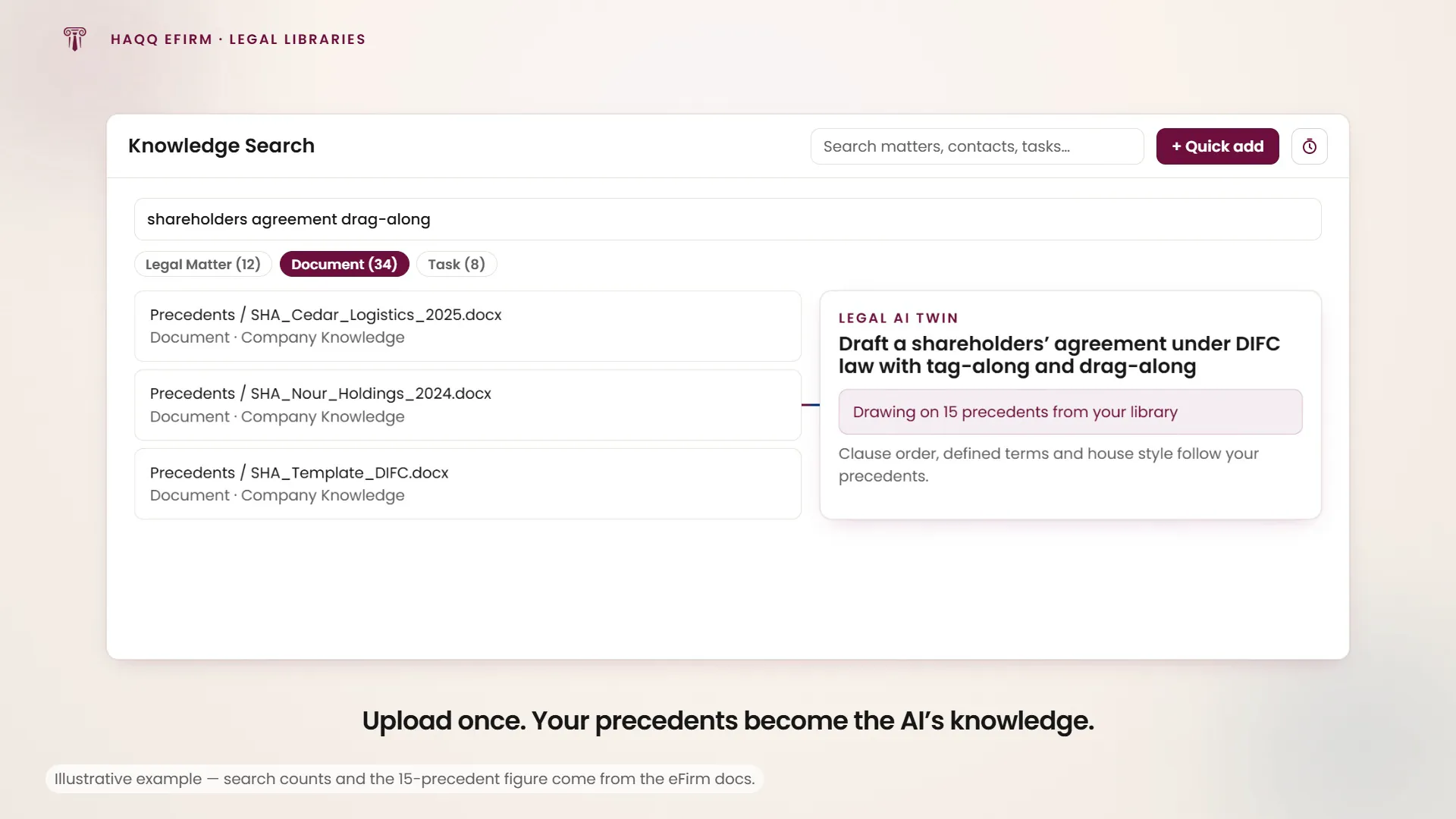
| Filter | Description | Example |
|---|---|---|
| Legal Matter | Search across all matters in your workspace | Find every employment-related matter for a specific client |
| Document | Search uploaded files and AI-generated documents | Locate a specific NDA template or precedent agreement |
| Task | Search task descriptions and notes | Find tasks related to a filing deadline |
| Calendar Event | Search meeting notes and event descriptions | Locate notes from a client meeting last month |
| Contact | Search contact records and associated data | Find all documents associated with a specific counterparty |
Security and data isolation
Knowledge is strictly isolated by workspace. Documents uploaded in Workspace A are never accessible from Workspace B, even if the same user belongs to both. Personal Knowledge is private to each user and never shared, even within the same workspace. See Data Architecture.
Your knowledge base is never used to train models. All data stays within your workspace's isolated environment. Justinian references your knowledge at query time only. Nothing is retained outside your workspace boundaries.
Where to go next
See where files physically live in Documents, what the index feeds in AI Drafting, or how a matter accumulates knowledge in Legal Matters.