

Calendar
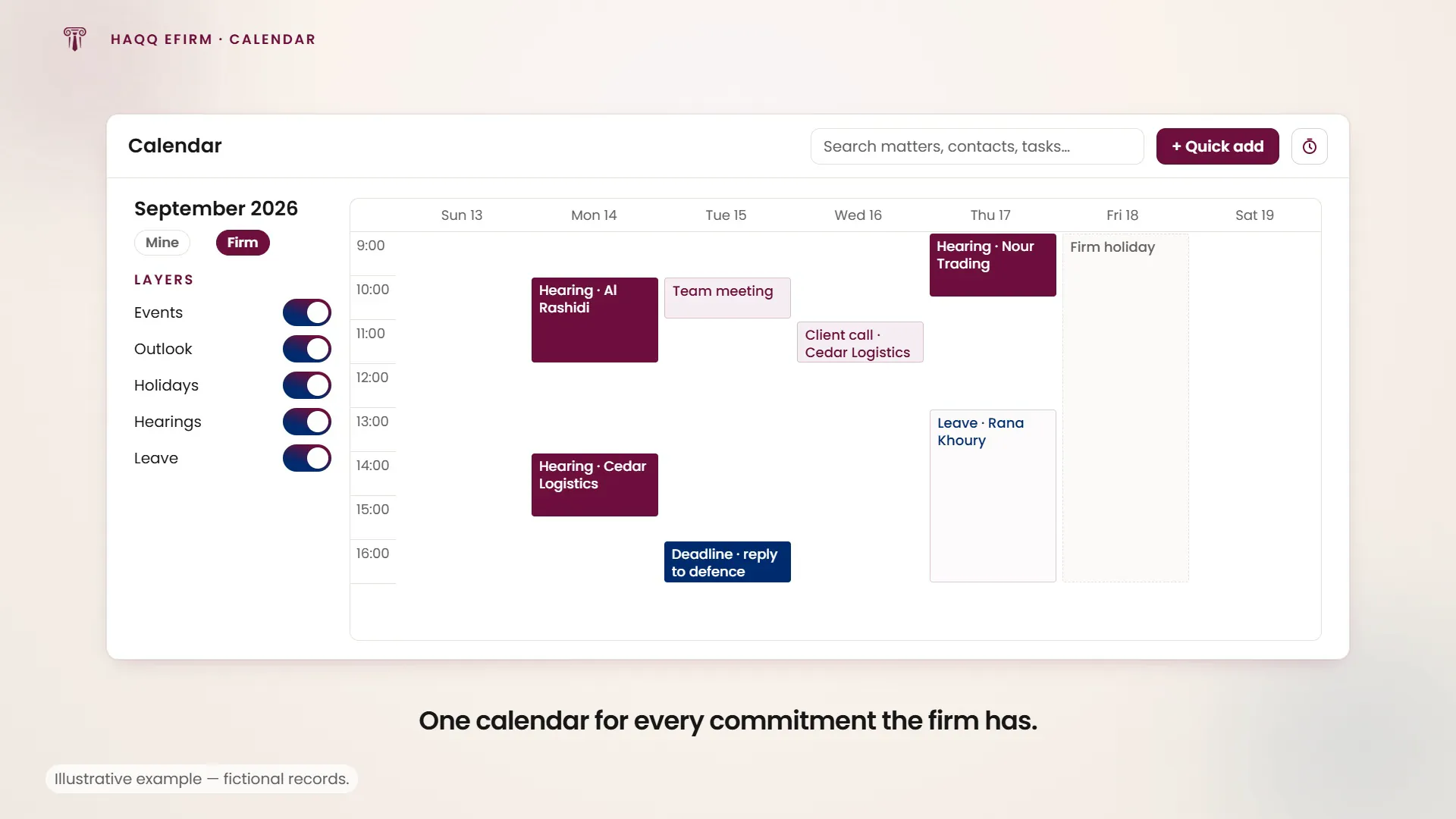
One calendar for everything the firm is committed to: meetings, hearings, task deadlines, client calls and court dates.
Unified calendar
Calendar in the left sidebar. Rather than a separate diary per module, the Calendar is a single view of every commitment in the firm. Colour separates the kind of commitment, so a court date does not read like a team meeting.
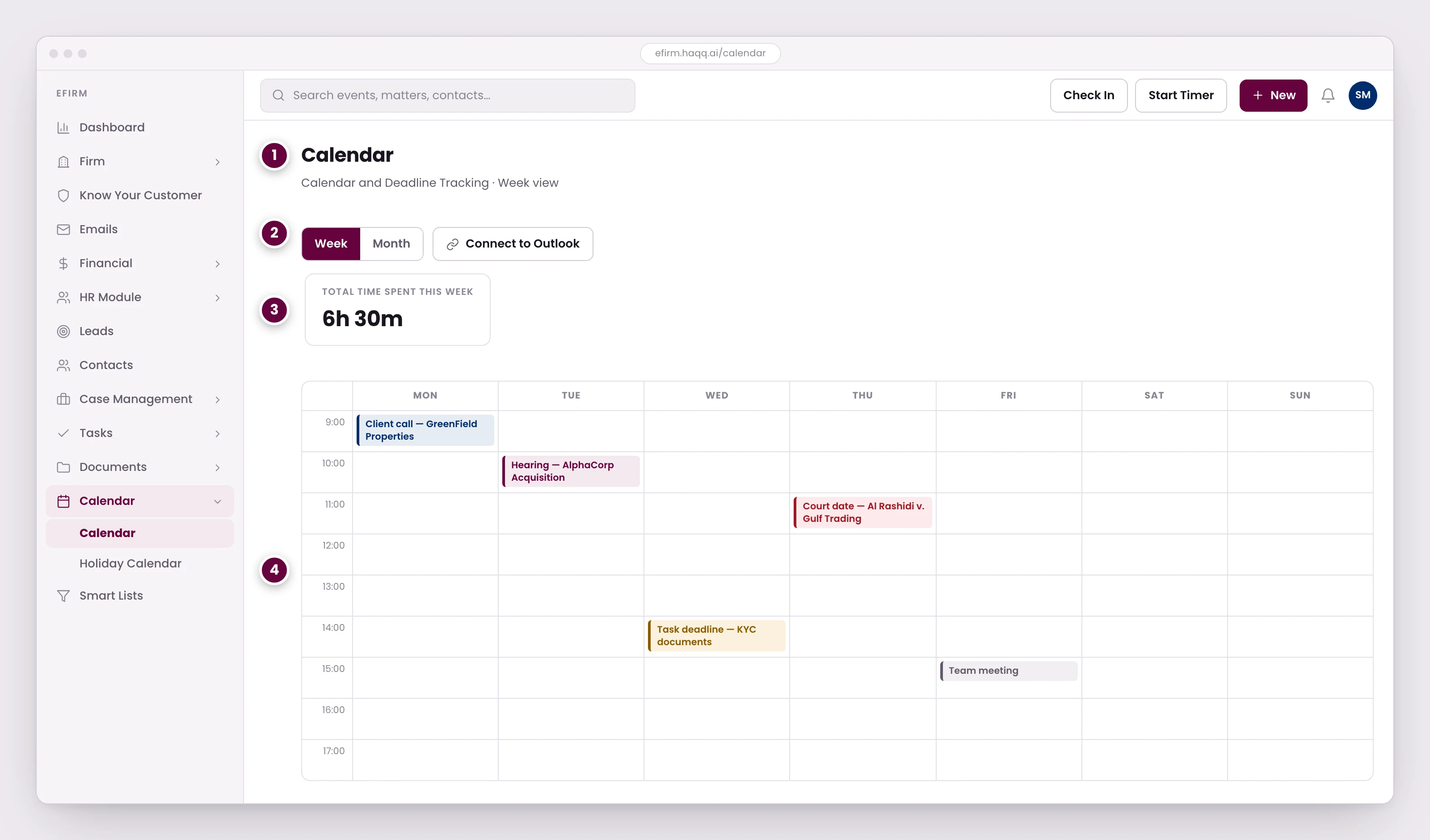
- One calendar for everything the firm is committed to: meetings, hearings, task deadlines, and court dates.
- Week or month, plus a two-way Outlook connection. Each member connects their own Microsoft account, and events created in either place appear in both.
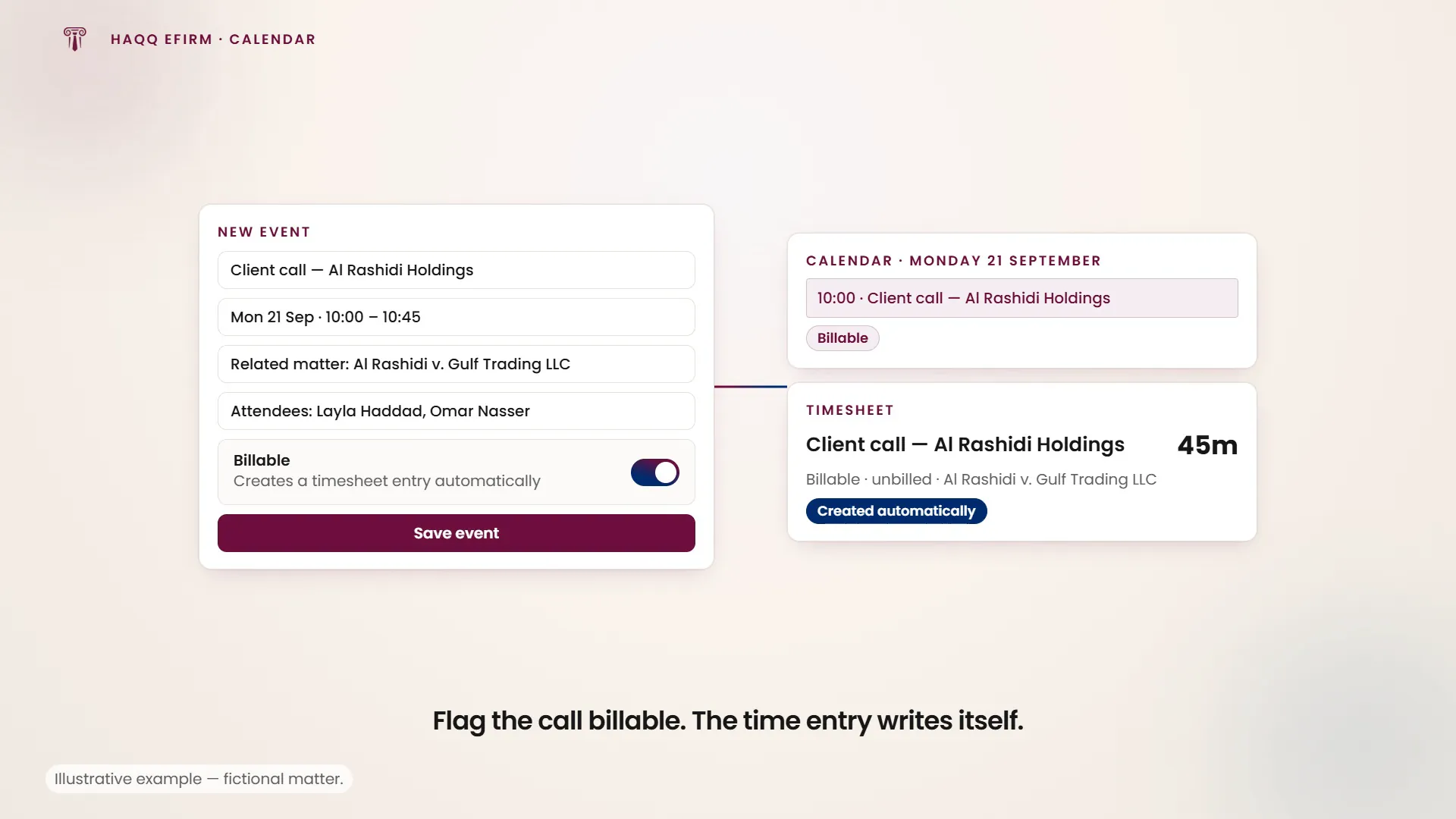
- Events flagged billable generate a timesheet entry on their own. Scheduled client calls stop being unbilled time.
- Colour separates the kind of commitment, so a court date does not read like a team meeting. Firm holidays sit on the same grid, and leave balances respect them.
| View | Description |
|---|---|
| Week (default) | Hourly time slots with all events. A "Total time spent" counter tallies logged time for the day. |
| Day | Focused single-day view with detailed time slots. |
| Month | Full month overview for long-range planning. |
Creating events
Click "+", or any time slot, to create an event.
| Field | Description |
|---|---|
| Title | Name of the event. |
| Description | Details and agenda. |
| Location | Physical or virtual location. |
| Start / End Time | Date and time range. |
| Attendees | Team members from your workspace. |
| Related Matter | Links the event to a specific matter. |
| Reminders | Notification timing, such as 15 minutes before, one day before, and so on. |
| Recurrence | Repeat options: daily, weekly, monthly. |
| Billable Flag | When set, automatically generates a timesheet entry. |
What lands here without being typed
Most of what fills a firm calendar is not created in the Calendar. A hearing created in the Hearings module appears here on its own, with automatic reminders whose notification days are configurable, and shows in the calendar of the team that has to appear. A task carrying a Reminder date surfaces here at that date. Firm holidays sit on the same grid. The week view totals the day's logged time in a "Total time spent" counter, which is the quickest check that the day's work actually reached a timesheet.
Outlook two-way sync
Bidirectional sync with Microsoft Outlook: events created in HAQQ appear in Outlook and vice versa, and changes sync automatically in both directions. Each team member connects their own Microsoft account from User Settings → Microsoft Integration, independently of the firm-level connection an administrator makes. The workspace-level side of the integration is described on Legal Market.
Calendar permissions
| Mode | Who sees what |
|---|---|
| Restrictive | Most users see only their own events. Partners and admins see everyone's calendars. |
| Permissive | All users can view all calendars across the firm. |
Holiday calendar
Calendar → Holiday Calendar. Administrators configure the firm's holidays (public holidays and firm-specific closures) and they appear as all-day events on the same grid as everything else. The HR module's leave management respects these holidays when calculating leave balances, so a closure is not deducted twice.
Where to go next
Court dates originate in Hearings, deadlines in Tasks, and the workspace settings behind the permission modes are on Settings and Customizations.