

Emails
Your Outlook mailbox lives inside eFirm, so client correspondence is read, searched and answered without leaving the platform.
Email and internal messaging
Two separate things share this part of eFirm. Email is a full mailbox: your own Microsoft account's folders, conversations, drafts and attachments, read and answered without leaving the platform. Internal messaging is the Messaging panel behind the chat icon in the top bar, for direct messages and group conversations between team members. They are deliberately not the same channel.
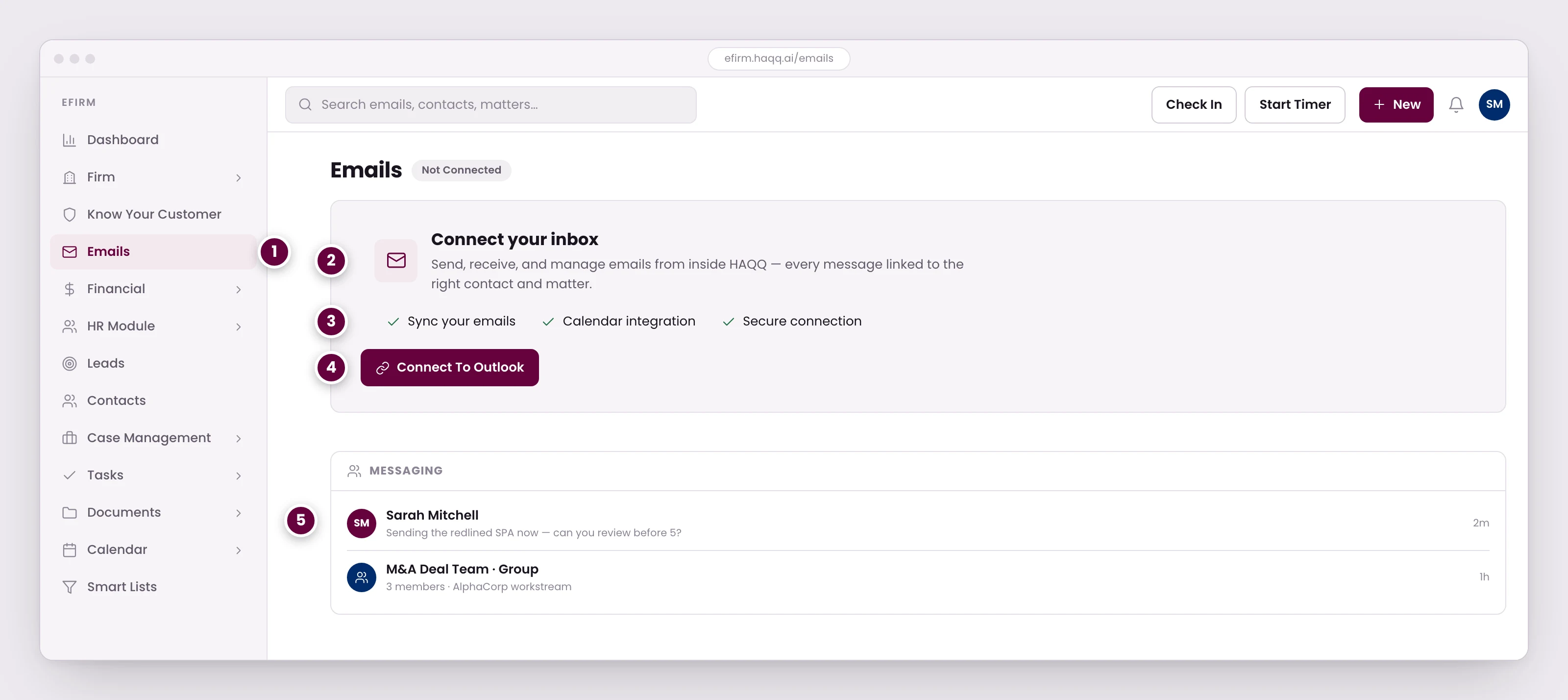
- Email sits inside the practice-management system so client correspondence attaches to the matter instead of living in one person's inbox.
- Until an inbox is connected, this is what the module shows. Connecting is done per person, not once for the firm.
- Mail and calendar come across on the same authorization, over a connection the firm controls.
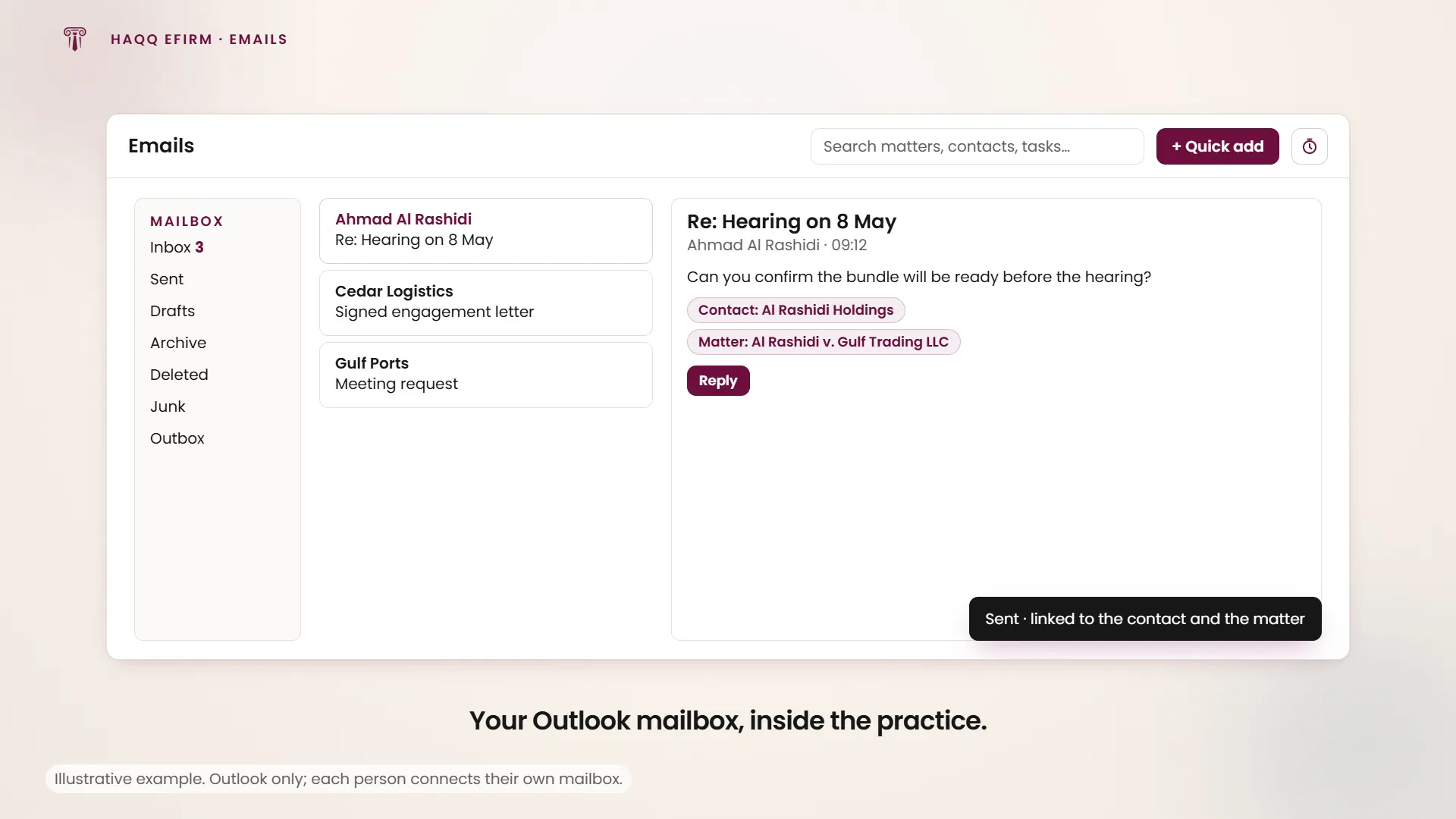
- Once connected, messages send and receive from here and link themselves to the right contact and matter.
- Internal messaging is deliberately separate from email. Quick questions go here; anything that needs a record goes to the matter as email, a note, or a task comment.
Connecting a mailbox
Microsoft only. The mailbox is Outlook-backed, and the one control on the connect screen is Connect Outlook, which sends you through Microsoft's consent flow and returns you to the mailbox afterwards. Google Workspace and plain IMAP are not supported today.
Until an account is connected, the connect screen replaces the module. There is no partial mailbox to look at, just the prompt. Connecting is done per person, not once for the firm: an administrator granting the firm-wide Microsoft consent does not connect anybody's mailbox for them, and each member has to connect their own.
More than one Microsoft account can be connected. An account picker appears in the folder pane only when there is something to pick between; switching mailbox resets the selected folder and closes any composer you had open, so save a draft before you switch.
The Microsoft tab in Settings is where this is managed. It carries three integration cards (SharePoint for files, Outlook for email, and Calendar), each showing whether consent has been granted and which accounts are connected, with a Connect account action for you and a separate company-wide consent that only a workspace administrator can grant. Removing a connected account deletes it from that card.
What happens once connected
The mailbox is the full one, not a summary. The folder pane lists your system folders (Inbox, Sent, Drafts, Archive, Deleted, Junk, Outbox) in a fixed order, then your own folders alphabetically, each with an unread count and expandable sub-folders. Inbox opens by default.
Search covers the whole mailbox, not the folder you are in. Start a search and the folder selection is ignored until you clear it, which is the right behaviour when you are looking for one message from a client eighteen months ago and cannot remember where you filed it. An unread-only toggle sits beside it.
A conversation offers Reply, Reply all and Forward, plus mark read or unread, Move, Archive and Delete, from the reading pane or from a right-click on the row. Opening a conversation marks it read, unless you had just deliberately marked it unread, in which case that choice stands. Archive, Move and the read toggles apply immediately and the row updates as you click; deleting asks first. Colleagues' names and avatars are resolved against the firm when the address matches a member, so an internal thread reads as people rather than addresses.
The composer opens for a new message, a reply, a forward or a draft you are picking back up, and prefills accordingly: recipients, a Re: or Fwd: subject that does not double up, and your signature (the default one on new messages, the reply-and-forward one on replies). Addresses type-ahead against colleagues and contacts. It is a rich-text editor with the usual formatting, links, lists and text direction, and attachments can be dragged onto it. Save draft keeps it; Send needs a subject, a body and at least one recipient, except on a reply, which already has its thread.
Internal messaging
The Messaging panel supports direct messages between team members and group conversations, with file attachments. Create groups for deal teams, practice groups or office-wide channels. When a deal closes the group can be left in place as a historical record of the team's communications rather than deleted.
A chat can be linked to the work it is about. A solo or group chat can be linked directly to a matter or to a task, the same way email is. Once linked, the thread shows up inside that matter or task, not only in the Messaging panel, so a colleague opening the file finds the conversation on it rather than having to ask who said what. An unlinked chat stays a quick, informal channel; linking it is what turns it into part of the file.
Which channel for which message
| The message | Where it goes | Why |
|---|---|---|
| A quick internal question | Messaging, unlinked | Fast, and does not need to sit on the file |
| An ongoing discussion about one matter or task | Messaging, linked to that matter or task | The thread stays with the work and shows up on the matter or task itself |
| External client communication | It is correspondence with someone outside the firm, and it belongs in the mailbox rather than in an internal thread | |
| A status update that needs a record | Matter notes | It should survive on the matter, not in a thread |
| Task-specific instructions | Task comments | It belongs to the work item somebody is doing |
| A document for review | Matter → Files tab | Version-controlled, linked to the matter, and indexed by the AI |
Where to go next
The people a thread is with live in Contacts, the engagement it concerns is in Legal Matters, and where a shared file should live instead in Documents.