

AI Settings
HAQQ gives you control over how the AI works for you, and over how the platform feels to use.
AI behaviour is configured per person, in the AI & Chat tab of settings, alongside billing, usage and team settings. Two lawyers in the same firm can run completely different setups, and changing yours affects nobody else.
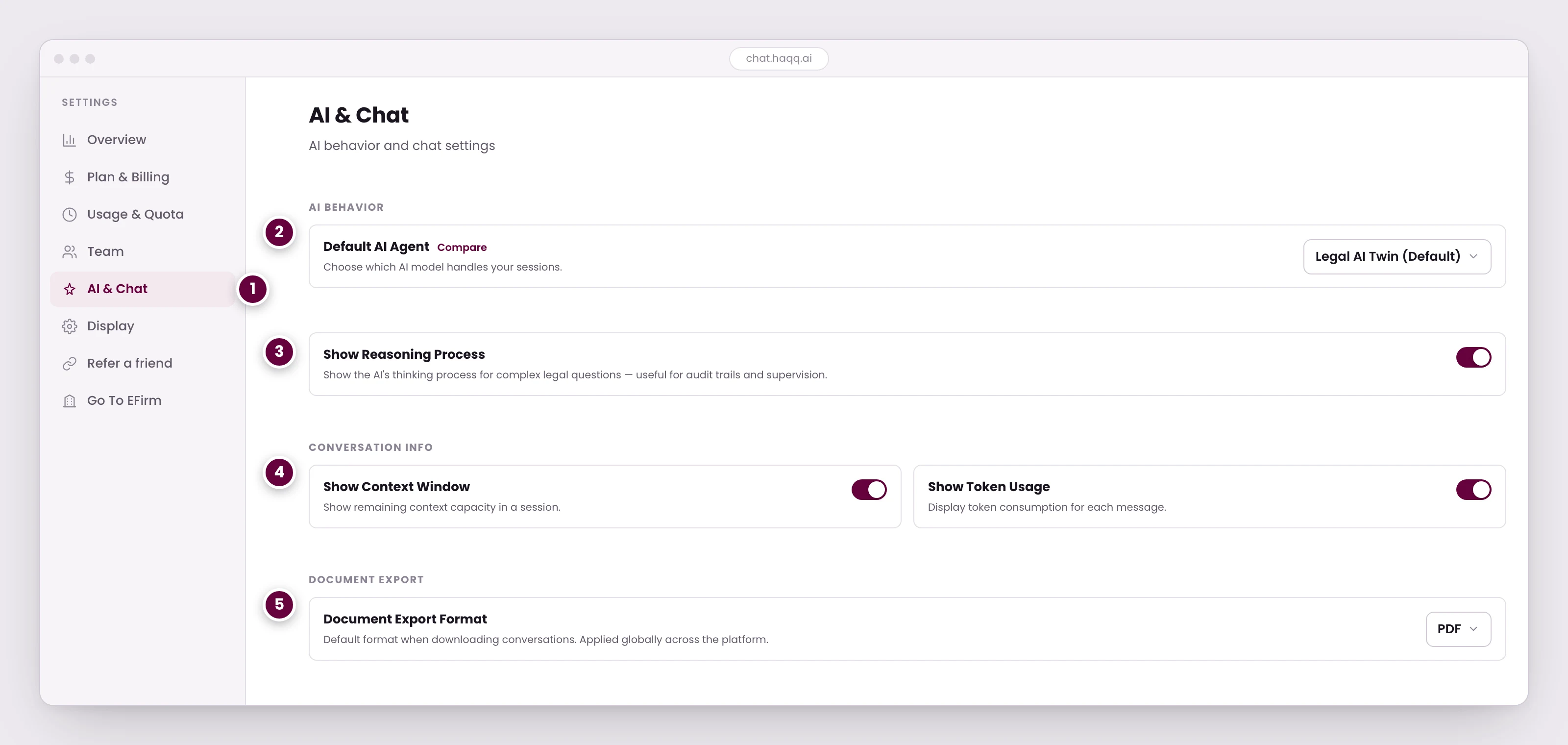
- AI behaviour is configured per person, alongside billing, usage, and team settings. Each lawyer can set it up to match their own workflow.
- The agent that handles your sessions by default. Compare shows what each one can reach before you commit to it.
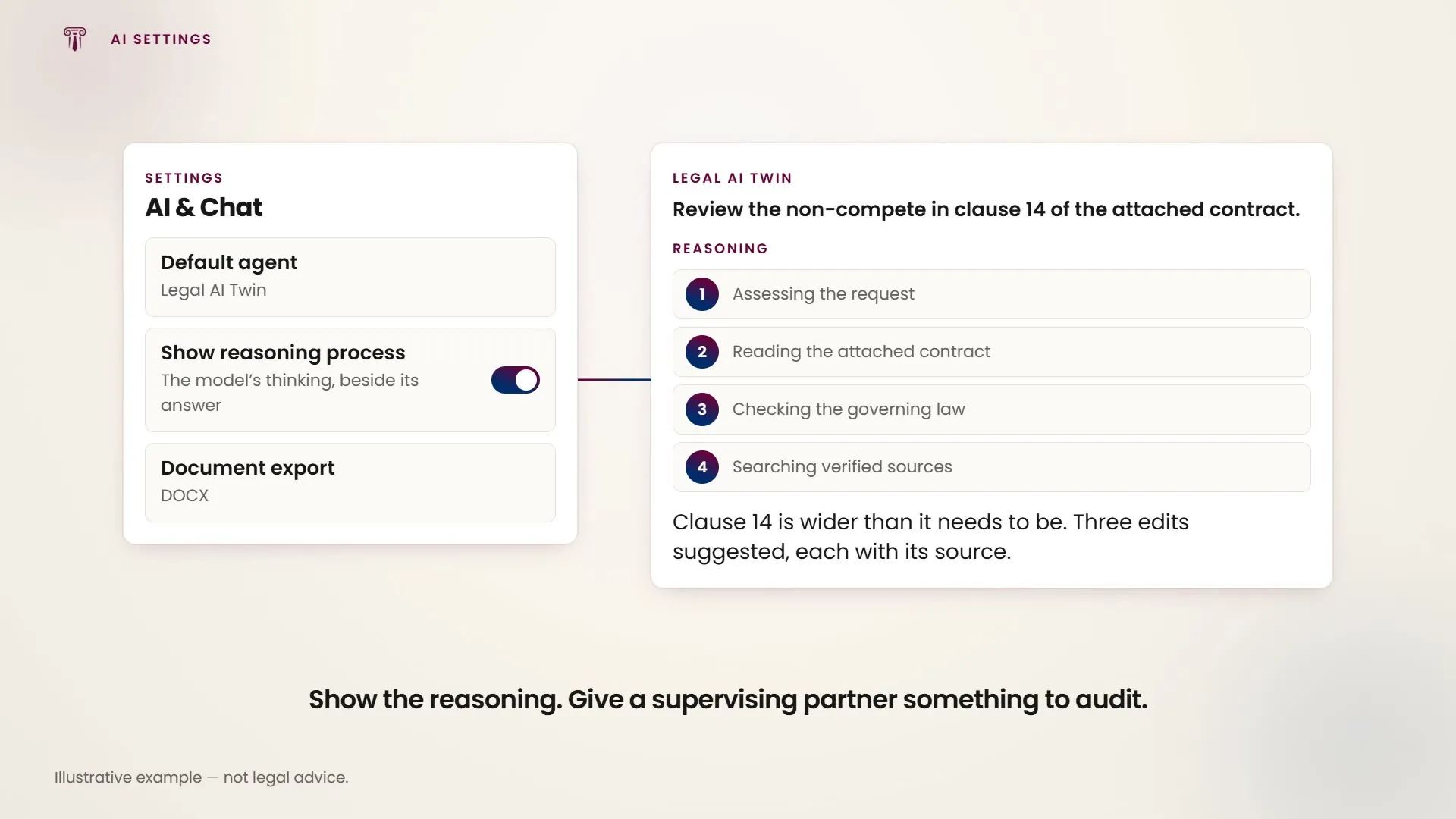
- Showing the reasoning turns an answer into something a supervising partner can audit. Worth leaving on wherever work is delegated.
- How much context capacity a session has left, and what each message consumed, so a long matter conversation does not run out mid-answer.
- The format conversations and generated documents download in. Set once, applied everywhere in the platform.
Default agent
Choose which agent handles your sessions by default. A Compare view shows what each one can reach before you commit to it, and the picker also sits in the chat composer, so the agent can still be changed for a single conversation without touching settings.
- The Paralegal agent is trained for paralegal tasks: basic research, document summarisation, timeline creation, simple drafting. It is the most credit-efficient agent, and available on every plan including Free.
- Associate. The mid-level assistant, for review, research, drafting and analysis.
- The Partner agent handles senior strategy.
- Legal AI Twin: a personalised assistant that learns your own patterns, and the level to pick for a thorough document review.
Those four are the agents you choose between. Others exist behind the scenes (naming a conversation, drafting a document) and never appear in the picker.
Agents your plan does not include are still listed. They appear dimmed and locked, without the model line the others carry, and cannot be selected: choosing one takes you to the upgrade path rather than switching agents. So the picker is a complete catalogue of what exists, not a list of what you can use.
The Twin is an agent you select, and that is the only place it appears as something you configure. There is no separate screen for defining a firm voice or house style among the settings in the product today.
What each agent can read in a given session is set by the Contexts control in the composer, not here. See the Legal AI overview. Which agents your plan includes is on Subscription plans.
Reasoning process
This one is a display preference, not a capability. Turning Show reasoning process on shows the model's thinking alongside its answer; turning it off hides those blocks entirely. It changes what you see, not what the model does, and it is not gated. Every plan has it.
Showing the reasoning turns an answer into something a supervising partner can audit, which is why it is worth leaving on wherever work is delegated. It is a personal preference, it saves the moment you change it with no separate confirm step, and the mobile app carries the same switch, on by default.
Conversation info
Display context-window usage and token consumption per message, so you always know how much capacity a session has left and what each message consumed. On a long matter conversation this is the difference between finishing an analysis and running out mid-answer.
They are two switches, and the second depends on the first: token usage cannot be turned on while the context-window display is off. Both are web-only. The mobile app shows no per-message context or token gauge.
Credits are a separate meter from the context window; how they are consumed and how they reset is covered in Credits and usage.
Document export format
Set your default export format for downloading conversations and AI-generated documents. It is set once and applied everywhere in the platform. Which formats are available depends on your plan:
| Plan | Formats |
|---|---|
| Free | PDF only, with HAQQ branding on generated documents |
| Starter | Text and PDF; the watermark is removed |
| Pro and above | Text, Word (.docx) and PDF with firm letterhead applied from your templates |
Exporting a redlined document from the Canvas editor is covered in AI Document Review.
Theme and display
Switch between light and dark mode, adjust message layout density, and set your preferred text readability size. All three are changeable at any time from the settings panel.
Every control on the tab
| Setting | What it does |
|---|---|
| Default Agent | Choose which agent handles your sessions. |
| Show Reasoning Process | Show or hide the model's thinking in its answers. A display preference. |
| Conversation Info | Context window and token usage visibility. Token usage requires the context window display to be on. |
| Document Export | Default format: PDF, DOCX or Markdown. |
| Theme | Light, dark, or system-matched at any time. |
| Text Readability | Adjust message layout and font size. |