

Settings and Customizations
Firm Settings is where HAQQ stops being generic. Every dropdown, every form, the sidebar layout and the workspace-wide defaults are set here, and almost everything else in eFirm reads from them.
Every settings tab
eFirm Settings opens as a full-screen panel with twelve tabs down the side. This page covers the ones a firm touches while setting up; the table is the whole set, so nothing here is a surprise later.
| Tab | What it controls |
|---|---|
| Side menu | Which sections appear in the left navigation, their order, and folders to group them. Includes an auto-organize option and a reset. |
| General Information | The firm's own record - name, identity, the details every matter inherits. |
| Global Configurations | Firm-wide defaults: working hours, currency, timezone, matter numbering. |
| Storage Categories | The categories documents are filed under. |
| Announcements | Firm-wide notices shown on the Home dashboard. |
| Members | The people in the workspace, and their invitations. |
| Teams | Groups of members, used for assignment and visibility. |
| Roles and Permissions | What each role can see and do, item-level and role-level. |
| KPI & Targets | Targets assigned against people or sections, which the dashboard reports on. |
| Section Builder | Custom fields and layout for a section's records - how a matter, contact or task is shaped. |
| Stages | The pipeline stages a record moves through. |
| Contact Forms | Intake form templates for contacts. |
Global Configurations
Firm › Settings › Global Configurations. This is the foundation that feeds into form templates and is referenced everywhere else. Configure it first. A practice area added here appears on every matter form from then on, and a form template built before its options exist has nothing to offer.
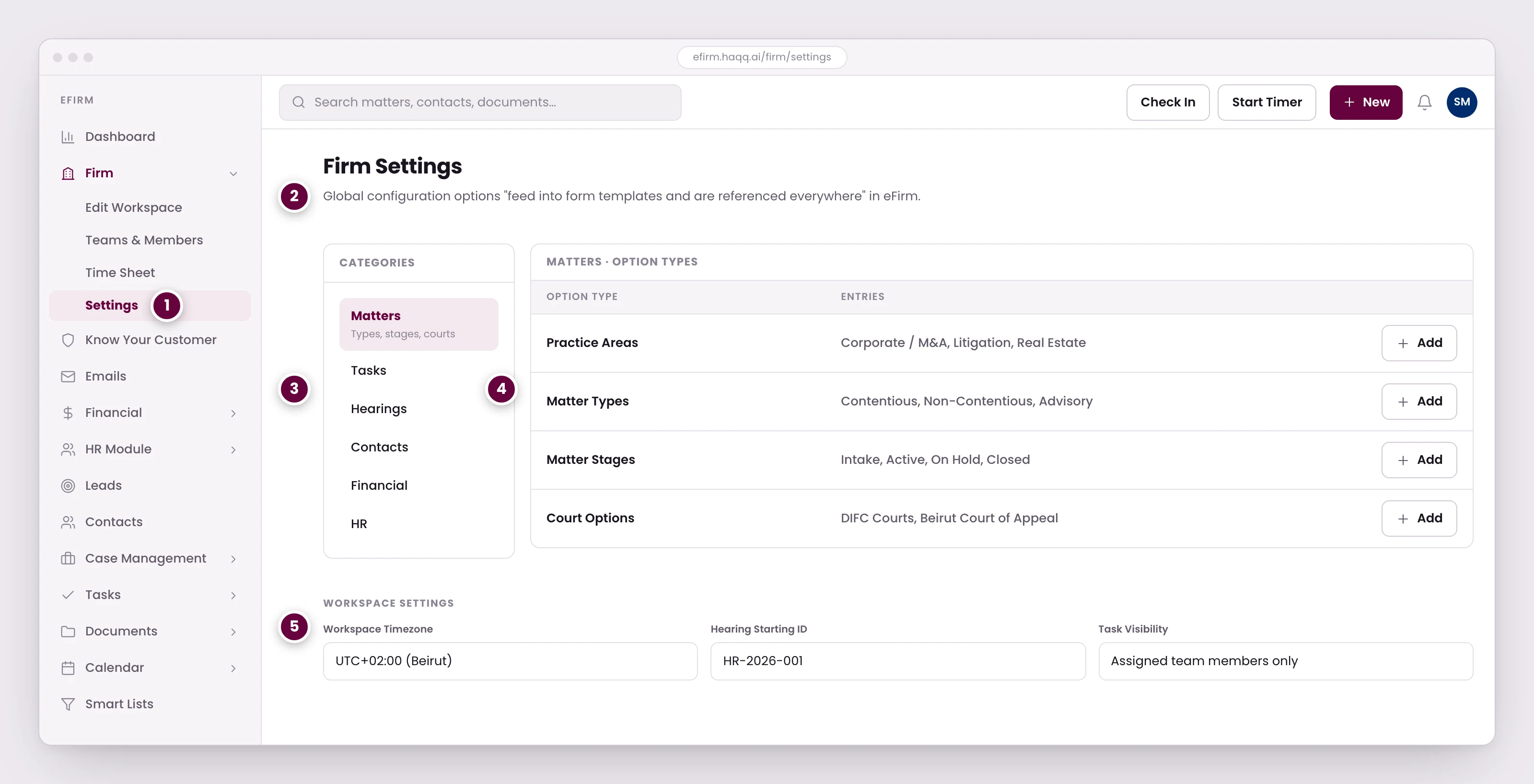
- Firm Settings sits under everything else in eFirm. Configure it before building form templates, not after.
- These options feed the dropdowns across the whole product. A practice area added here appears on every matter form from then on.
- Categories mirror the modules. Each one holds the option types that module's forms draw from.
- Practice areas, matter types, stages, and courts, all defined by the firm. An entry can only be deleted while nothing is using it.
- Workspace-level settings the whole firm inherits: the timezone every date is displayed in, the number hearings start from, and who can see a task.
The categories mirror the modules. Each holds the option types that module's forms draw from:
| Category | Options you configure |
|---|---|
| Matters | Practice areas, matter types, matter stages, court options |
| Tasks | Task types, task stages |
| Hearings | Hearing types, courts and tribunals, hearing results |
| Contacts | Contact types, industries, relationship types |
| Financial | Currencies, tax rates, payment methods, expense categories |
| HR | Leave types, training categories, department options |
Sections & Templates
eFirm Settings › Sections & Templates. The form builder has three panels: available fields to drag on the left, the active layout in the centre, and a live preview on the right that updates as you work. Forms for Matters, Tasks, Hearings and KYC are all built this way, so an intake form can ask exactly what your practice needs and nothing it does not.
| Field type | Description |
|---|---|
| Section Title | Visual separator with a heading. |
| Description | Static instructional text. |
| Text | Single-line text input. |
| Number | Numeric input. |
| Text Area | Multi-line text input. |
| Checkbox | Yes/No toggle. |
| Date | Date picker. |
| Country | Country dropdown. |
| Phone | Phone number with country code. |
| Email input with validation. | |
| File Attachment | File upload field. |
| Dropdown | Linked to Global Configurations options. |
The last row is the one that matters most. A dropdown does not carry its own list. It points at Global Configurations. That is why the order in this page runs configurations first, templates second.
Workspace Settings
Firm › Edit Workspace. Workspace-level settings are inherited by the whole firm: the timezone every date is displayed in, the currency every amount is quoted in, the number hearings start counting from, and who can see a task.
| Field | Required | Description |
|---|---|---|
| Workspace Name | Yes | Display name shown in the workspace switcher. |
| Firm Name | Yes | Legal entity name for invoices and documents. |
| Default Currency | Yes | Base currency for all financial transactions. |
| Default Tax Rate | No | Default tax rate (%). Can be overridden per transaction. |
| Workspace Timezone | No | Controls all date and time displays across the platform. |
| Hearing Starting ID | Yes | Starting number for auto-generated hearing IDs. |
| Calendar View Permission | No | Restrictive (role-based) or Permissive (all users see all calendars). |
| Task View Permission | No | Controls who can see all tasks versus only their own. |
Two visibility settings live here, not in Roles & Permissions. Calendar View Permission and Task View Permission are workspace-wide and override the intuition that all visibility is role-based. If a role is correctly restricted and a calendar is still visible to everyone, check this screen before re-editing the role. The role-level model is in Setup Roles & Permissions.
Interface Preferences
Drag and drop sidebar sections between Visible Pages, View More and Hidden Pages, then reorder them to match the firm's priorities. Litigation firms surface Hearings; transactional firms put Documents and Contacts first. Hiding a page is a navigation choice, not an access control. What a role may reach is set in Roles & Permissions.
Recommended setup order
Each step depends on the one before it. Going out of order is the most common reason a new workspace has to be partly redone:
- Global Configurations: the dropdown options that feed form templates and are referenced everywhere.
- Sections & Templates customise the forms for Matters, Tasks, Hearings and KYC with the drag-and-drop builder.
- Roles & Permissions. It defines who can reach what across the platform.
- Workspace Settings (currency, timezone, tax rate, visibility permissions).
- Financial Settings (currencies, billing profile, invoice and receipt templates). See Financial.
- Microsoft 365 integration: connect once everything else is in place.
- Holiday calendar. Enter the current year's holidays. See Calendar.
Configured in that order, a firm gets an eFirm that matches how it already works rather than one it has to work around.