

KYC
KYC is a legal requirement for law firms in most jurisdictions, which is why it is a module rather than a checklist somebody keeps privately.
KYC compliance for law firms
Know Your Customer in the left sidebar. The module provides structured compliance forms that can be customised per jurisdiction and completed directly within client profiles. Every record ties to a contact, and its status is visible before work starts. An engagement opened against a record that was never submitted is the exposure this screen exists to prevent.
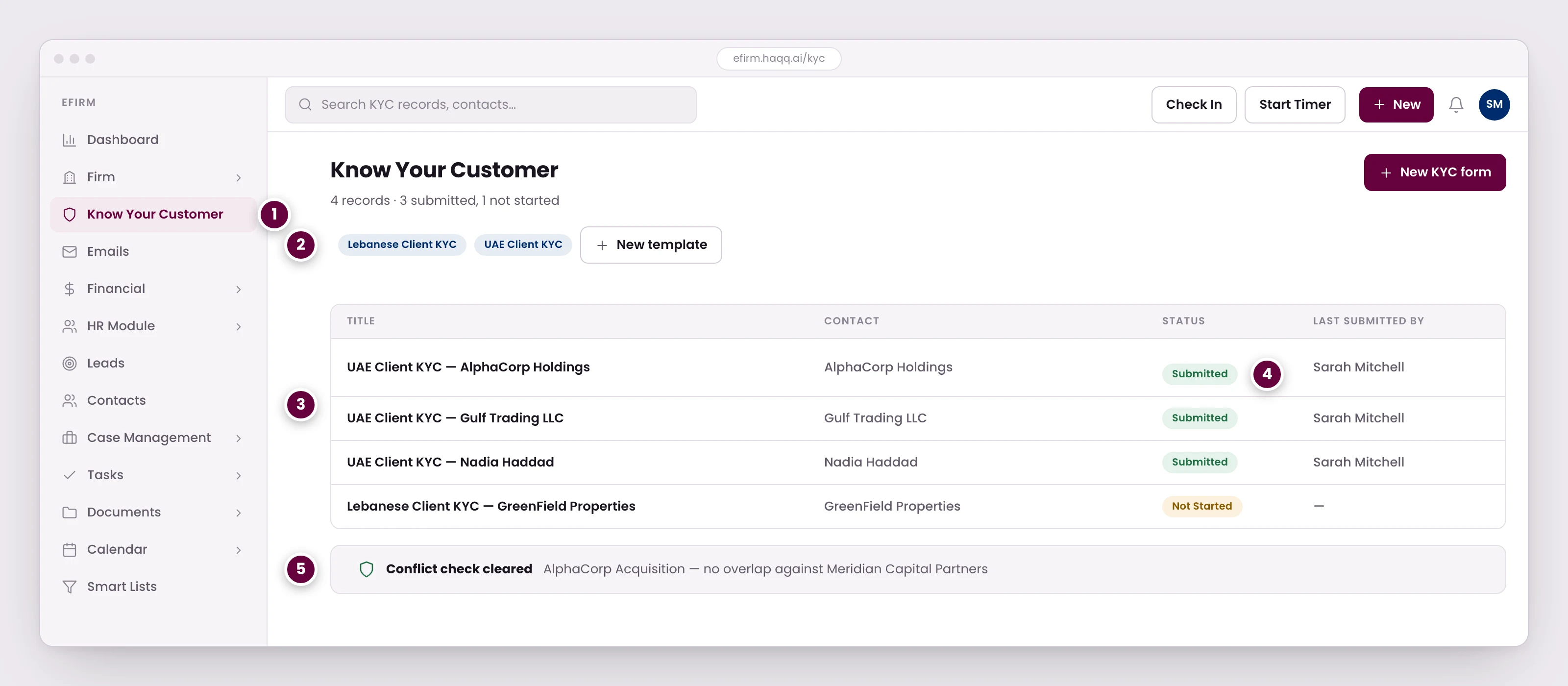
- KYC is a legal requirement for law firms in most jurisdictions, which is why it is a module rather than a checklist someone keeps privately.
- Templates are per jurisdiction, because the questions a regulator expects in Beirut are not the ones expected in the UAE. Firms build their own with the same form builder used elsewhere.
- Every record ties to a contact. The recommended route is opening the KYC tab from inside the client, so all their information stays in one place.
- Status is visible before work starts. An engagement opened against a record that was never submitted is the exposure this screen exists to prevent.
- The conflict check runs against the firm's existing contacts and matters, and its result is recorded rather than remembered.
| Section | Fields |
|---|---|
| Client Identification | Full legal name, date of birth or incorporation, nationality, government-issued ID, tax ID |
| Beneficial Ownership | UBO names, ownership percentages, identification documents |
| Source of Funds | Primary income sources, supporting documentation, PEP (politically exposed person) status |
| Risk Assessment | Client risk rating (Low / Medium / High), sanction screening result, enhanced due diligence flag |
| Compliance Sign-Off | Compliance officer name, review date, approval status |
Configuring KYC templates
eFirm Settings → Sections & Templates → KYC Templates. Each KYC template uses the same drag-and-drop form builder as every other template, with the full set of field types. Templates are per jurisdiction, because the questions a regulator expects in Beirut are not the ones expected in the UAE, and firms build their own with the same builder. The field types available are listed on Settings and Customizations.
| Jurisdiction | Worth checking your fields against |
|---|---|
| Lebanon | AML Law No. 44/2015, Circular 83 (BDL) |
| UAE | Federal Decree-Law No. 20/2018, Cabinet Decision No. 10/2019 |
A KYC template can carry checkboxes, date pickers, file attachments and free-text fields: a yes/no question, a birthday or an incorporation date, an ID or a certificate to upload, and a longer answer that needs more than a tick. These sit in the same drag-and-drop builder as the rest of the field types documented on Settings and Customizations.
Requesting a document, and the four statuses
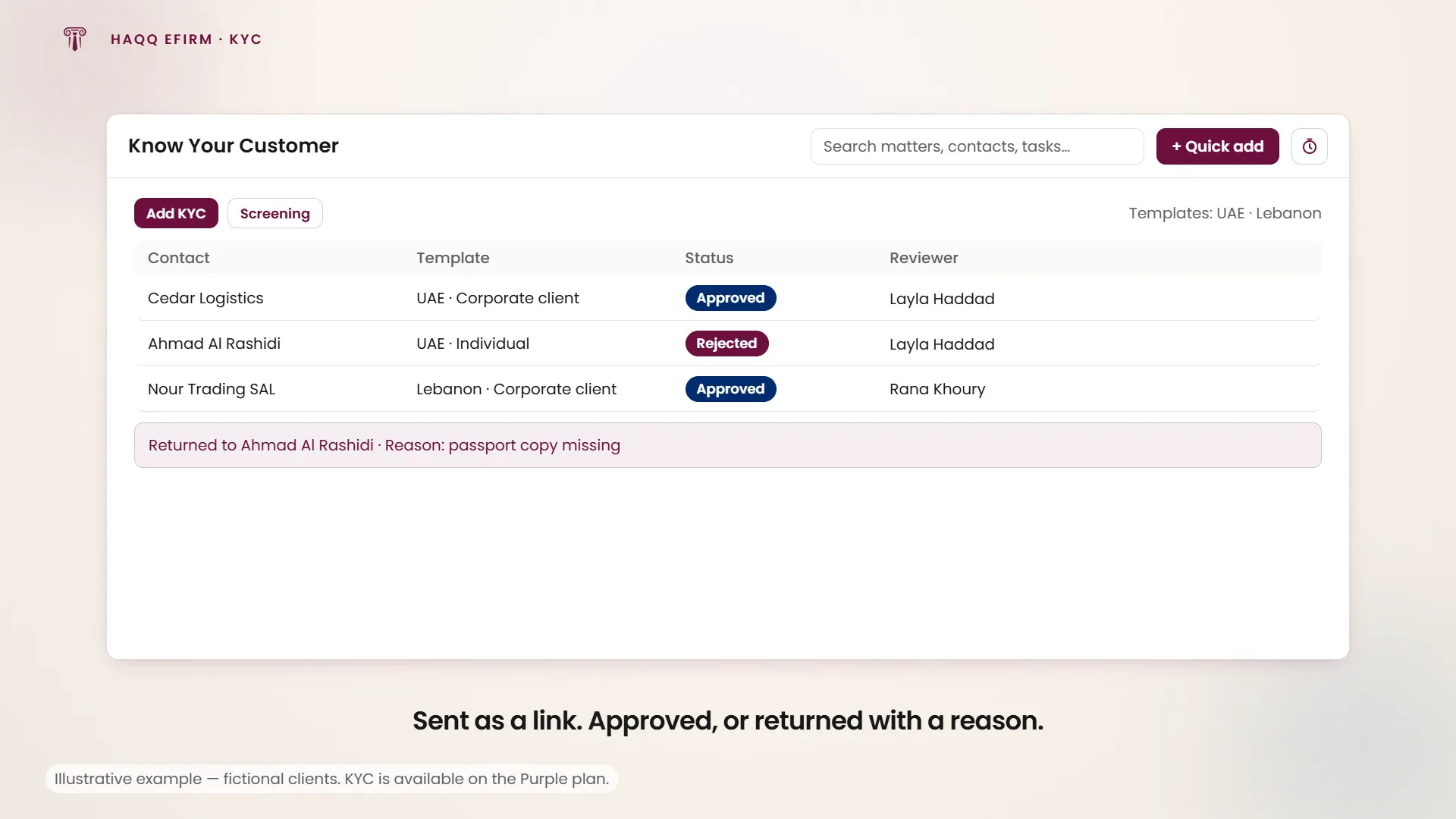
Add KYC opens a two-step request: pick the document template, then pick the contact it goes to. Nothing is filled in at this point. The request is created empty and the contact supplies the values later, through a link. Copy link copies that link to the clipboard so you can send it however you normally reach the client.
A KYC record then moves through four states: Not started until the contact fills it in, Submitted once they have, Approved once the firm accepts it, and Rejected if the firm sends it back. The dashboard shows the reviewer who actioned each one, so the record says who accepted it, not just that it was.
Approve and Reject appear on submitted rows, and only for members allowed to review. Approving applies straight away; rejecting opens a dialog for the reason. A firm rejects a submission when required information or a document is missing (an ID left unattached, a field left blank) rather than accepting an incomplete record and chasing the gap later.
Where KYC forms live
KYC forms are reachable from two places, and they are not equivalent.
| Location | How to access | Best for |
|---|---|---|
| Standalone | Know Your Customer in the left sidebar | A dedicated KYC management view, and bulk reviews |
| Within a contact | Open any contact → its KYC tab, with Screening beside it | Recommended: keeps all client information in one place |
Screening
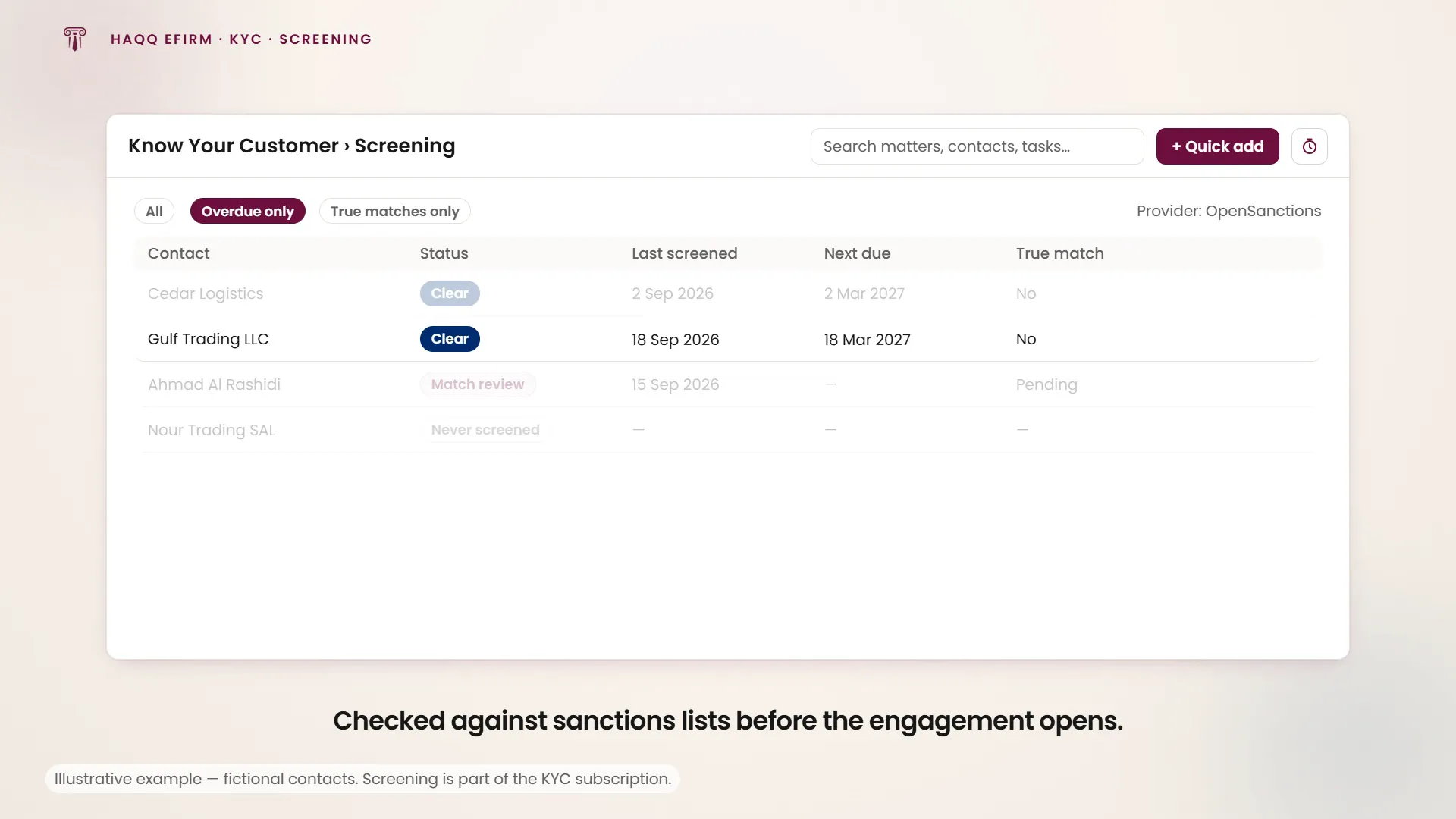
Screening is the second half of the module, and it looks outward rather than inward. It checks a contact against OpenSanctions, a public sanctions and watchlist database, and the only provider the product supports. Start it from the contact, or open the firm-wide area from the Screening button in the KYC header.
The compliance dashboard is a firm-wide report, one row per contact: the contact, its screening status, when it was last screened, which version of the provider's data that run used, when it is next due, and whether a true match was found. Statuses are Never screened, Match review, Overdue, True match and Clear. Overdue rows highlight their due date, and the view filters by status, by overdue only, and by true matches only, which is the short list a compliance officer actually works through.
Two further tabs are administrators only. Settings holds the provider connection and the dataset being screened against; the provider itself is fixed and cannot be swapped. Strips holds the firm's adverse-media searches, each with a name, a code, its keywords, a language and an active switch, which administrators add, edit and delete. Some strips ship as presets, marked with a lock, and cannot be changed. Everyone else sees the dashboard, and read-only versions of the other two if they reach them.
Screening is not a conflicts check
The two get conflated, and they are not the same question. Screening looks outward: is this person on a sanctions list or an adverse-media hit? A conflicts check looks inward: have we ever acted for, or against, this person before? This documentation describes the first and does not describe the second. If your firm runs conflicts checks, and most jurisdictions expect it to, confirm with your administrator where that happens before treating this module as covering it.
From lead to client
- Lead created. A new prospect enters the pipeline through a referral, inbound enquiry or networking.
- Pipeline progression. The lead moves through stages: New → Contacted → Qualified → Proposal.
- KYC compliance. Complete the KYC forms within the contact profile, with all required sections verified.
- Screening. Screen the contact against the sanctions and watchlist data and check its status is Clear before the engagement opens.
- Conversion. The lead converts to a Contact plus a Matter. All context, notes and pipeline value are preserved.
Like every module, KYC carries the four permissions (Read, Create, Update and Delete) granted per role in Roles & Permissions. Create gates the Add KYC button, Update is what makes somebody a reviewer, Approve and Reject belong to it, and Delete gates removing a document. The KYC tab on a contact is hidden from anyone who cannot read the module. Screening's administrator tabs are separate again: they follow firm-admin rights, not the KYC permissions.
Where to go next
Work the pipeline in Leads, attach the record to a person or company in Contacts, then open the engagement in Legal Matters.