

Overview
eFirm is the practice-management side of HAQQ. Everything a firm runs on, from intake to invoicing, sits in one connected workspace, with the Legal AI Twin one click away from every page of it.
What eFirm is
HAQQ has two halves. The Legal AI Twin answers questions, reviews documents and drafts; eFirm runs the practice around that work: who the client is, which matter it belongs to, what is due, which documents are filed against it, and what has been billed. They share one account and one workspace, so a matter opened in eFirm is a matter the AI can be pointed at.
The rest of this page walks the interface: the workspace you are in, the global tools in the top bar, the module rail down the left, and the two settings that make the layout your firm's rather than ours.
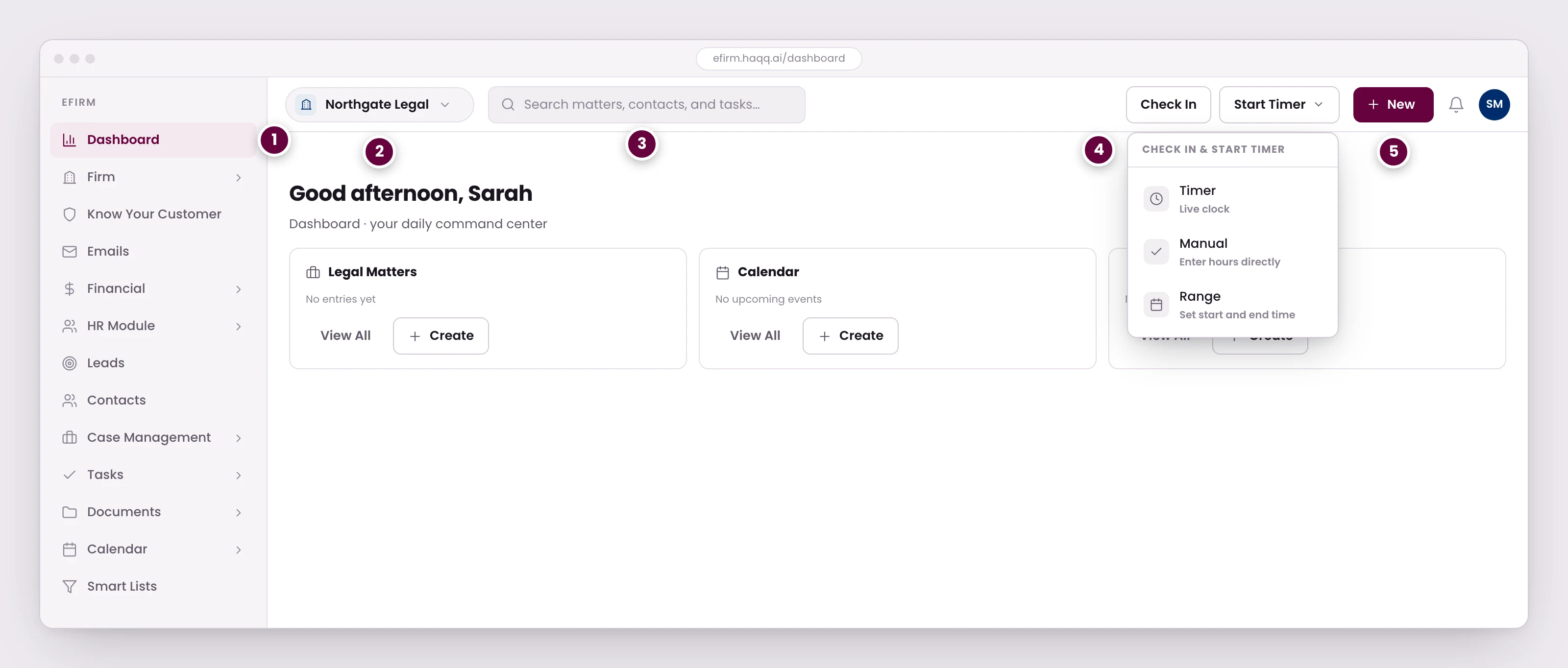
- Every module the firm runs on lives in this rail. Administrators reorder it or hide what the firm does not use, so a litigation practice and a transactional one navigate differently.
- The workspace you are working in. Firms with several offices or entities switch here, and the whole dataset changes with it.
- Search spans matters, contacts, and tasks at once, from any page in eFirm.
- Three ways to record time: a live clock, hours entered directly, or a start and end time. The point is that logging it takes seconds, so it actually gets logged.
- Create a record without leaving the page you are on.
Watch the eFirm walkthrough
Englishالعربية: Vídeo em breveThe workspace switcher
Top left tells you which workspace you are working in. Change Workspace moves you to another one and the entire dataset changes with it (matters, documents, billing and team). Firms that run several offices or entities use this constantly. Which multi-office model fits your firm is a real decision with two supported answers; see Multi-entity.
The top bar
Four controls sit in the top bar on every page, plus the AI Twin button. They exist so that the things a lawyer does twenty times a day never require navigating anywhere.
| Control | What it does |
|---|---|
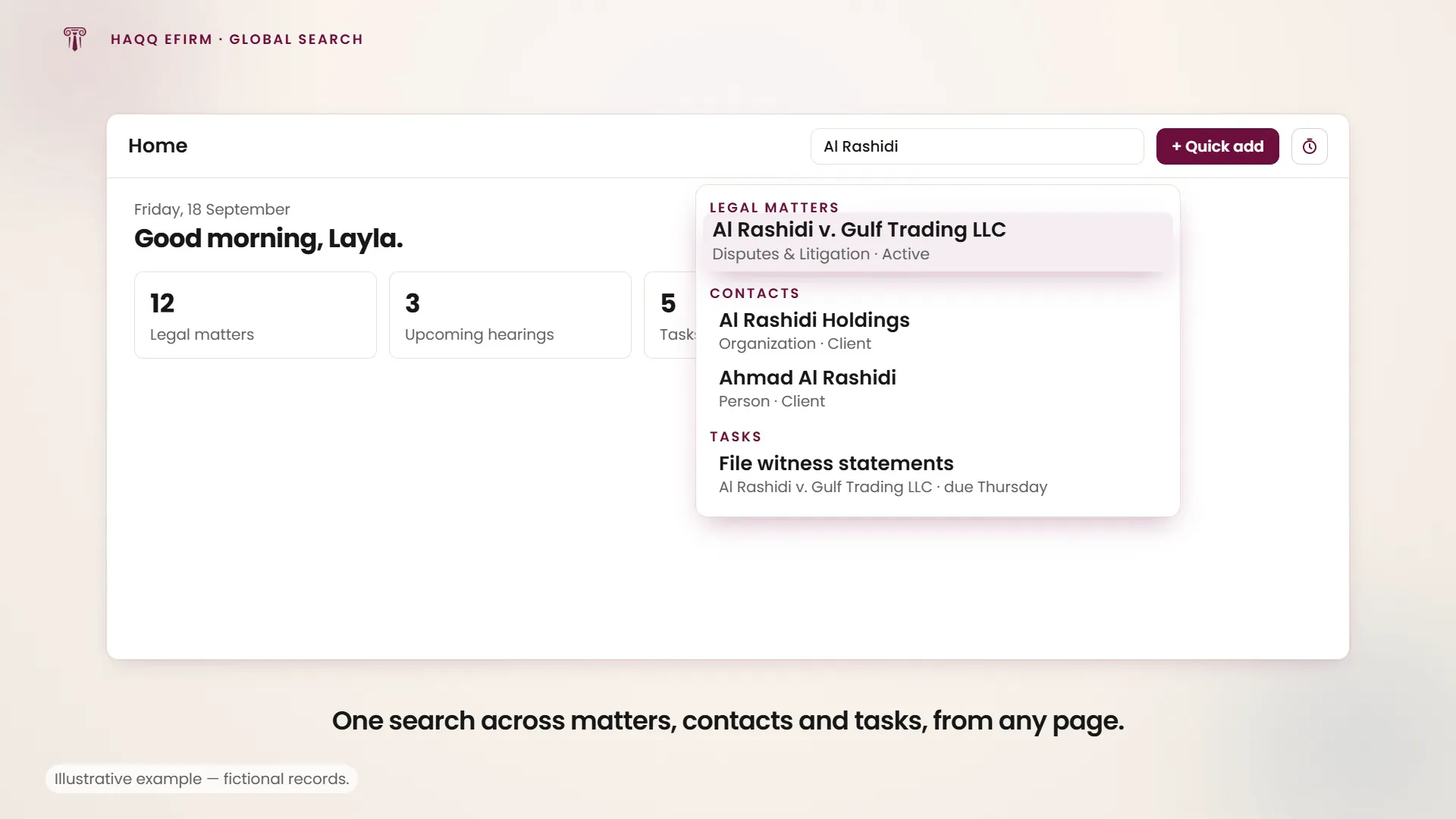
| Global Search | Finds matters, contacts and tasks at once, from any page in eFirm. |
| Quick Add (+) | Creates a record (matter, task, contact, event, time entry, hearing or invoice) without leaving the page you are on. |
| Check In & Start Timer | Time tracking as work happens, in three modes: Timer (a live clock), Manual (hours entered directly), or Range (a start and an end time). |
| Messaging & Notifications | Deadlines, updates and handoffs, so nothing depends on somebody remembering to mention it. |
| AI Twin | Opens the Legal AI Twin from wherever you are. The button appears once the workspace has an active AI Engine trial or subscription; eFirm itself works without one. |
The module rail
The left sidebar is the firm's full navigation. Every module lives there. Each one has its own page in this documentation:
- Dashboard is the daily command centre, scoped to your role.
- The Firm. Firm-level structure and administration. Roles, members and global configuration live here; see Setup Roles & Permissions and Settings and Customizations.
- HR Module. Internal team management: roles, assignments and capacity.
- Leads is intake and pipeline. Who is interested and what they need.
- KYC is onboarding and verification for new clients.
- Emails ties email activity back to the firm's work, without switching tools.
- Documents handles document management in the context of matters and clients.
- Financial covers time, billing, invoices and financial visibility across the firm.
Several of those (Leads, HR Module, Know Your Customer, Financial and Emails) sit under View More rather than in the always-visible part of the rail. Which ones are visible is a firm setting, not a fixed list, so your rail may not match a colleague's. The full set of operational modules is documented under Operations.
A layout the firm sets
Interface Preferences, in Settings, lets a firm drag sidebar sections between Visible Pages (always shown), View More (under a toggle) and Hidden Pages (not shown at all), then reorder what remains. A litigation practice surfaces Hearings; a transactional one puts Documents and Contacts first. Two firms on the same product therefore navigate differently on purpose. See Settings and Customizations.
Always one click from the AI
Every page in eFirm carries either an AI assistant bar or the AI Twin button in the top navigation. The AI is never more than one click away from an operational task, which is the point of putting practice management and legal AI in the same system rather than integrating two of them.
One connected system
That is eFirm: a single system connecting intake, contacts, matters, deadlines, documents, communications and financials, so the firm operates with clarity, accountability and speed.