

Dashboard
The dashboard is the first screen after login and the one to start the day on: five module cards, a toolbar that follows you everywhere, and enough detail to tell whether anything needs attention without opening seven screens.
What you see when you log in
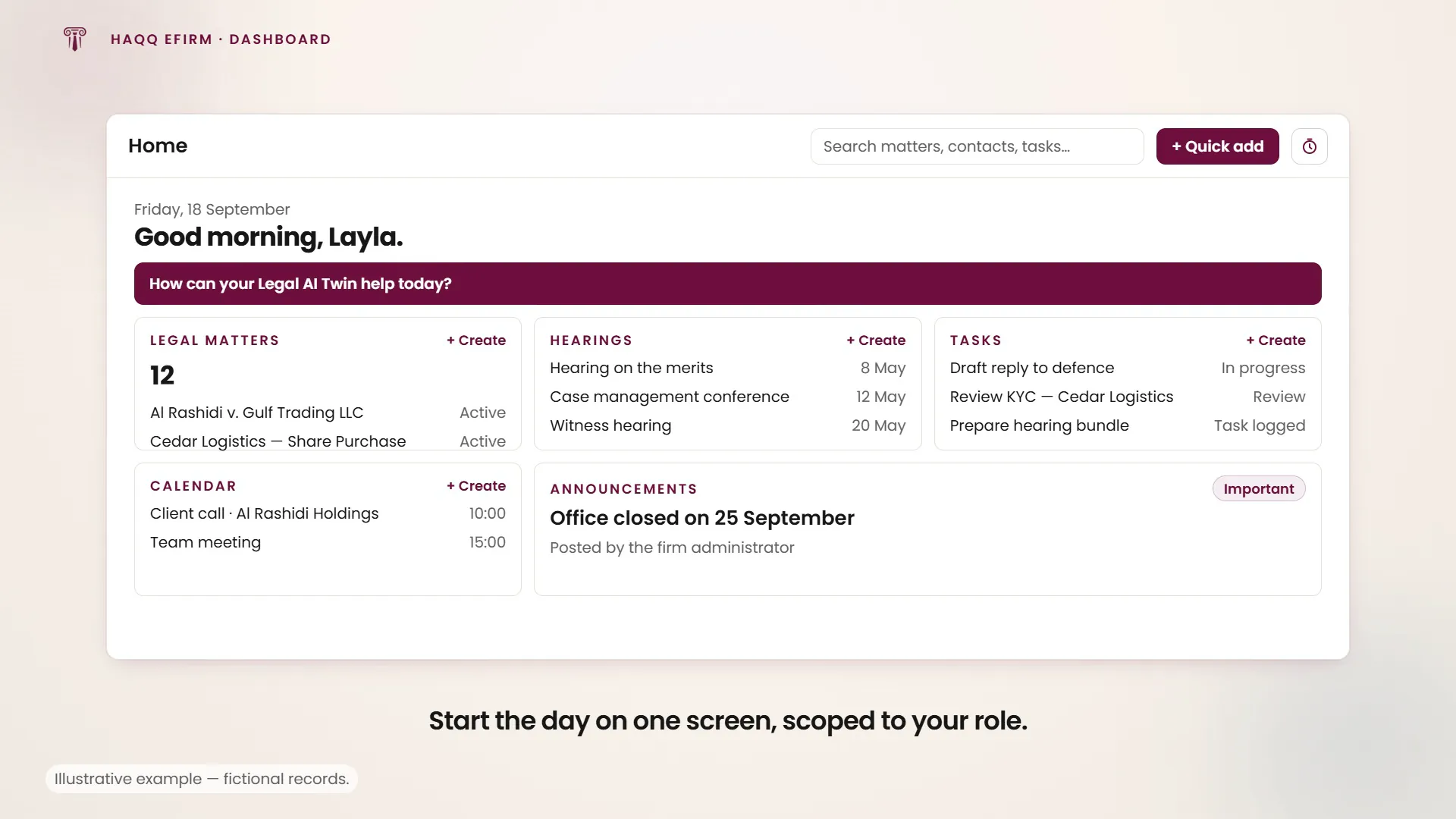
After logging in you land on the Dashboard with a personalised greeting ("Good Morning, [Name]"), today's date, and five summary widgets. Each widget has a "+ Create" button for quick entry without navigating to the full module, and each links straight through to it. Empty states say so plainly instead of showing a zero, for example "nothing to read here today."
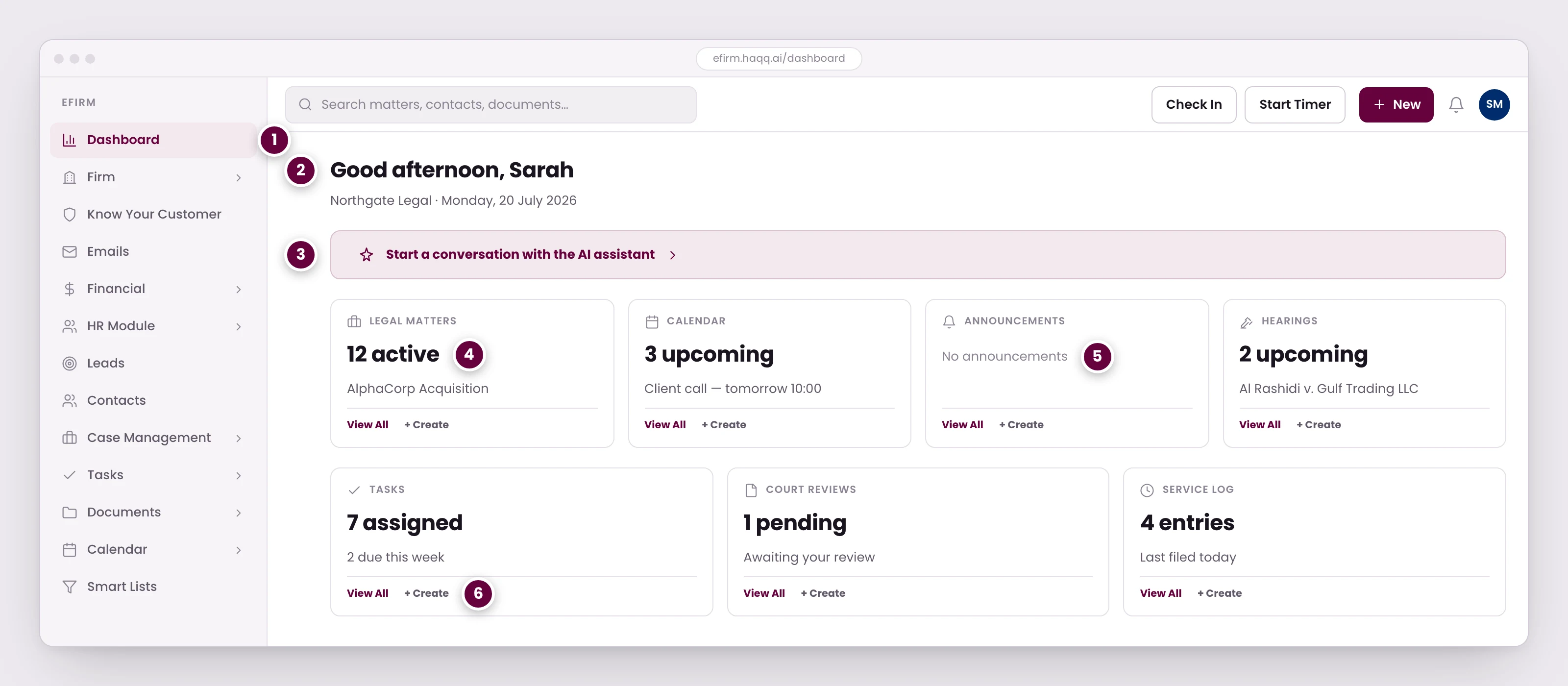
- The dashboard is the first screen after login and the one to start the day on.
- What appears is scoped to your role. A managing partner gets the firm-wide picture; an associate gets their own assignments and deadlines.
- The AI is one click from the dashboard, as it is from every other page in eFirm.
- Each card summarizes its module and links straight through, so you can tell whether anything needs attention without opening seven screens.
- Empty states say so plainly instead of showing a zero. Nothing to read here today.
- Create from the card itself. A task raised here lands in exactly the same place as one created from the Tasks module.
| Widget | What it shows | What to do |
|---|---|---|
| Legal Matters | Count of active matters plus recent matter names | Click "View All" for the full matter list, or a matter name to open it |
| Calendar | Upcoming events (meetings, court dates, deadlines) | Click "View All" to see your weekly calendar |
| Announcements | Firm-wide announcements from your administrator | Read and note any action items |
| Hearings | Upcoming hearing dates with court details | Click any hearing to review details and prepare |
| Tasks | Your assigned tasks with status indicators | Click any task to update progress or view details |
The top bar
The top bar is always visible across every page in eFirm. It holds the tools you will use most often, including the one-click route into the AI.
| Tool | What it does |
|---|---|
| AI Twin button | Opens Justinian for drafting, research, review and execution. Requires an active AI Engine trial or subscription. |
| Search bar | "Search matters, contacts, tasks…" is the global search across every entity in the system. |
| “+” button | Quick-create any record type without navigating to its module. |
| Check In button | Records your attendance for the day. Click once in the morning. |
| Start Timer button | Opens the timesheet timer in one of three modes: live Timer, Manual entry, or Range. |
| Notifications bell | Alerts for matter updates, hearing changes, task assignments and other events. |
| Messaging icon | Internal chat with team members and groups. |
Quick actions you will use every day
| Action | How | Time |
|---|---|---|
| Log billable time | Top bar → Start Timer → link to matter → stop when done | 5 seconds to start |
| Search for a matter | Top bar → Search bar → type the matter name | Instant |
| Check today's hearings | Dashboard → Hearings widget, or the Hearings module | 1 click |
| Send a quick message | Top bar → Messaging icon → click their name → type | 10 seconds |
| Create a task | Dashboard → Tasks widget → + Create, or the Tasks module | 30 seconds |
| Check upcoming deadlines | Calendar module → week view | 1 click |
What each role sees
What appears is scoped to your role. Managing partners see the firm-wide picture, covering all matters, team utilisation and a financial overview. Associates see their assigned work, upcoming deadlines and personal tasks. Support staff see the operational view of what needs filing and which deadlines are approaching. The dashboard module itself carries a single permission verb, View, granted per role in Roles & Permissions.
Where to go next
Open a legal matter to see what the cards link into, work the task board, or learn the Quick Add control behind the "+" button.