

Hearings
Missing a hearing date is among the worst mistakes a firm can make. Hearings are tracked as their own records for that reason.
Court date tracking
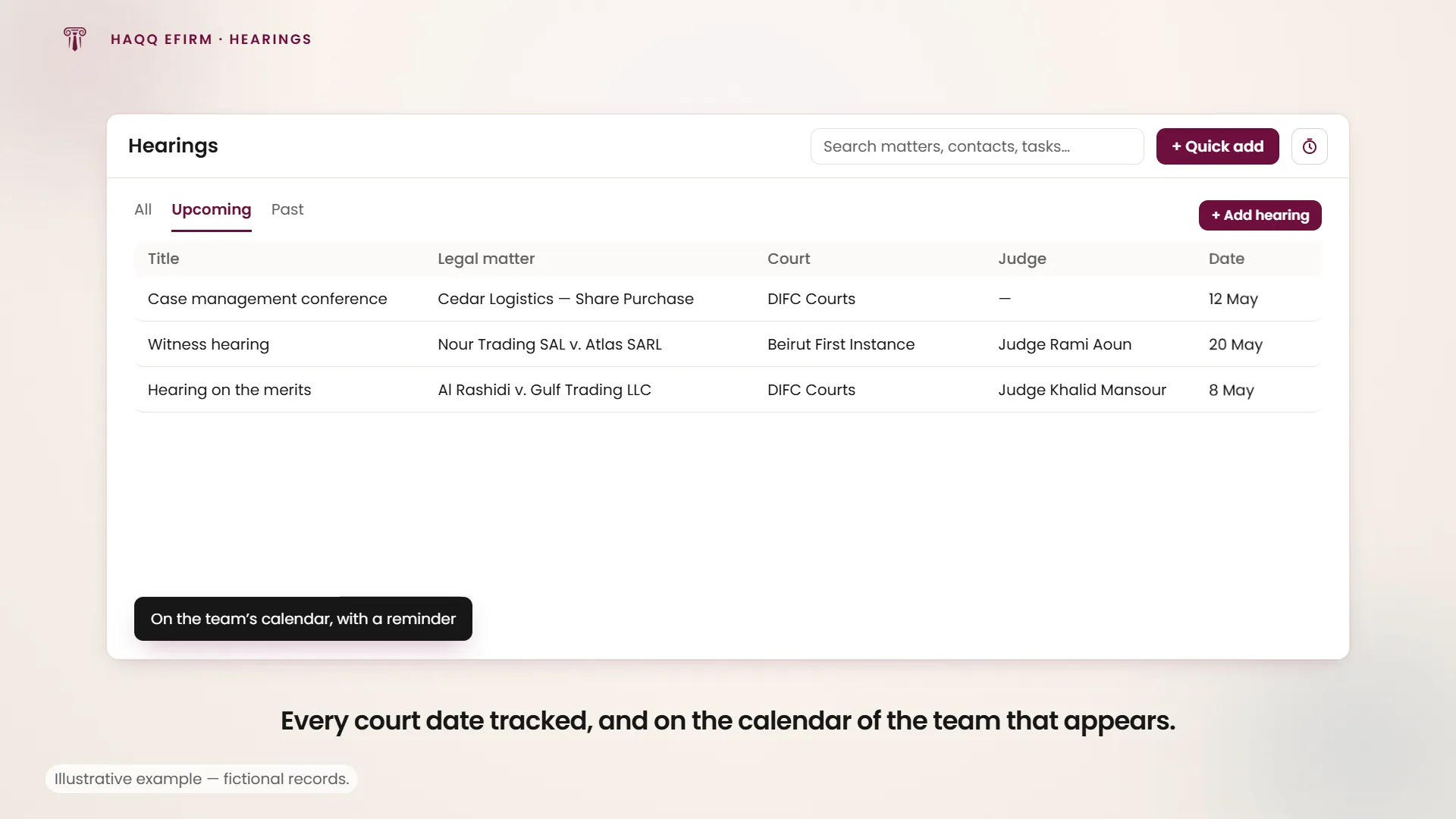
Hearings in the left sidebar, under Case Management. The module tracks every court date, hearing, tribunal session and legal proceeding the firm is involved in. Hearings are organised into three views (All, Upcoming and Past), with Upcoming as the default, because that is the one that matters on a Monday morning. Every hearing carries its court, its related matter and its date, and shows up in the calendar of the team that has to appear.
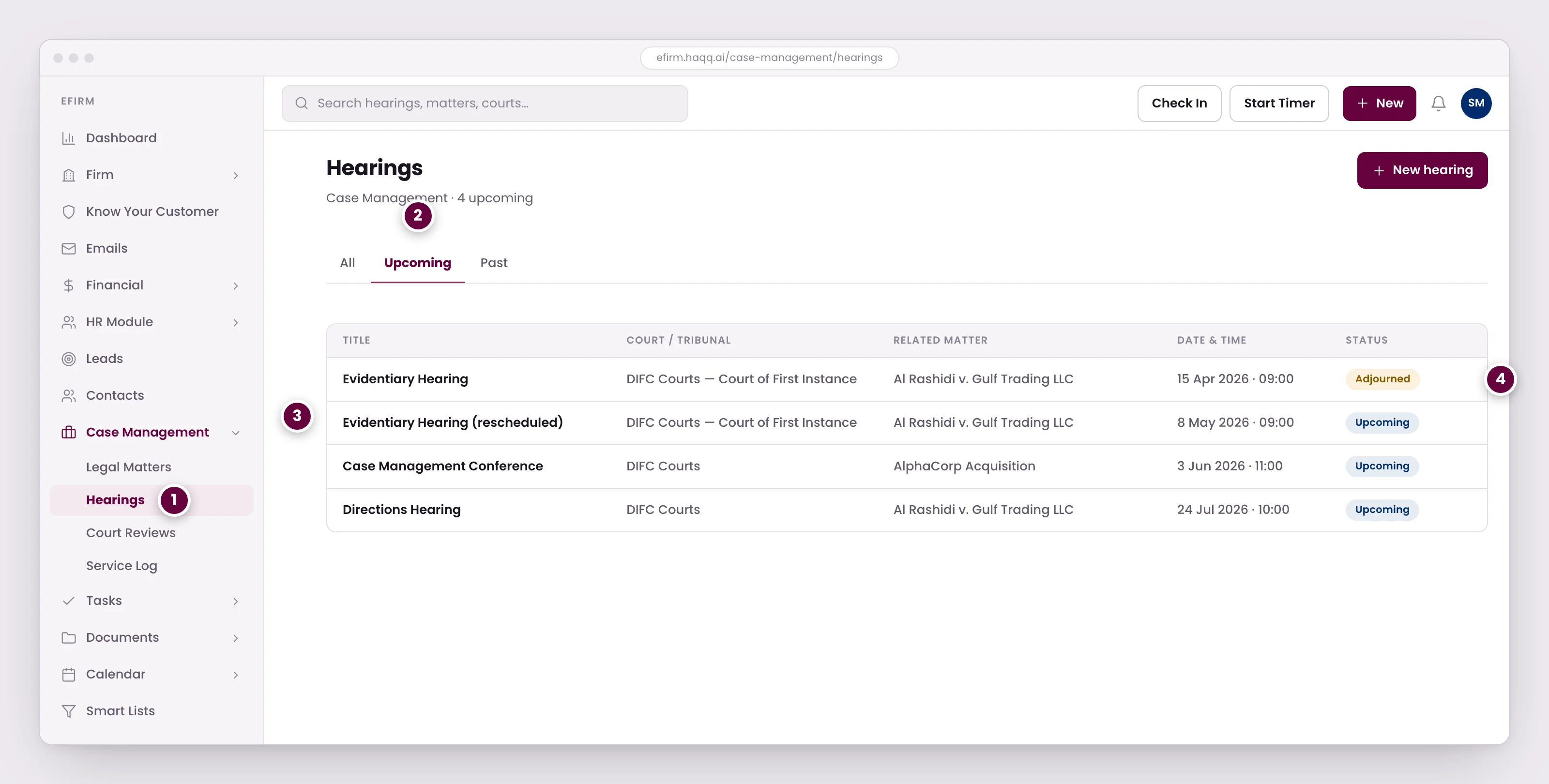
- Missing a hearing date is among the worst mistakes a firm can make. Hearings are tracked as their own records for that reason.
- Three views, with Upcoming as the default, because that is the one that matters on a Monday morning.
- Every hearing carries its court, its related matter, and its date, and shows up in the calendar of the team that has to appear.
- An adjourned hearing is not deleted. It keeps its original date and the reason, and the new sitting is created against the same matter, so the case timeline stays intact.
Creating a hearing
Add hearing in the list toolbar opens the create dialog. Three fields are required and the rest can wait: until the title, the legal matter and the hearing date are filled in, saving is blocked. Launch the dialog from inside a matter and the matter is already filled in for you. The button only appears for members who can create hearings.
| Field | Required | Description |
|---|---|---|
| Title | Yes | Descriptive name for the hearing. |
| Legal matter | Yes | The matter this hearing belongs to. |
| Hearing date | Yes | When the hearing starts. |
| End date | No | When it is expected to finish. |
| Assignee | No | Who the hearing is assigned to. |
| Court | No | From the court list your firm maintains. |
| Jurisdiction | No | From the jurisdiction list your firm maintains. |
| Status | No | From the hearing status list your firm maintains. |
| Client | No | The contact the firm represents at this hearing. |
| Opponent | No | The opposing party. |
| Judge | No | Presiding judge. |
| Lawyers and participants | No | Everyone else on the hearing. They appear in the people sidebar on the hearing itself. |
| Reference ID | No | The firm's own reference, shown as a badge on the hearing. |
| Court case number | No | The court's own case reference. |
| Region | No | Where the hearing sits. |
| Notes | No | Internal notes and preparation reminders. |
Court, jurisdiction and status are option lists rather than free text, so they stay consistent across the firm. They are maintained under the Hearings group in Global Configurations, and an empty list leaves its picker disabled until somebody fills it.
Adjournments and rescheduling
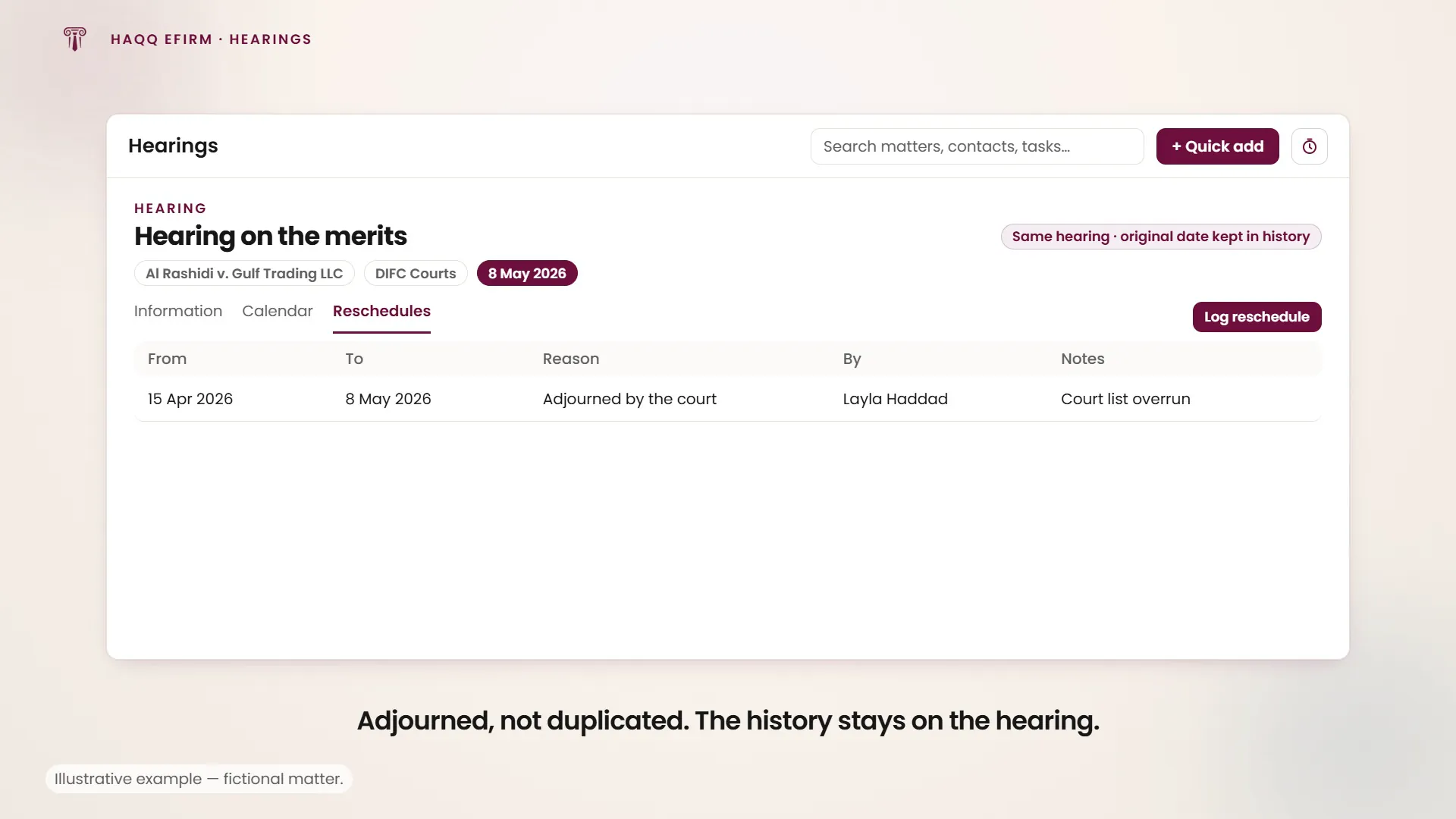
A rescheduled hearing stays one record. You do not adjourn the old one and raise a new one. The hearing moves, and the move is logged against it.
Hearing adjourned by the court
A hearing scheduled for 15 April has been adjourned by the court to 8 May. Open the hearing, go to its Reschedules tab and choose Log reschedule: the new date, a reason from the list your firm maintains, and any notes.
The tab is the history of every date change on that hearing (what it moved from and to, the reason, who moved it and the notes they left), so the original date is never lost even though the hearing now carries the new one. Long histories page in with load more. Logging a reschedule needs permission to update hearings; without it the tab is readable but the action is not offered. If your firm has not configured any reschedule reasons, the reason picker stays disabled until it does.
How hearings connect
| Connected to | How it works |
|---|---|
| Matters | Every hearing belongs to a matter, and is visible in that matter's Hearings tab. |
| Calendar | Automatic reminders and Outlook sync, with configurable notification days. |
| Tasks | Create preparation tasks linked to the hearing ("File motion by 10 April"). |
| Contacts | Judges and opposing counsel are linked for reference. |
| Expenses | Court fees can be logged as expenses linked to the matter. |
| Time Entries | Preparation and appearance time logged via the timer. |
Like every module, Hearings carries the same four permissions (Read, Create, Update and Delete), granted per role in Roles & Permissions. Each is checked on its own: Create controls the Add hearing button and the create form, Update controls saving, the editable fields, the quick-edit chips in the header and logging a reschedule, and Delete controls the row, bulk and detail delete actions. An action a role cannot perform is not shown greyed out. It is not shown at all. Exporting the list is part of the list toolbar rather than a permission of its own. Hearing IDs auto-generate from a starting number set on the workspace.
Where to go next
See the engagement the hearing hangs off in Legal Matters, the firm-wide view of every court date in Calendar, and preparation work in Tasks.