

Contacts
Contacts are what everything else attaches to. A matter links to a client, an invoice is addressed to a contact, a lead converts into one.
Your firm's central directory
Contacts in the left sidebar. Every person and organisation your firm works with (clients, opposing counsel, judges, vendors, referral sources) lives here. Contacts are organised into tab-based views: All Contacts, People, Organizations, Client (People), Clients (Organization), Old Clients and Archive. Firms add their own tabs for the cuts they use daily, using the (+) button.
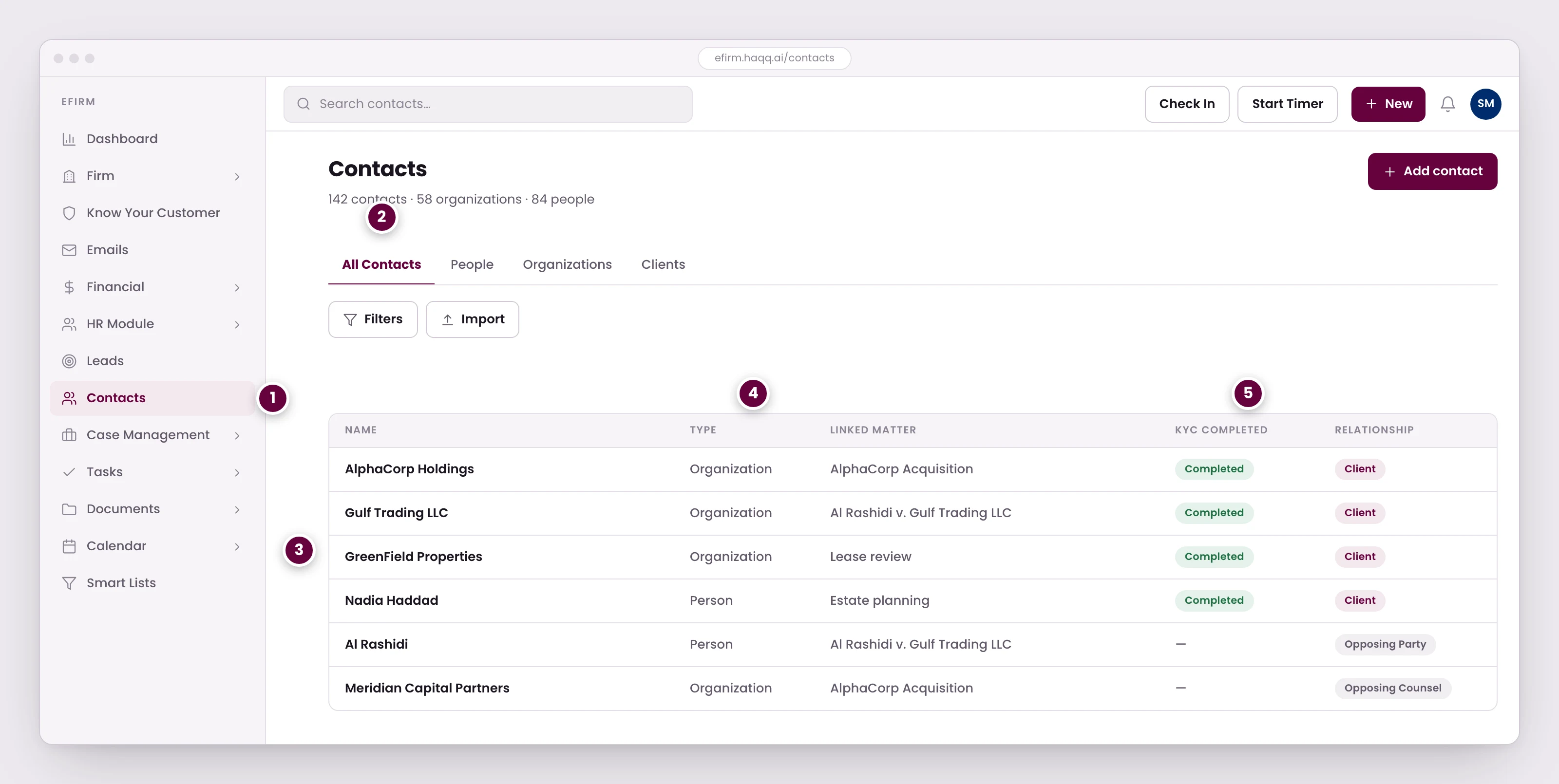
- Everyone the firm deals with lives here: clients, opposing counsel, judges, vendors, and referral sources.
- Views split the same directory by type and relationship, and firms add their own tabs for the cuts they use daily.
- Contacts are what everything else attaches to. A matter links to a client, an invoice is addressed to a contact, a lead converts into one.
- People and organizations sit in one table. An organization carries its own matters and invoices; a person can be a client, a counterparty, or neither.
- KYC status travels with the contact, so the compliance question is answered before the engagement opens rather than during it.
People and organisations sit in one table. An organisation carries its own matters and invoices; a person can be a client, a counterparty, or neither. KYC status travels with the contact, so the compliance question is answered before the engagement opens rather than during it.
Contact detail tabs
| Tab | What you see | Why it matters |
|---|---|---|
| General Info | Name, email, phone, address, organisation link | Core identification and communication details |
| Matters | All legal matters involving this contact | Instant view of the full relationship |
| Financial | Invoices, expenses, payment history | Billing status at a glance before any meeting |
| Files | Documents linked to this contact | Quick access to engagement letters, IDs, contracts |
| Calendar | Meetings and events with this contact | Meeting history and upcoming appointments |
| Know Your Customer | KYC compliance forms | Compliance status without navigating elsewhere |
| Tasks | Tasks involving this contact | Action items related to this client |
| Leads | Leads associated with this contact | Business development pipeline tracking |
| SharePoint | Documents via the Microsoft 365 integration | Requires the Microsoft 365 integration |
| Tab | What it contains | Admin action needed |
|---|---|---|
| Members | People linked to this organisation | Ensure all relevant contacts are associated |
| Matters | All matters for this organisation | Review periodically for completeness |
| Financial | Invoices, expenses, payments | Reconcile billing status |
| Files | Shared documents | Organise by matter or category |
| SharePoint | External documents via Microsoft 365 | Configure the M365 integration |
| Know Your Customer | KYC forms for this organisation | Configure the KYC templates |
Preparing for a client meeting
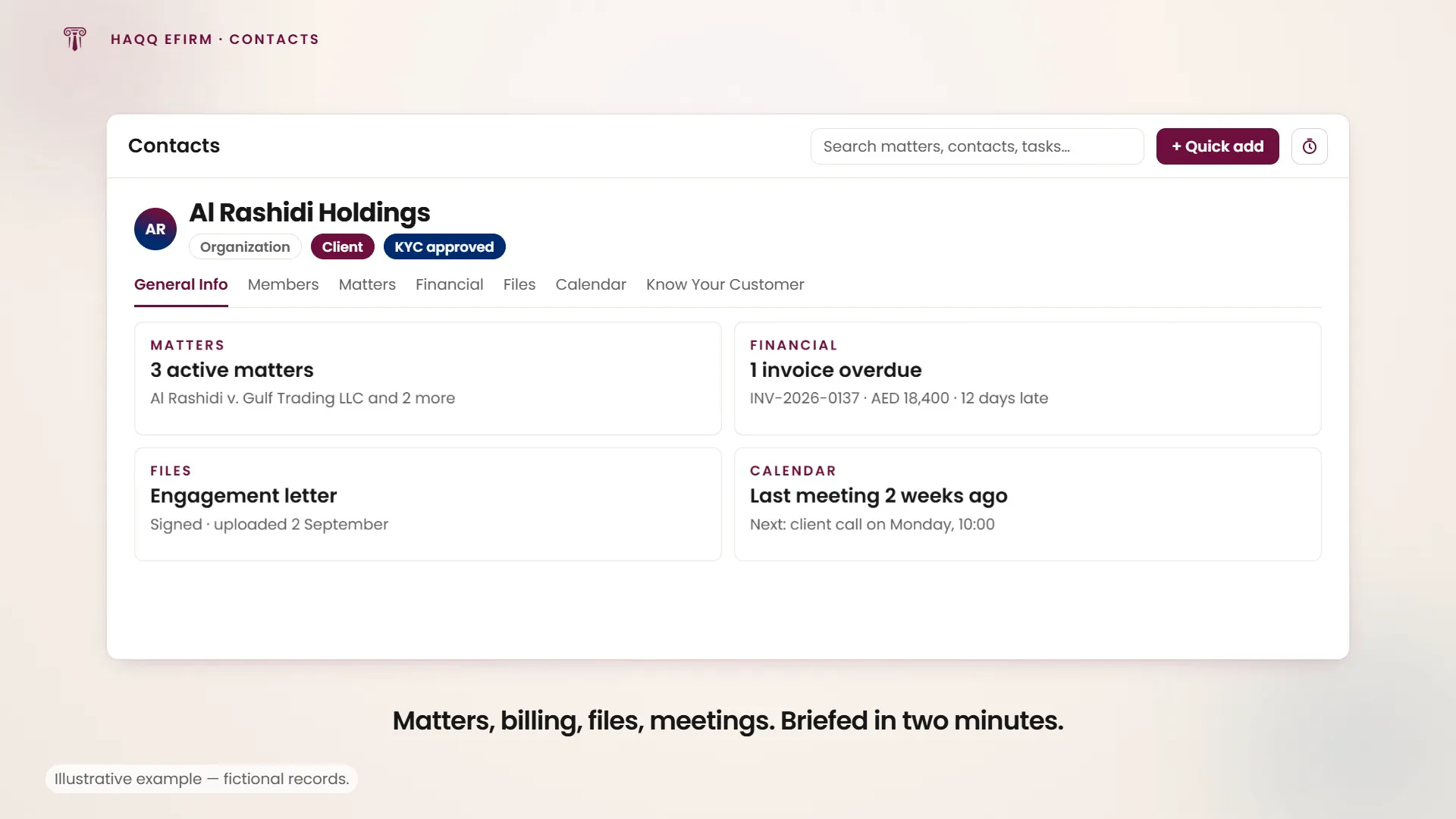
You have a meeting with a major corporate client in 30 minutes and need to be fully briefed. Open the client contact profile, scan the Matters tab (three active matters), check Financial (one overdue invoice), review Files (the latest engagement letter), then check Calendar (the last meeting was two weeks ago).
In two minutes you have a complete picture: active matters, billing status, document status and meeting history. You walk into the meeting prepared.
Labels: what each contact is to you
Contacts → (contact) → Label. The directory deliberately holds everyone together: your client, the other side, their counsel, the judge. That is only workable once each contact carries a label saying which of those it is. Labels are colour-coded so the role is legible at a glance in a long list, and they are what the filters run on.
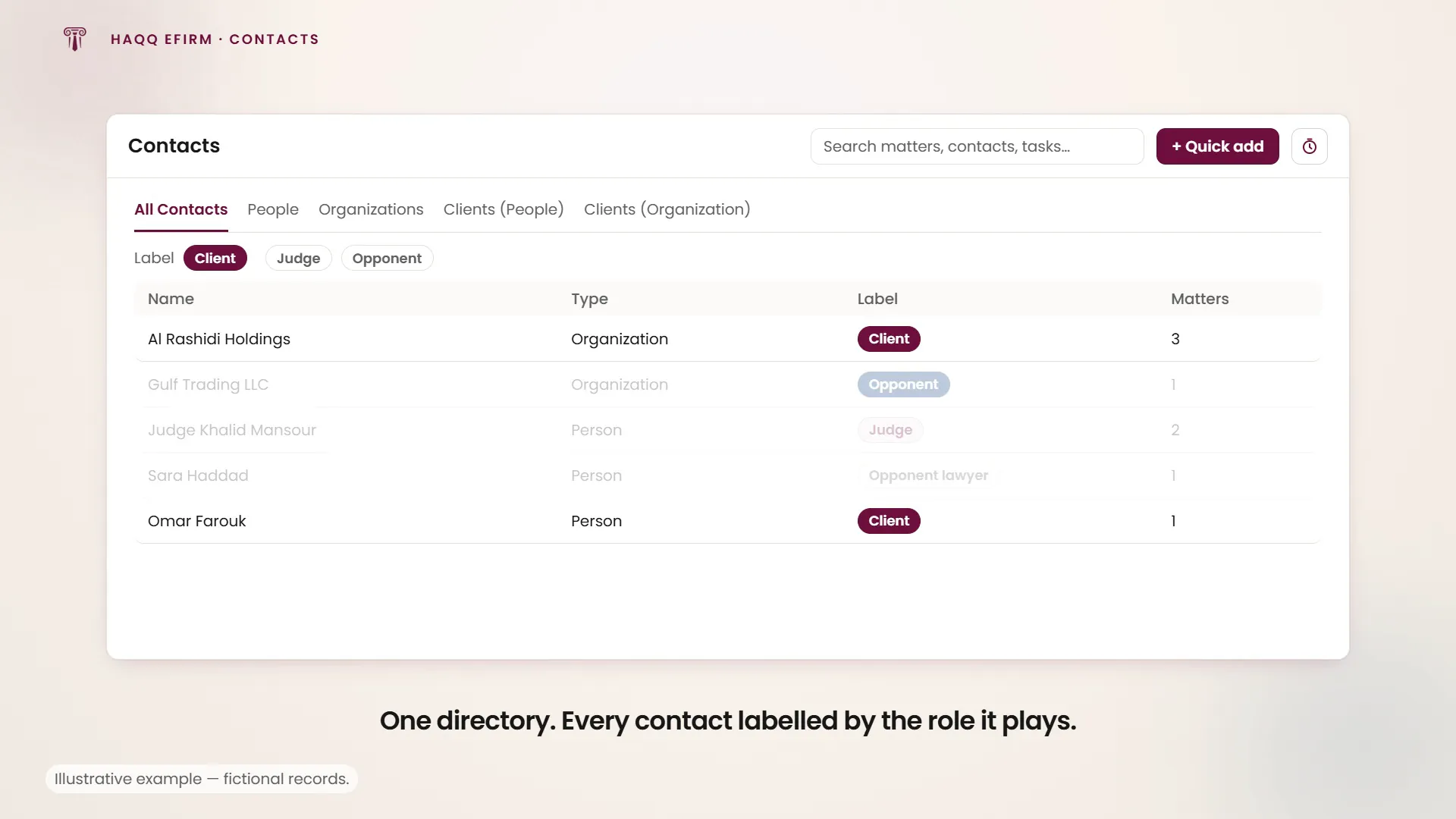
| Label | Who it covers |
|---|---|
| Client | The party you act for, whether a person or a company. |
| Judge | The bench. Also where an arbitral tribunal sits, on matters that have no court. |
| Opponent | The party on the other side of the matter. |
Label as you create. Retro-fitting labels across a directory that has grown for months is the slowest part of a migration, and until it is done every filter returns the whole list.
Promoting a contact to a client
A lead becomes a contact once it clears the pipeline. The prospect signs an engagement letter and hands over a matter to work on. At that point it sits in People, labelled by role, but it is not yet a client. From the contact's page, Promote Contact turns it into a client and files it under Clients (People) or Clients (Organization), so the directory keeps who the firm now acts for separate from everyone else it also has to hold.
Two stages, in order
Work enters the firm in a fixed sequence: first you establish who the client is, then what the legal matter is. The directory mirrors that. Create the contact and label it Client. Then create the matter and link that contact to it, adding the opponent, their counsel and the bench as contacts with their own labels.
The matter then carries every party with its role attached, and the directory can be filtered down to just clients, just opponents, or any role you have defined, instead of one undifferentiated list of names.
How contacts connect to everything
When you create a matter, you link it to a client contact. When you create a lead, you link it to a prospect. When you generate an invoice, it is addressed to a contact. Import contacts from CSV or Excel, export for reporting, filter by any field, and configure columns and views from Settings. The Contacts module carries the four permissions (Read, Create, Update and Delete) granted per role in Roles & Permissions.
Where to go next
Open a legal matter against a labelled client, track prospects in Leads, or complete the KYC record that sits on the contact.