

Tasks
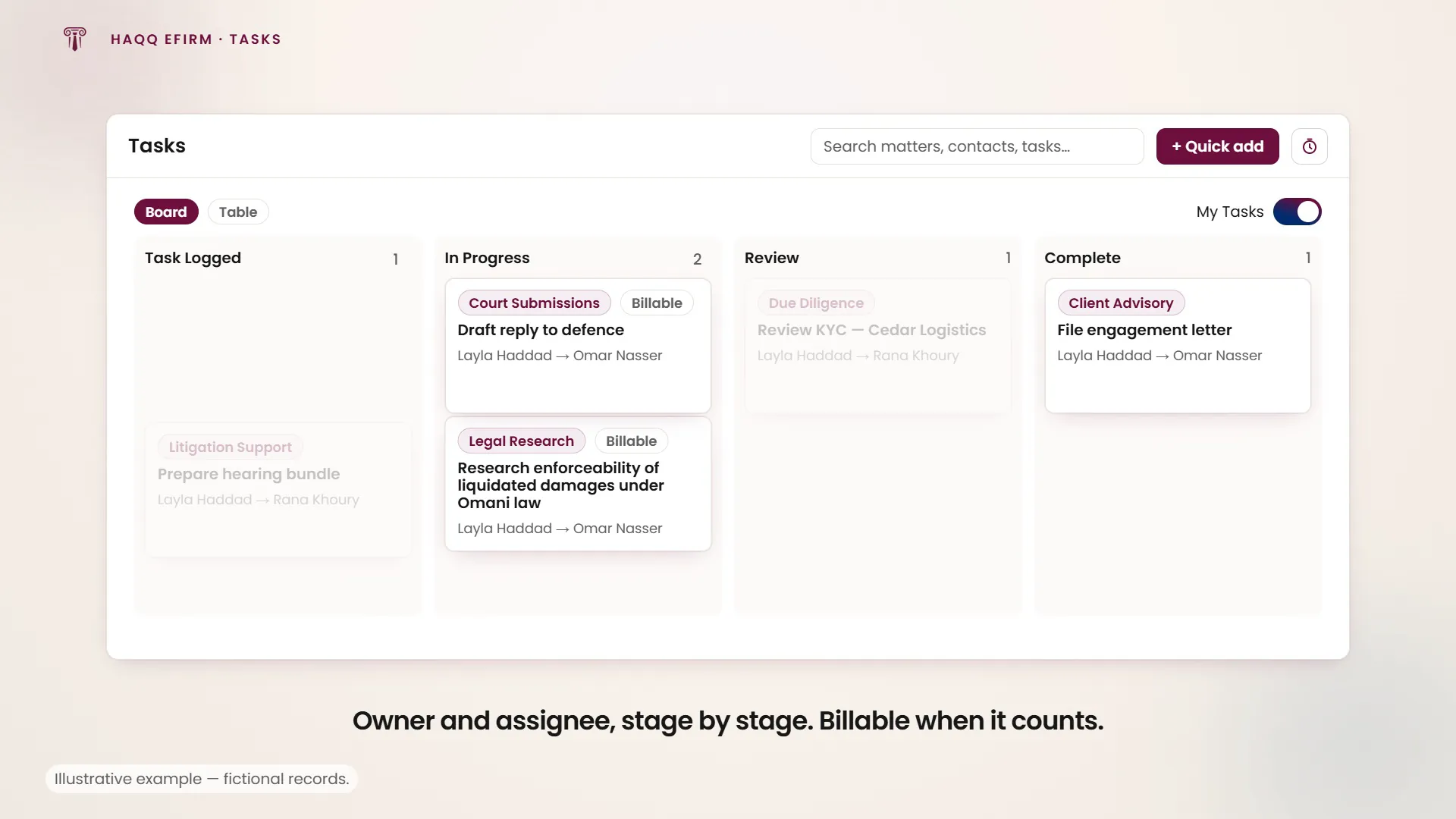
A Kanban board for legal work: stage drives the task from logged to complete, and the billable flag decides whether the time spent on it ever reaches an invoice.
Kanban board for legal work
Tasks in the left sidebar. Tasks are displayed as a Kanban board with columns representing workflow stages. Cards move left to right as work progresses. Drag a card from one column to another to update its stage. Saved views by practice area mean a litigator and a corporate associate open the same module and see different work.
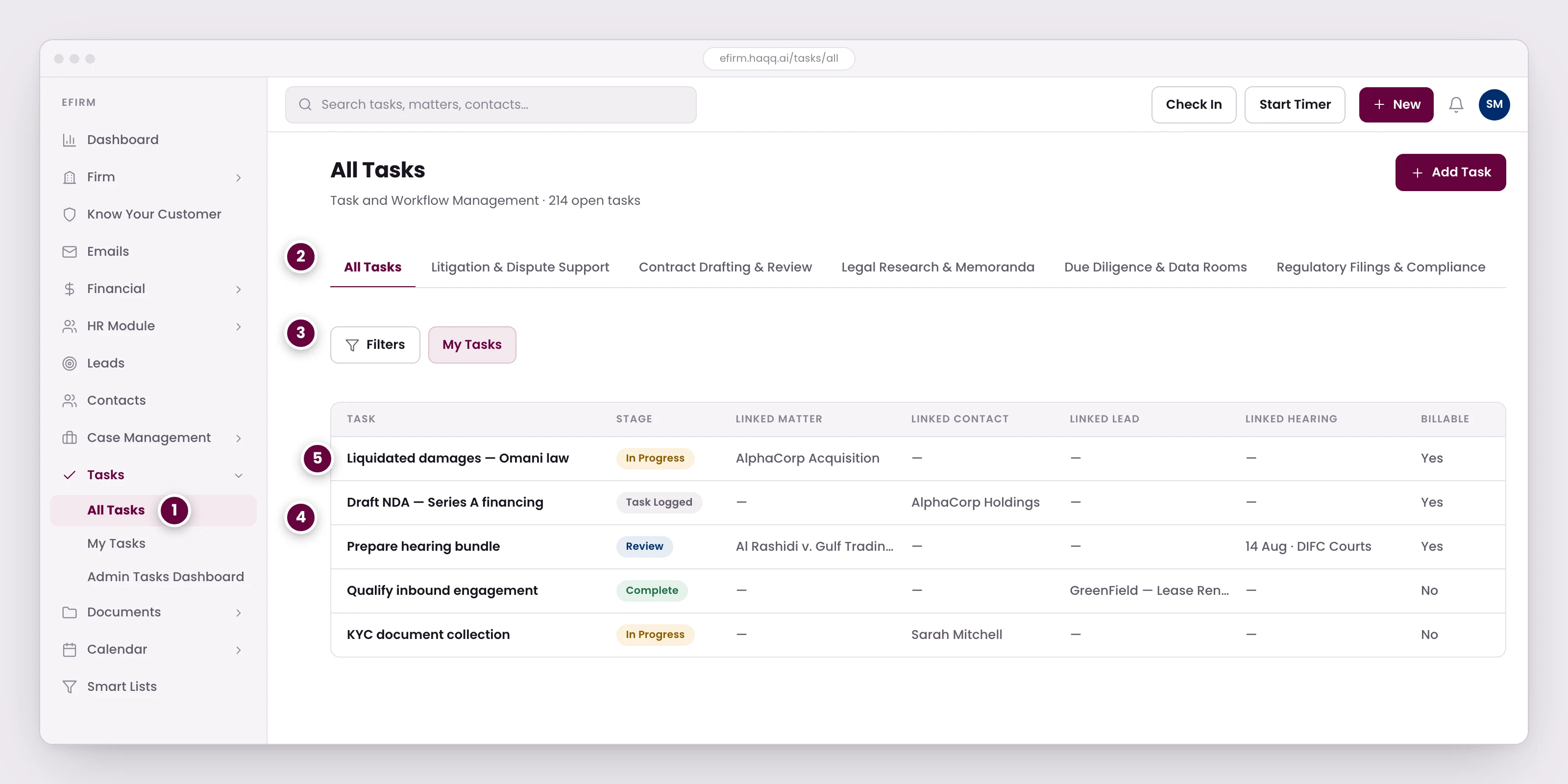
- Two levels of the same list: everything across the firm here, or only that engagement's work from inside a matter.
- Saved views by practice area, so a litigator and a corporate associate open the same module and see different work.
- My Tasks narrows the grid to what is assigned to you. Everything else filters by assignee, stage, matter, or any field.
- A task can link to a matter, a contact, a lead, or a hearing. Tasks created from inside a matter link themselves; ones created here have to be linked by hand.
- Stage drives the work from logged to complete, and the billable flag decides whether the time spent on it ever reaches an invoice.
Task types
These are one firm's own configuration, not a fixed list. A firm defines its own task types and the stages a task moves through in Settings, using the same Section Builder and Stages tabs that shape every other pipeline in eFirm.
- Litigation & Dispute Support
- Contract Drafting & Review
- Legal Research & Memoranda
- Due Diligence & Data Rooms
- Regulatory Filings & Compliance
- Corporate Governance & Resolutions
- Employment & HR Legal Support
- Client Advisory
- IP & Confidentiality Management
- Court Submissions & Hearing Prep
Creating a task
| Field | Description |
|---|---|
| Title | Select the type from the dropdown. It determines which form fields appear. |
| Task Owner | The supervising partner responsible for oversight. |
| Assigned To | The associate or paralegal doing the work. |
| Stage | Task Logged → In Progress → Review → Complete in this configuration; a firm defines its own stage list. |
| Location | Physical location, if relevant. |
| Notes | Detailed instructions and context. |
| Budget | Budget amount with currency. |
| Link To | A matter, contact, lead, hearing or other record. |
| Reminder | Date and time for an automated reminder. |
Owner and assignee are deliberately separate fields: the person accountable for the work is not always the person doing it, and a board that collapses the two cannot show a partner what they are supervising.
Partner delegates a research assignment
The same nine fields, filled in for one real delegation. Tasks → + Add Task, then:
| Field | What the partner enters |
|---|---|
| Type | Legal Research |
| Title | Research enforceability of liquidated damages under Omani law |
| Task Owner | The partner, accountable for the work |
| Assigned To | The junior associate, doing the work |
| Link To | The matter the question came out of |
| Notes | Client needs this by Thursday. Focus on court precedent from 2020 onwards. Draft a 3-page memo. |
| Reminder | Wednesday at 9am |
The associate sees it on their Kanban board with the deadline, the instructions and the matter link. The partner tracks progress by stage.
Tasks within matters
Two levels of the same list: the global Tasks page shows everything across the firm, and the matter-level Tasks tab shows only that engagement's work.
Filtering your workload
Use the "My Tasks" toggle to narrow the grid to what is assigned to you. Everything else filters by assignee, matter, stage, priority or any field, and any column can be sorted. The Dashboard Tasks widget already shows your personal assignments at a glance.
Team Tasks is a separate view for work assigned to a firm-defined team rather than a person: a firm can group itself into teams such as Litigation and Non-Litigation, and a task assigned to the team as a whole shows up here for every member of it.
The Admin Task Report is a read-only report rather than a board. With admin permission, it lists pending tasks across every user and can be checked by priority, status, owner and date. That is how a managing partner sees what is still open firm-wide without opening each person's board in turn.
Who can see whose tasks is a workspace-level decision, not a per-user one: the Task View Permission setting under Firm → Edit Workspace controls whether a role sees all tasks or only its own. The Tasks module itself carries the four permissions (Read, Create, Update and Delete) granted per role in Roles & Permissions.
Where to go next
See the engagement tasks hang off in Legal Matters, the deadlines they generate in Calendar, and where billable time ends up in Financial.