

Automazioni
Automations run work that would otherwise need someone to remember it. You set a trigger and an action, and eFirm does the rest whenever the trigger fires.
Where it lives
Automations is at /automations: your firm's workflows down the left, and the builder for whichever one you select on the right. A single automation also has its own page at /automations/[id], and the firm-wide history of every execution is at /automations/runs. Where it sits in your sidebar is up to you. The eFirm menu is reorderable, so the URLs are the reliable way to describe it.
Each row in the list shows a status dot, the automation's name and a trigger → action summary, with inactive ones dimmed. The switch on the row turns an automation on or off immediately, without a confirmation step.
Triggers and actions
An automation is a pair: something that happens in the firm, and something HAQQ does in response. The release that introduced them gives the shape as when a task is created → send a notification. Once an automation is active it runs on its own, without anyone opening it.
The builder is two steps. Step 1 picks the trigger and shows you a description of the one you chose; it also holds the optional delay, in minutes, if the action should not fire the instant the trigger does. Step 2 picks the action, and choosing one reveals its own parameters (a priority or status to set, a section and stage to move something to, the people to involve, and so on), each with the right control for what it is. An automation needs a name, a trigger and an action before it can be saved, and the builder lists whatever is still missing rather than failing silently on save.
Test before you activate
An automation can be tested before it is switched on, so the first time it runs is not on a live matter. This matters more than it sounds: an automation that fires on the wrong trigger is not a silent failure. It does something, to real records, repeatedly.
A test run sits in the footer of the builder and on the automation's own page, and it is available to anyone who can read automations. You can optionally hand it a sample of the thing that would have triggered it, and it shows you the raw result.
Enable and disable at any time
Automations can be turned off and back on without being deleted, so a workflow that is wrong for one month of the year does not have to be rebuilt for the other eleven.
Runs
Every execution is logged. An automation's own page carries a Runs tab with its history and counters for total, successful and failed runs plus when it last fired; /automations/runs is the same thing across the whole firm. It lists which automation ran, its status, when it started and finished, what triggered it, and the error if there was one. An automation that is quietly failing looks identical to one that has had nothing to react to; the run log is what separates them.
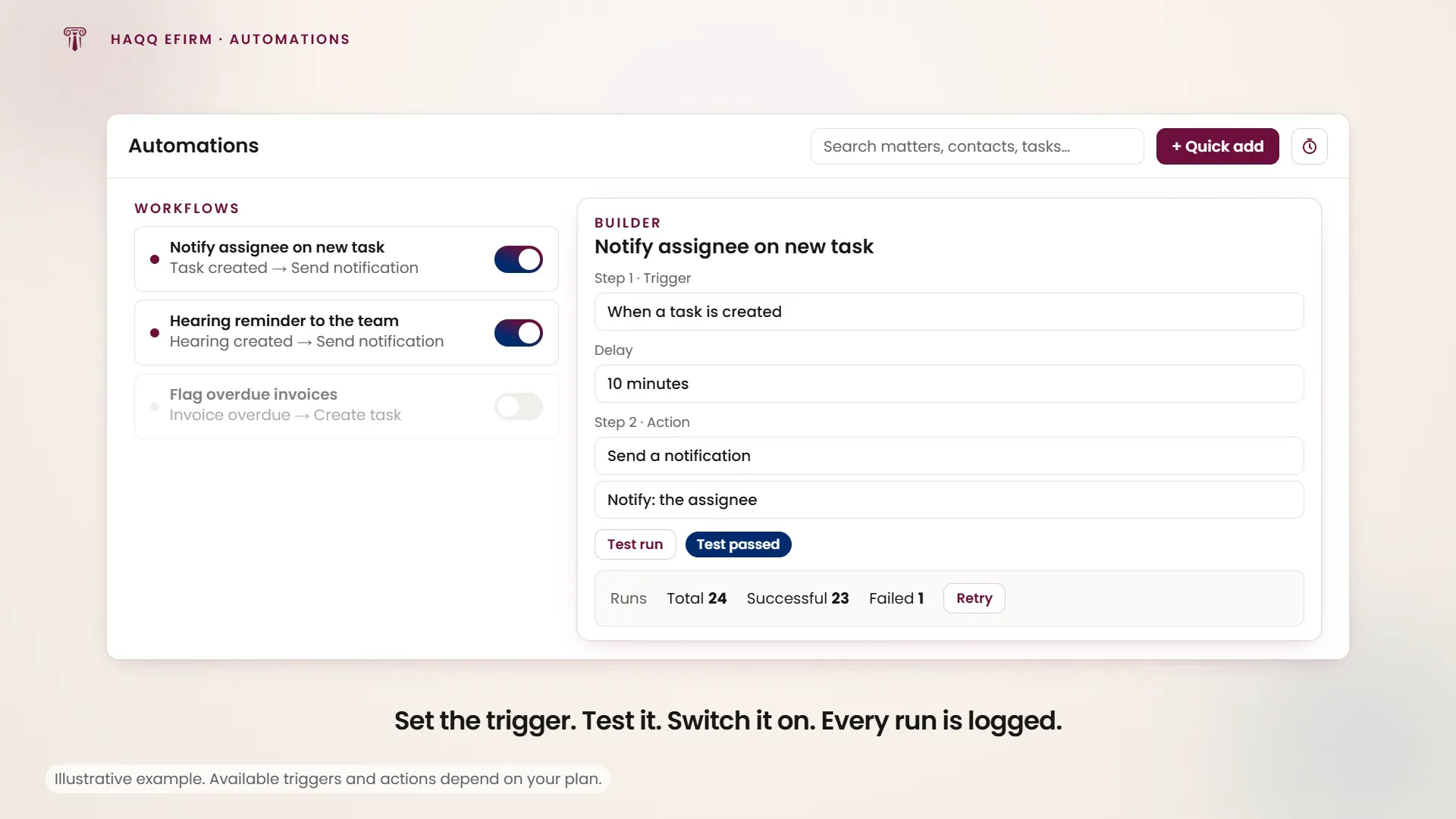
A run is pending, running, completed or failed, and the list filters by that. Only a failed run can be retried, and retrying queues it again straight away. Exporting the automation list is available from the top of the list; the file arrives by email rather than downloading in the browser.
Who can do what
Automations is not admin-only. It carries the same four permissions as every other module, and each is checked on its own, so a firm can let a role watch the automations without letting it build one, or let it fix and retry runs without letting it delete anything.
| Permission | What it controls |
|---|---|
| Read | Whether you see automations at all. Without it, all three screens show a no-access message instead of data. |
| Create | The New automation buttons, and saving a new workflow. |
| Update | Saving changes to an existing automation, the active/inactive switches, Edit, and retrying a failed run. |
| Delete | Deleting one automation, the overflow delete action, and the whole bulk-selection toolbar. |
The switch on a list row is shown to everyone who can see the row, but flipping it only works for a role that holds Update. Deleting (single or bulk) always asks first, and a bulk delete reports how many succeeded and how many did not rather than claiming all of them. Permissions are set per role in Roles & Permissions.