

Financial
A double-entry accounting system built into the practice. Time becomes an invoice, an invoice becomes a receivable, a receipt becomes cash, and every one of those acts writes itself into a general ledger. Your books, your outstanding debt, your tax position and sixteen reports all read the same records. This page is both the map of the module and the rules it runs on.
What the module is
Financial in the left sidebar. It records the work the firm does, turns that work into invoices, records money received and costs paid out, and holds client money separately from the firm's own. It handles several currencies at once, keeps a dated history of exchange rates so a closed month stays closed, and spreads fees that cover a period across the months they belong to.
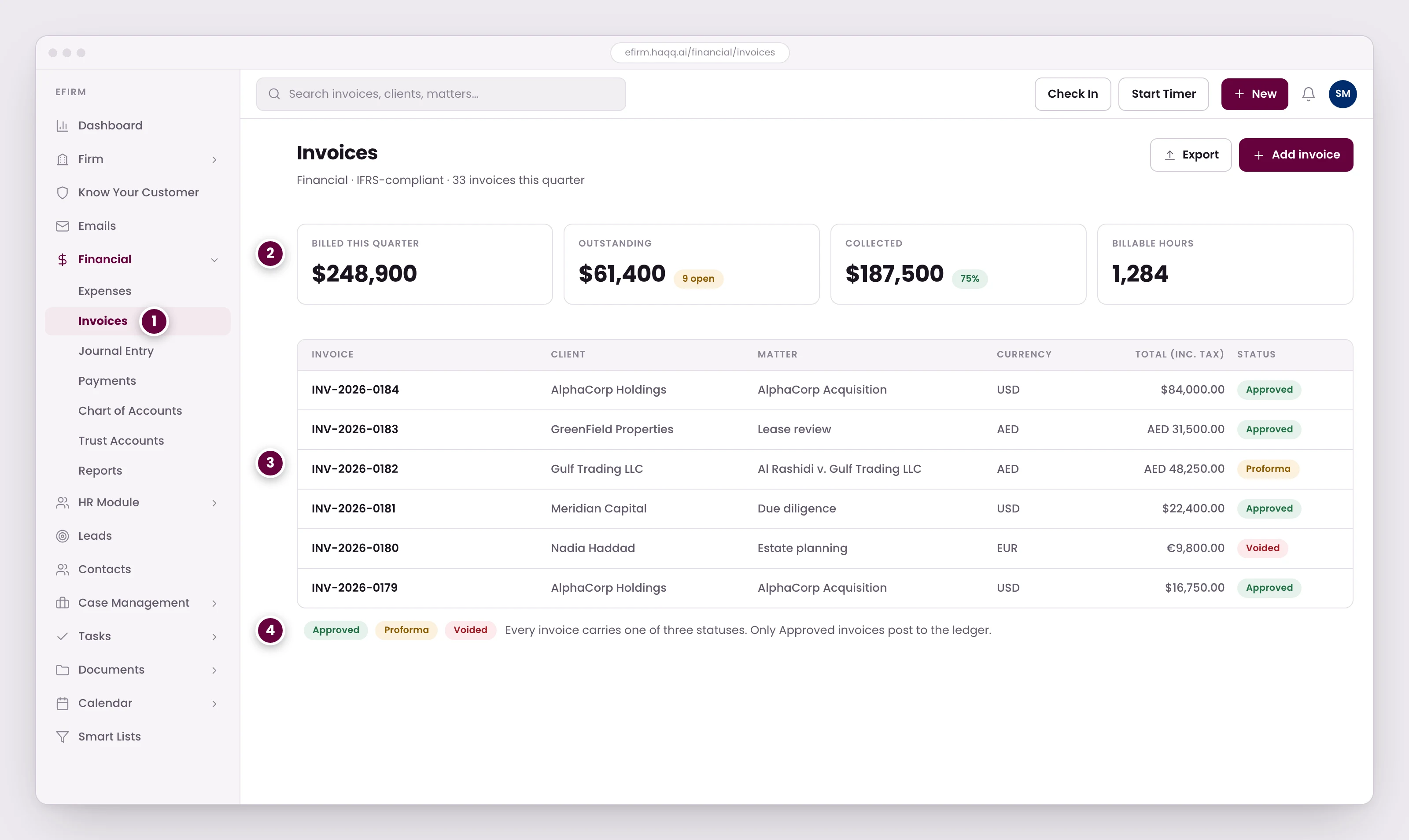
- Invoices sit inside the Financial module, next to Expenses, Payments and the Chart of Accounts.
- Quarter totals update as invoices are raised and paid. Billable hours come straight from logged time.
- Every invoice is linked to a client and a matter, so revenue is always attributable to the work that earned it.
- Three statuses. Only Approved invoices post to the ledger. Proforma is a draft, Voided is cancelled but kept on the record.
Where everything lives
The Financial group in the sidebar is a fixed list of eight entries. Seven are ledger screens; the eighth is a link out to the firm timesheet, which is not a financial page but sits at the end of the group because billable hours are where most invoices start.
| Screen | Path | What it is for | Who uses it |
|---|---|---|---|
| Invoices | /financial/invoices | Bills the firm sends a client, built from linked time entries and billable expenses. The only place an amount owed to the firm comes into existence. | Billing staff |
| Expenses | /financial/expenses | Money the firm spends, optionally marked billable to a client and a matter. Feeds both the cost side of the books and the rebillable lines on an invoice. | Anyone who spends firm money |
| Payments | /financial/payments | Money actually moving, recorded as a receipt. Four modes, listed under Payments and receipts below. | Billing staff and cashiers |
| Journal Entry | /financial/journal-entry | A bookkeeping entry typed straight into the ledger, for anything the other screens do not produce. | Accountants only |
| Chart of Accounts | /financial/chart-of-accounts | The tree of accounts every posting lands in. Set up once, then mostly left alone. | Accountants |
| Trust Accounts | /financial/trust-accounts | Client money the firm holds but does not own, tracked per client with a balance and a minimum balance. | Billing staff and compliance |
| Reports | /financial/reports | The sixteen read-only reports listed further down. They post nothing and change nothing. | Partners, accountants, anyone answering a money question |
| Timesheet | /firm/time-sheet | The firm-wide record of hours worked. A link out of the module, not a page inside it. | Fee earners |
Configuration is deliberately not in that menu. A template and an exchange rate are settings, not ledger records, so they sit in Settings under their own Financial group. This is where to go when a page above will not let you save or approve.
| Screen | Path | What it is for |
|---|---|---|
| Invoicing | /settings/financial/invoicing | The invoice logo, the firm's tax registration number and its default tax rate. |
| Invoice Templates | /settings/financial/invoice-templates | The drag-and-drop builder for how a printed invoice looks. |
| Receipt Templates | /settings/financial/receipt-templates | The same builder, for printed payment receipts. |
| Currencies | /settings/financial/currencies | The currencies the firm trades in, and the dated history of every exchange rate. Opening one shows its rate timeline; adding a rate always takes a date. |
| Billing Profiles | /settings/financial/billing-profiles | Reusable sets of billing details the firm invoices under. An invoice cannot be saved without one. |
What a client sees
Everything above is firm-side, but the client has a view of their own. A contact invited to the client portal signs in and sees a Financial page listing every invoice the firm has issued to them (number, title, status, invoice and due dates, total, paid and remaining, in the invoice's own currency) and can open any of them in full: line items, taxes, the receipts recorded against it, and the notes and terms the invoice carries.
It is read-only, and it is narrow. A client can look, search, sort and print; they cannot edit, void, pay or delete anything, and they see only their own invoices. Another client's invoice ID resolves to “not found” rather than to somebody else's billing. Nothing else from Financial is exposed: no statement, no trust balance, no ledger.
The money lifecycle
This is the spine of the module. Everything else on this page hangs off it, so it is worth reading once in full.
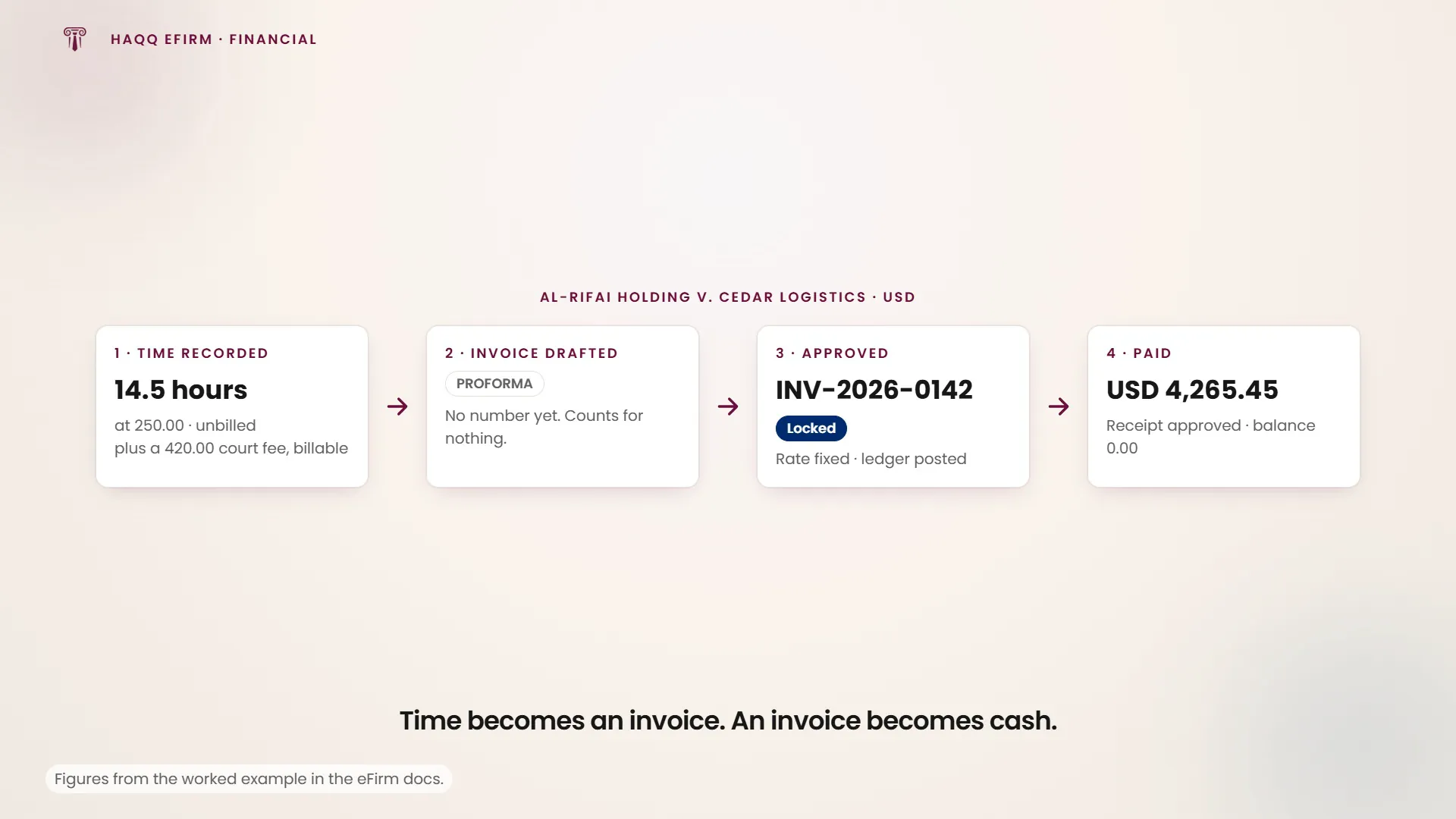
- A lawyer records time against a matter. It sits in a pool of unbilled work.
- Someone raises an invoice and pulls that time onto it as priced lines, or types lines by hand, or pulls in expenses the firm paid on the client's behalf. While it is being edited the invoice is a draft: it has no number, it prints the word “Proforma” where the number will go, and it counts for nothing anywhere. Not in a report, not in the books, not in what the client owes.
- Someone approves it. This is the hinge of the whole module.
- The client pays. A receipt is recorded against that invoice, capped at what is still outstanding, and it too only counts once approved.
Costs run the same shape in the other direction: an expense is drafted, approved, and settled by a payment out. Client money is kept apart in a trust account and drawn down against an approved invoice once the firm has earned it.
What approval does
Five things happen at once, and none of them can be undone:
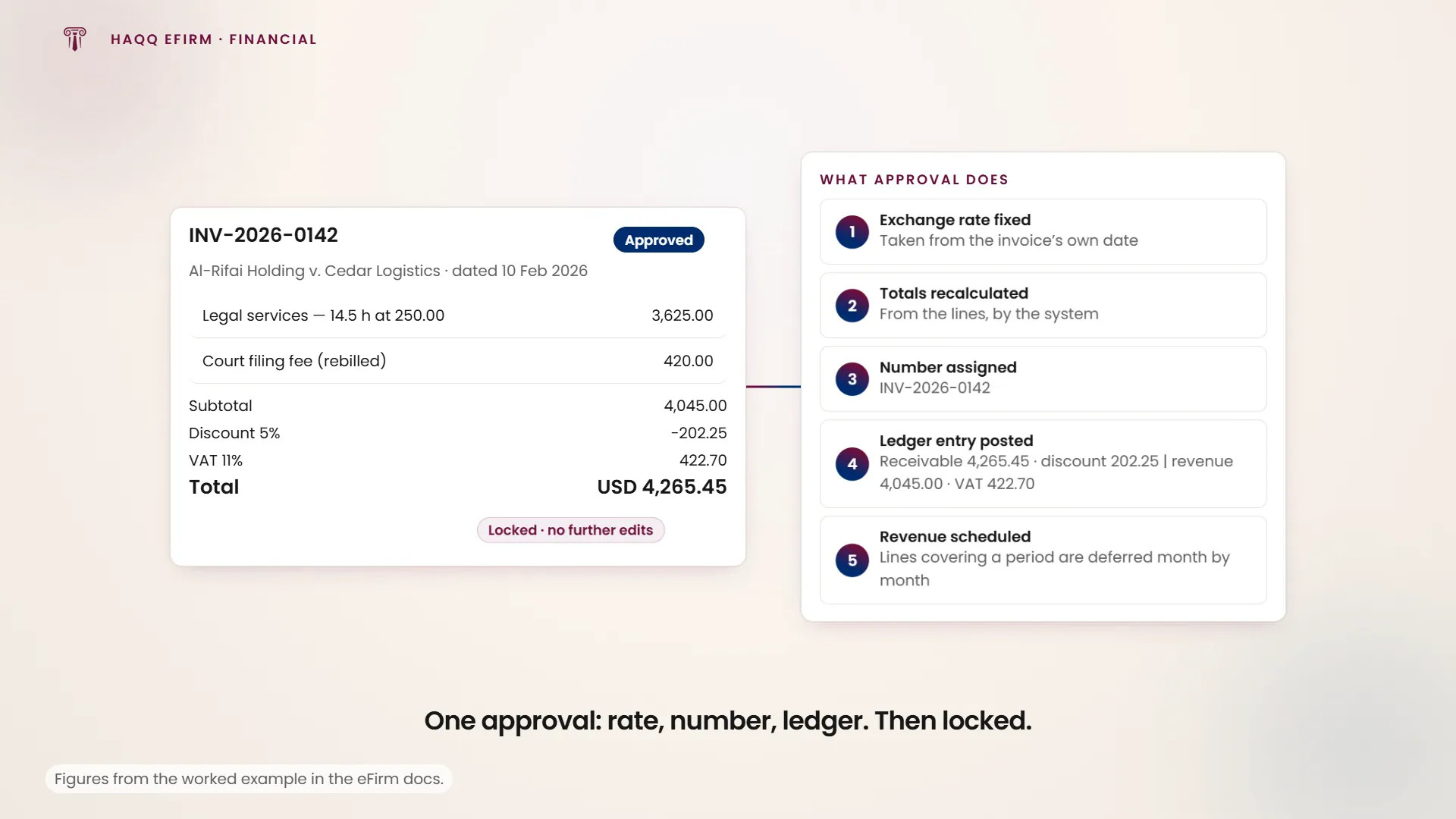
- The exchange rate is fixed, taken from the invoice's own date rather than the day of approval. A December invoice approved in January is measured in December.
- Every total is recalculated by the system from the lines. It overwrites whatever the screen was showing.
- The invoice number is assigned, under a lock, so two people approving at once cannot collide.
- One balanced entry is written to the ledger, dated the invoice's own date.
- Any line covering more than one day starts a monthly schedule instead of booking revenue immediately.
One invoice, screen by screen
The same lifecycle as a worked example, so you can see which screen you are on and what the record is at each point. The firm keeps its books in USD, the matter is Al-Rifai Holding v. Cedar Logistics, and the figures are illustrative.
| Stage | Screen | What the record is now |
|---|---|---|
| The work is recorded | Timesheet, and Financial › Expenses | No invoice yet. 14.5 hours at the fee earner's own rate, and an approved 420.00 court filing fee marked billable, sit in the unbilled pool. |
| The invoice is drafted | Financial › Invoices › New | A draft. Link billable pulls the time and the expense in as priced lines. It prints Proforma where its number will go and counts for nothing anywhere. |
| Approve and issue | Financial › Invoices | Approved and locked. It now has a number, a frozen rate and a ledger entry, and not a word of it can be edited again. |
| The invoice reaches the client | The client portal, or Print on the invoice | Approved and locked. A client with a portal login opens it themselves; otherwise Print produces the PDF to send. Neither changes the invoice. |
| The money arrives | Financial › Payments › New | Still fully outstanding. The receipt is numbered the moment it is created, but a pending payment reduces nothing. |
| The receipt is approved | Financial › Payments | Paid. The remaining balance is zero and the aged debt clears. |
Getting the invoice to the client. There are two routes and they are not exclusive. Invite the contact to the client portal (the action sits on their contact record, appears once the contact has an email address, and turns into an Invited badge afterwards), and from then on every invoice you issue them is on their own Financial page. Or print it yourself: the invoice's own Print opens a print and share dialog. The listing is always there; it is the printing that depends on the invoice carrying a shareable document reference, and without one the print option is not offered on either side.
Note where the numbers appear. An invoice has no number until it is approved, so an abandoned draft never breaks the firm's sequence. A receipt takes its number on creation, and so does a journal entry, so those two do leave gaps.
| Line | Amount |
|---|---|
| Time, 14.5 h at 250.00 | 3,625.00 |
| Court filing fee, rebilled | 420.00 |
| Subtotal | 4,045.00 |
| Discount, 5% | −202.25 |
| Taxable amount | 3,842.75 |
| VAT, 11% | 422.70 |
| Total | USD 4,265.45 |
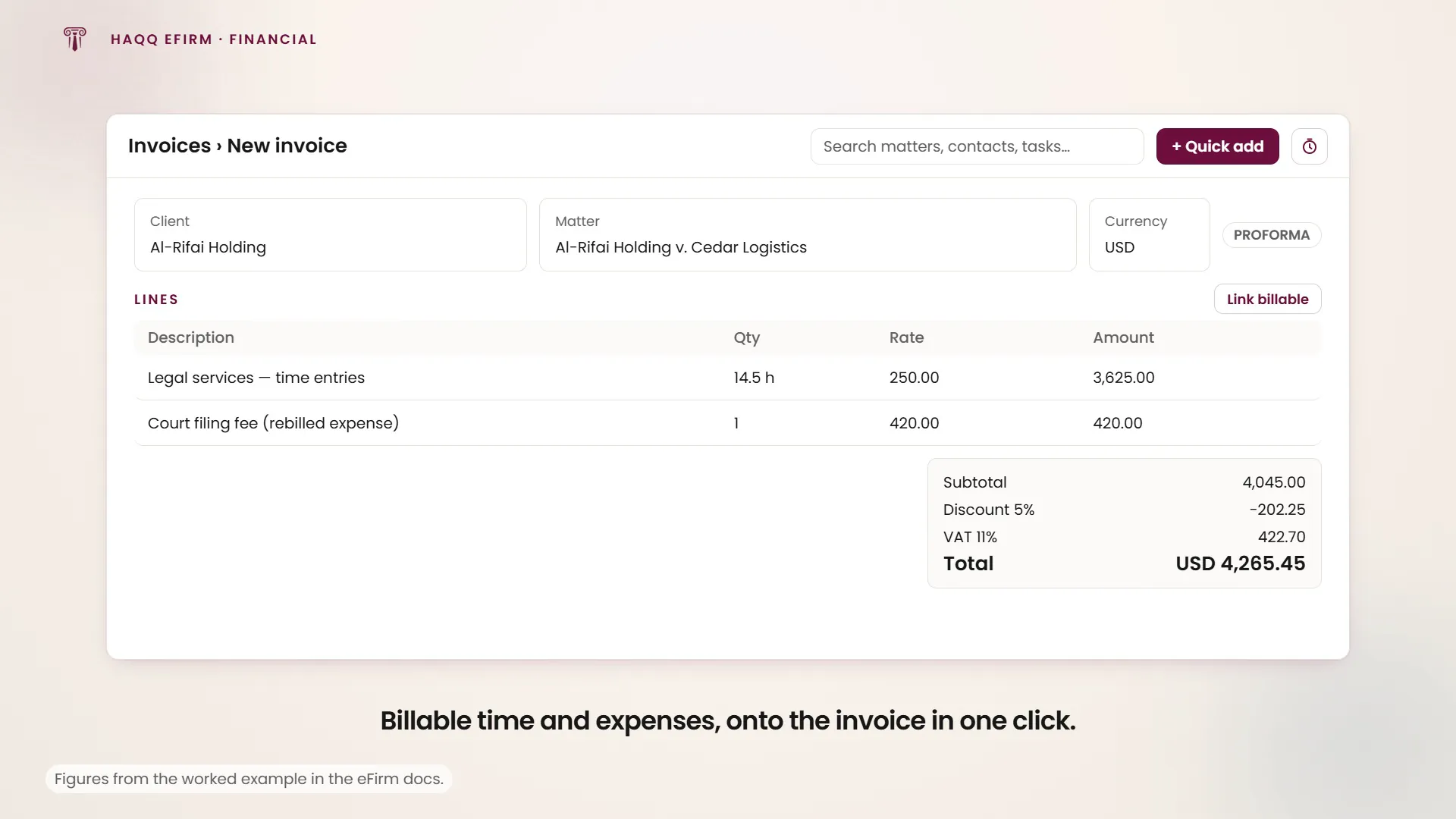
Those totals are a live preview while you edit. The figures that get stored are recalculated by the system at approval, so the saved record is always the authority, and approval writes this one balanced entry:
| Account | Debit | Credit |
|---|---|---|
| Accounts receivable | 4,265.45 | |
| Discounts | 202.25 | |
| Revenue | 4,045.00 | |
| VAT payable | 422.70 |
Reading revenue off that entry as 3,842.75 because that is what the client was charged is the mistake the gross credit invites. Revenue is 4,045.00 and the discount is a cost of 4,045.00 worth of work sold for less.
Approving the receipt at the last stage closes the invoice and moves the reports, but not all of them. Aging clears and Collection Rate registers the cash. Revenue and the VAT return do not move at all, because both were recognised back at approval. That gap between revenue earned and cash received is what the Revenue & Cash report exists to show.
What posts to the ledger
The whole posting behaviour in one table. Everything is in the document's own currency and dated the document's own date, never the date of the click.
| Event | Debit | Credit |
|---|---|---|
| Invoice saved as a draft | Nothing. Working lines are discarded at approval. | |
| Invoice approved, normal line | Discounts, by the discount given | Revenue, at the line's gross amount |
| Invoice approved, line covering a period | Deferred revenue | |
| Invoice approved, tax | Tax liabilities | |
| Invoice approved, closing leg | Accounts receivable, at the invoice total | |
| Payment received | Bank | Accounts receivable |
| Expense approved | Cost account, plus recoverable tax | Accounts payable, at the expense total |
| Payment out | Accounts payable | Bank |
| Trust deposit | Client trust asset | Client trust liability |
| Trust settlement | Client trust liability, plus the payment legs | Client trust asset |
| Monthly revenue recognition | Deferred revenue | Revenue |
| Manual journal entry | Exactly the lines the accountant typed | |
| Anything voided | Nothing posts. Original lines are stamped void where they sit. |
Revenue is credited gross. The discount is a separate debit rather than a reduction of the credit. Reading revenue straight off the ledger without netting the discount account will overstate it.
Worked example: one invoice, start to finish
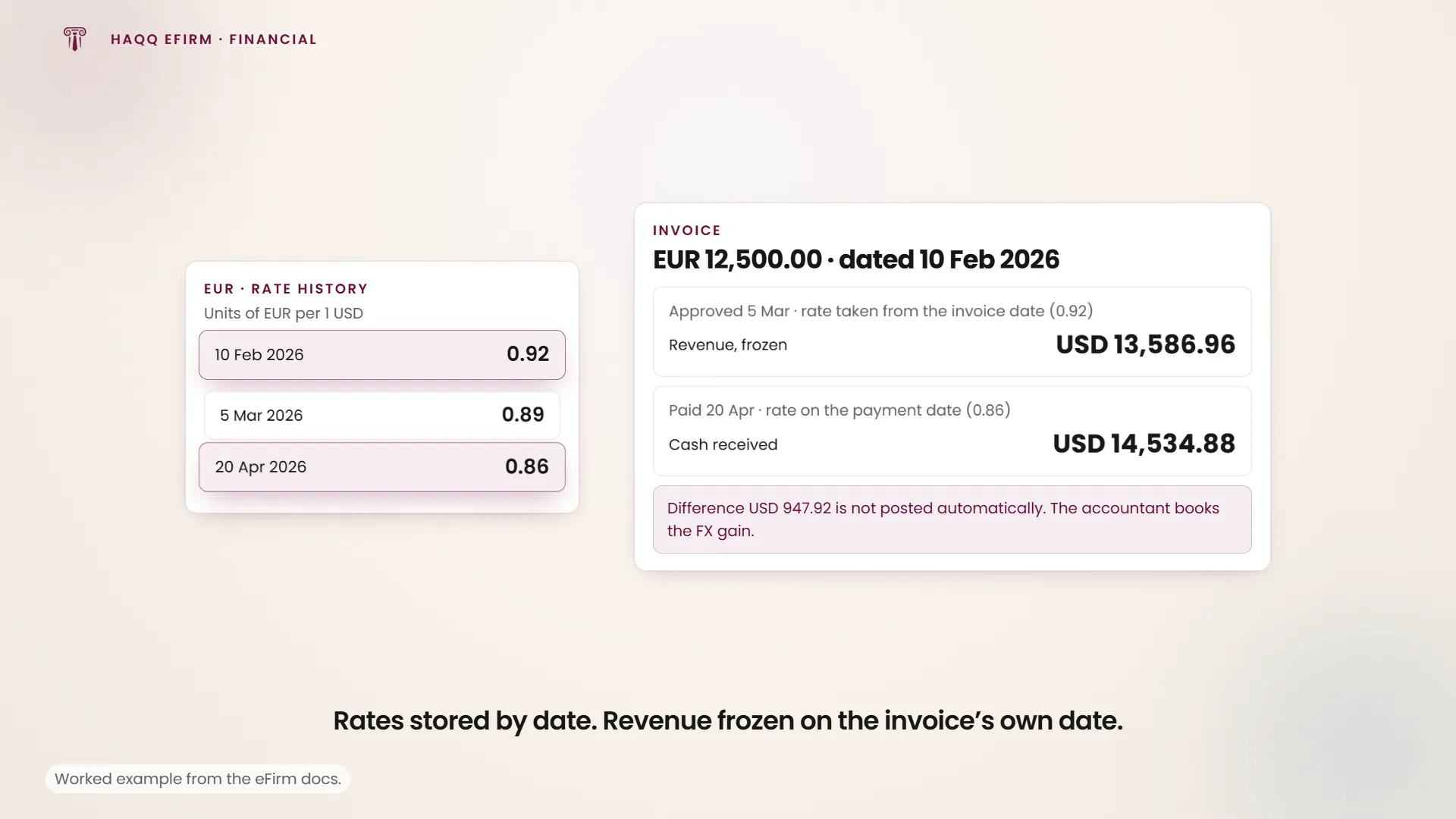
The firm keeps its books in USD and bills a client EUR 12,500.00, dated 10 February 2026. The recorded euro rate on that date is 0.92. The invoice is drafted on 12 February and approved on 5 March.
At approval the rate is looked up against 10 February, not 5 March, so 0.92 is fixed permanently. In the firm's books the invoice is worth 12,500 ÷ 0.92 = USD 13,586.96, and that figure never changes again.
The client pays in full on 20 April, by which time the euro has moved to 0.86. The payment is measured at 20 April's rate, so the firm banked 12,500 ÷ 0.86 = USD 14,534.88. The firm collected USD 947.92 more than it booked.
Invoices
Three states, worked out from two facts: whether it has been approved and whether it has been voided. There is no “sent”, no “issued” and no “paid” state.
On a draft you can do everything: pull in unbilled time and expenses, type lines by hand, apply a discount per line and one across the whole invoice, add tax, attach files, delete it. On an approved invoice you can record a payment, void, duplicate, or print.
Numbers run as one sequence per firm and are never returned to the pool, so gaps are normal and expected. Voiding is terminal and never reversed.
What can become an invoice line
Only three things: a time entry, an expense, or a matter milestone. Tasks carry a billable flag and an hourly rate but cannot be invoiced, so marking tasks billable records data the invoicing side cannot see.
An hour is priced from one place only: the rate on the timekeeper's own staff record, copied onto the entry when it is first logged. There is no matter rate, client rate, rate card or firm default, and changing someone's rate later does not restate work already logged.
The two sides of “already billed” differ. A time entry is a yes or no flag, so one invoice line consumes the whole entry whatever was charged. An expense is measured in money and stays billable until the lines against it reach its total, so it can be part billed across several invoices.
Revenue recognition
When a line's service period spans more than one day, approval books the money to deferred revenue and builds a schedule that releases it month by month. A nightly run posts each month as it falls due.
The split is by days, not by month count, and it does not round each month independently. It keeps a running total, rounds that, and each month is the difference between successive rounded running totals, so the parts always add back to the whole.
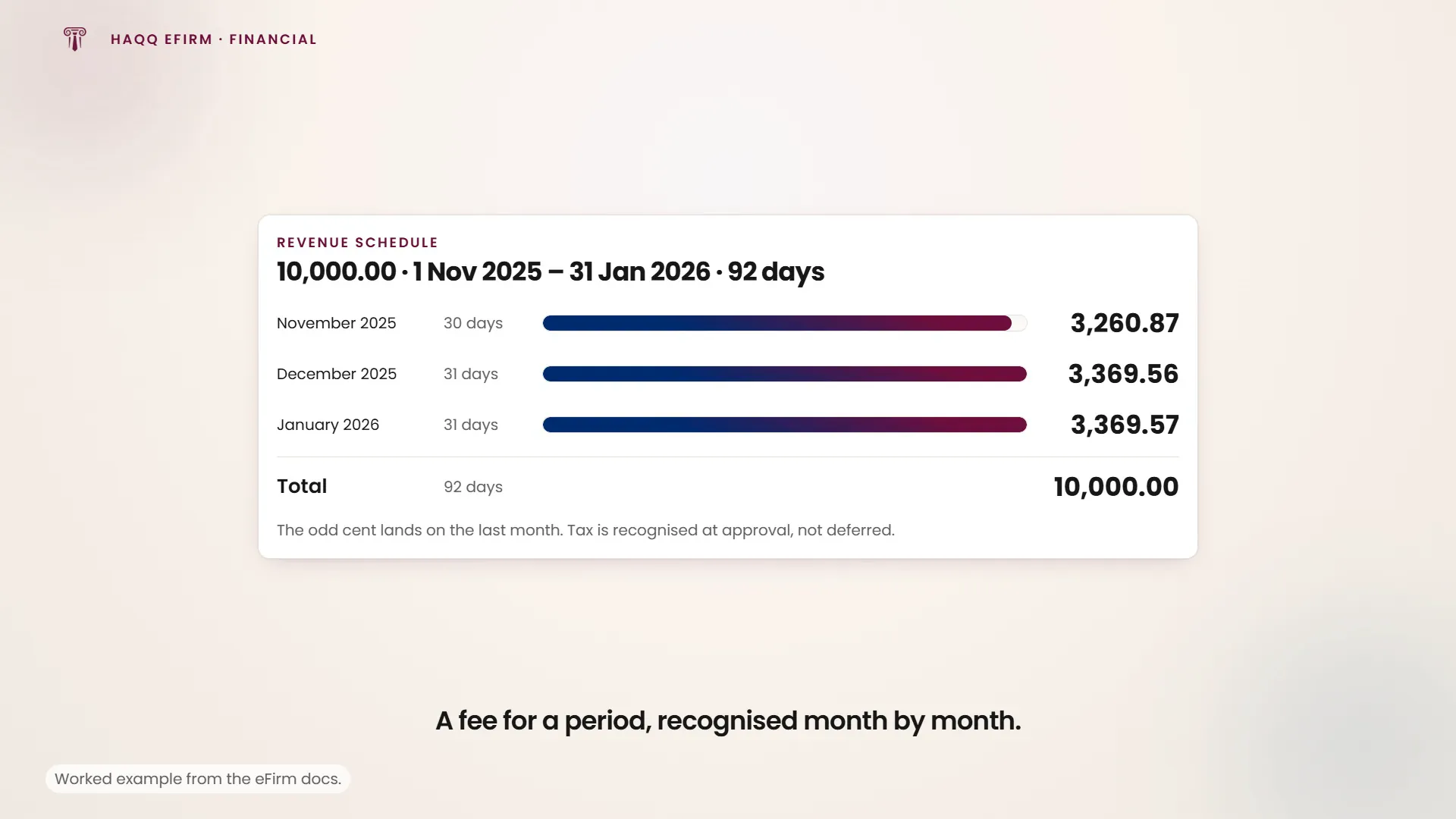
| Month | Days | Running total | Booked that month |
|---|---|---|---|
| November 2025 | 30 | 3,260.87 | 3,260.87 |
| December 2025 | 31 | 6,630.43 | 3,369.56 |
| January 2026 | 31 | 10,000.00 | 3,369.57 |
| Total | 92 | 10,000.00 |
The odd cent lands on the last month by construction. Tax is not deferred: the whole tax was recognised when the invoice was approved.
Expenses
An expense records money the firm owes or has paid out. Each has cost lines naming which cost account it hits and how much recoverable tax it carries. Approval posts the cost and its tax on one side and a payable to the supplier on the other.
Tax is treated as recoverable: the cost account takes the net, the tax goes to a recoverable-tax asset, and the supplier is owed the gross.
Attach the supplier invoice before approving. An approved expense is locked completely, attachments included. The workflow “approve the cost now, attach the paperwork when it arrives” is not possible, so attach first.
Payments and receipts
Three states: pending, approved, voided. A pending payment reduces nothing, so until someone approves it the invoice still reads as fully outstanding.
The screen opens in one of four modes, and the mode decides what the receipt can do.
| Mode | What it records |
|---|---|
| Bulk | The ordinary case: money in against an invoice, or money out against an expense. One payment per document. |
| Netting | Settles what a client owes the firm against what the firm owes them, in one movement instead of two transfers. Only meaningful when the client is also a supplier. |
| Trust top-up | Client money in, into that client's trust account. It does not touch any invoice. |
| Trust settlement | Draws a client's trust balance down against an approved invoice or expense. Refused if it would overdraw. |
- Every ordinary payment names exactly one invoice or bill, capped at its outstanding balance.
- There is no payment on account and no unapplied credit. The only way to hold client money not yet applied to a document is a trust deposit.
- There is no refund. Amounts must be positive, so a receipt can never be negative. The only reversal is voiding the original payment in full.
- Which document a payment settles is fixed when it is created. Re-pointing it means voiding it and recording a new one.
The bulk tab creates separate payments. It looks like an allocation screen and is not. A client who settles six invoices with one bank transfer produces six receipt numbers, and nothing ties them together.
Per-user expense float accounts
Separately from client trust money, a firm can fund a fee earner's own expenses in advance. Create a numbered account for that person in the chart of accounts, fund it with a journal entry moving a set amount to their account on a given date, and the fee earner spends it down as expenses are filed against it. When the balance runs low, top it up with another journal entry. The chart of accounts behind this is the firm's own. It can be redrawn entirely, account by account, to match how the firm already tracks its people and its money.
Client funds held on account
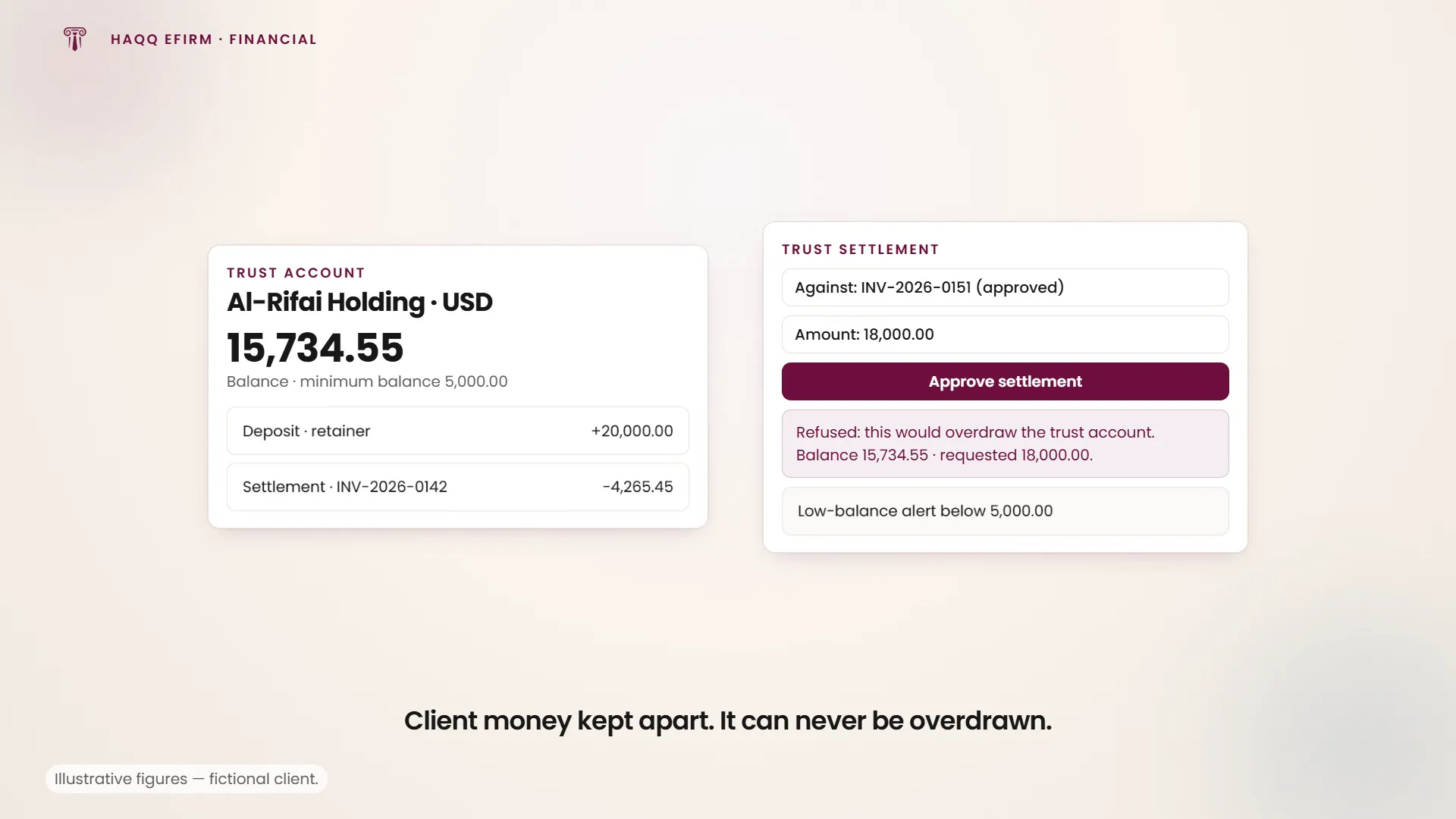
A trust account is a named pot of the client's own money the firm is holding: a retainer, funds advanced for court fees, settlement proceeds not yet disbursed. It is kept separate because it never belonged to the firm. Each account belongs to one client, in one currency, with two mirrored ledgers behind it: what the firm holds, and what it owes that client.
Two movements exist, a deposit in and a settlement out against an approved invoice or expense. Approving a settlement locks the client's trust ledger, reads the balance under lock, and refuses if it would go negative.
A trust account also carries a low-balance alert: set the threshold once in Settings, and the firm is notified when that client's trust balance drops below it, rather than finding out only when a withdrawal is refused.
VAT and tax
Tax charged to clients on fees and paid to suppliers on costs is captured as documents are entered, held in dedicated tax accounts, and reported for any date window as what was charged out, what was paid in, and the difference.
- The tax point is the document's own date, independent of when it was approved.
- The basis is strictly accrual. Payment dates never touch a tax account, so a firm on cash accounting cannot produce its return here.
- There is no tax-inclusive pricing. Every price entered is net and tax is added on top, so a firm that agrees a gross fee has to back the tax out by hand.
- There is no zero-rated and no exempt. Both are entered as 0%, which posts no tax line, so the return cannot distinguish a zero-rated sale from an untaxed one.
The module stops at the report. Nothing files a return or locks a period once filed.
The rules that will stop you
Each of these refuses the save or blocks the approval.
Saving
- An invoice needs a currency, a billing profile and a printed template.
- An invoice total must be greater than zero, so a 100% discount cannot be saved. Writing something off to zero has to be done another way.
- A flat discount cannot exceed what it is discounting. A percentage must be between 0 and 100.
- A service period cannot end before it starts.
- Every expense line must name a cost account and a recoverable-tax account.
- A journal entry's debits must equal its credits within one cent, and where lines carry different service periods, each period must balance on its own.
- If you cannot open a matter, you cannot file an expense to it. A spreadsheet import asks the same question.
Approving
- A document cannot be approved while its currency has no recorded rate on the document's own date. The refusal names the currency and the date. It never falls back to today's rate.
- Every account the entry needs must exist first, and any discount requires a designated discount account.
- The entry must balance against the document's own total, within one cent.
- A trust settlement cannot overdraw the client's balance. The refusal quotes both figures.
- If the document is overpaid once payments are recalculated, the whole approval rolls back. This is what catches two pending payments that each individually fitted.
Financial reports
Sixteen reports, all reading the same ledger. Two facts govern every one of them.
Only approved documents count. A draft invoice, an unapproved expense or a pending payment appears in no figure. The general ledger is the one exception: it lists drafts and voided lines too, so the audit trail is complete.
A figure lands in the period of its own document date, not the date it was approved. A 31 December invoice approved on 15 January is December revenue.
Five reports window on the approval date instead. Collection Rate, Ranking, Revenue & Cash, Realization Rate and the aged-debt snapshot use the approval date, so the same invoice can fall into different months on different reports. This is the source of most report-to-report disagreements.
| Report | The question it answers |
|---|---|
| Balance Sheet | What does the firm own, owe and is worth, at one date? |
| Income Statement | How much profit did the firm make over this period? |
| Cash Flow | Where did cash come from and go, and does that match the bank? |
| Ledger | Every individual line, with the document behind it. |
| Trial Balance | Does every account's debit and credit agree, and what moved? |
| Aging | Of everything unpaid now, how much is overdue and by how long? |
| Unrealised FX Gain/(Loss) | If every open foreign-currency balance settled at today's rate, would the firm gain or lose? Disclosure only. It posts nothing. |
| Statement of Account | For this client: what did they owe, what moved, what now? |
| Client Profitability | After discounts and booked costs, which clients made money? |
| Ranking | Who are our biggest clients, suppliers, matters and fee earners? |
| Collection Rate | Of the work we invoiced, how much turned into cash, and how fast? |
| Realization Rate | How much of the value we recorded did we actually bill and collect? |
| Revenue & Cash | Are the clients we recognised revenue from actually paying? |
| VAT Return | What tax did we charge out, what did we pay in, what is the difference? |
| TimeKeeper | What did each person record? |
| Utilization Rate | How much of each person's recorded time was billable? |
Reading the aging report correctly
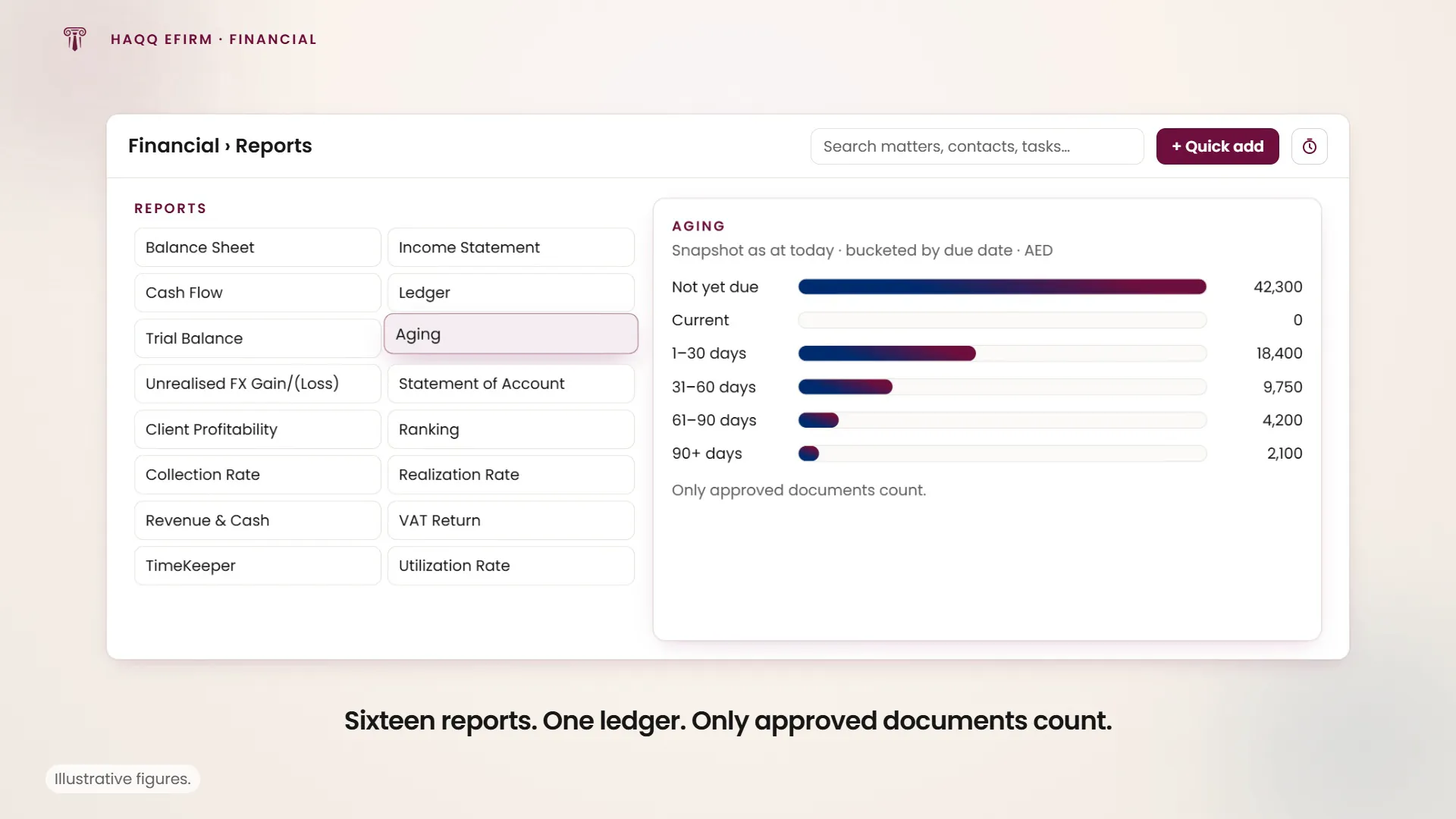
It is a snapshot as at today, with no date range, so you cannot ask what aged debt looked like at 31 December. Each unpaid document is placed in a bucket by counting days between today and its due date, never the invoice date, and both ends of every bucket are inclusive.
“Current” means due exactly today. It is a one-day bucket, not “within terms”. Everything not yet due sits in “Not yet due”, so on most days the Current column is empty. Where a document has no due date the report assumes approval date plus 30 days, which means a firm that does not set payment terms gets a fully populated and entirely assumed aging profile.
Reading utilization correctly
The denominator is not contracted hours, scheduled hours or capacity of any kind. It is the total hours that person wrote on their timesheet. Three billable hours and nothing else reads as 100% utilized, and someone who starts recording their non-billable time properly watches their utilization fall. The column is labelled “Available time”, which reads as capacity and is not.
Realization rate measures overall realization against standard value, not against what was billed: cash collected divided by the work at list price, so it compounds the write-down and the collection shortfall into one number.
Columns that share a name and are not the same number
| Column | On one report | On another |
|---|---|---|
| Gross profit | Client profitability: recognised revenue net of discounts, less recognised expense, dated by service period | Ranking: billed revenue with no discount deduction, less billed expense, dated by approval |
| Collection rate | Collection rate: cash over billed revenue, capped at 100% | Revenue and cash: cash over recognised revenue, not capped, so a deferred fee paid up front can exceed 100% |
| Outstanding receivables | Aging: the whole book, everything unpaid | Ranking: only invoices approved inside the chosen window |
All three pairs are internally correct and will never reconcile with each other.
Multi-currency
The firm keeps its books in one currency but bills, pays and holds cash in others. Everything follows from one idea: a rate is a dated series, not a single value.
A rate records how many units of the foreign currency you get for one unit of the firm's own. If the books are in dollars and the euro rate is 0.92, one dollar buys 0.92 euros. So: foreign into your own currency, divide. Your currency into a foreign one, multiply. Between two foreign currencies, do both.
Every rate carries a date and applies from that day until a later-dated rate supersedes it. There is no expiry and no staleness warning, there is no automatic feed, and the history is append-only. Correcting a wrong value means re-recording that same day.
Rates are recorded in Settings › Financial › Currencies, one timeline per currency. Because nothing fetches them, somebody at the firm has to keep them up to date, and an approval will refuse the moment one is missing for a document's own date.
| Figure | Rate used | Frozen? |
|---|---|---|
| An invoice, expense, payment or journal entry | The document's own date | Fixed at approval |
| Revenue on an invoice | The invoice's frozen rate | Frozen |
| What is still outstanding on it | Today's rate | Moves every time you look |
| What has been paid on it | Each payment's own frozen rate | Frozen, per payment |
| Trial balance, balance sheet, income statement | Each line at its document's frozen rate | Frozen |
| Chart of accounts screen | Today's rate | Live |
Two figures on one invoice, measured two ways. An invoice's revenue is frozen and its outstanding balance is live. Once the rate moves they will not agree, and nothing on the screen explains why. The same shape makes the chart of accounts and the trial balance show different totals for one account: one answers what it is worth now, the other what it was worth when it happened.
Setup and the chart of accounts
A firm turns the module on once and picks a starting chart: a standard one of 115 accounts or a full one of 695. The choice cannot be re-run or undone. The same act creates the firm's first currency, which is always US dollars regardless of where the firm is, so a firm in Beirut or Dubai changes it afterwards through a guarded flow.
Accounts sit in a tree under seven fixed top-level categories: asset, liability, equity, revenue, contra revenue, expense and others. An account that has ever been posted to cannot be deleted, and neither can any of its parents. That counts every line ever written, including drafts later deleted and lines later voided.
A journal entry takes its reference number the moment it is created, so an entry drafted and never approved still consumes one and leaves a gap. Invoices behave the opposite way, with no number until approval.
Templates and printing
Templates control what a printed invoice looks like: a drag-and-drop layout of letterhead, client details, the line-items table and totals.
Editing a template changes how past invoices reprint. There is no snapshot of the layout as issued, so a template edit is retroactive across every invoice using it. Duplicate a template and edit the copy when you want a new look.
Roles and access
Access is granted to a person, not a job title. A role is a named bundle of permissions the firm creates, one person can hold several, and what they can do is everything their roles allow added together. Each permission combines the kind of record, the action, and the reach.
Reach defaults to everything. If a permission is created and nobody says otherwise, it covers every record of that kind. Restricting access has to be written down deliberately. Whoever created a record can always act on it whatever their role says, so someone with view-only rights can still edit and delete anything they typed themselves.
Reports are all-or-nothing and firm-wide. Once a person can open reports, every report shows the whole firm's figures, and none of the record-level narrowing that applies to invoices applies to reports.
Full detail is on Roles and permissions.
Things that look missing and are not
Each of these is a decision already made rather than a gap, and each one gets asked in a firm's first month on the module.
| “Where is…” | The answer |
|---|---|
| the Transactions screen? | Taken out of the menu deliberately. The list of postings people actually want is Reports › Ledger, which shows the same data with the account and the source document attached. |
| invoice and receipt templates? They used to be under Financial. | Settings › Financial, because a template is configuration rather than a ledger record. The old addresses redirect permanently, so existing bookmarks still work. |
| currency management? | Settings › Financial › Currencies, with a screen per currency showing the full dated history of its rates. In Settings for the same reason as templates. |
| any FX reporting? | Unrealised FX Gain/(Loss), in the reports list. It is deliberately point-in-time and disclosure only: it values open foreign-currency balances at today's rate and posts no entry of its own. |
| Budgets? | Retired. It was removed from the product in release 4.3.0 on 18 August 2026, and is no longer available. |
| a client's statement or trust balance in the client portal? | Not there, but the portal is. A client invited to it sees their own invoices, read-only, with a PDF to download. What it does not carry is a statement of account, a trust balance or anything from the ledger: Financial's client-facing scope is invoices and nothing else. |
| why Timesheet is in a menu of financial screens? | It is a shortcut, not a financial page. It lives at /firm/time-sheet and is kept at the end of the group because billable hours are where invoices start. |
Three addresses from the retired application still resolve: the singular /financial/invoice/, /financial/expense/ and /financial/payment/ forms redirect to their current equivalents. Anything else from that era is meant to return a 404 rather than guess at what you wanted.
Glossary
| Term | What it means here |
|---|---|
| Proforma | What a draft invoice prints where its number will go. It counts for nothing. |
| Approval | The act that turns a document into money: fixes the rate, assigns the number, posts the entry, locks the record. |
| Deferred revenue | Money invoiced for a period not yet delivered, released month by month. |
| Recoverable tax | Tax paid to a supplier that the firm expects to reclaim, held as an asset rather than a cost. |
| Trust account | A pot of one client's own money the firm holds, drawn down only against an approved bill. |
| Standard value | Recorded hours at list price, before any write-down. The denominator of overall realization. |
| Frozen rate | The exchange rate stamped onto a document at approval, which never re-measures. |
Where to go next
Time recorded against a matter is what most invoices are built from, so Legal matters and Tasks sit upstream of everything here. Contacts holds the clients an invoice is raised against, and Product updates records what changed in each release.