

AI Tool Results & Artifacts
When the assistant does something rather than only replying, the result shows up as one of two things: a structured card in the conversation, or a document card you can open, edit and export.
How a tool result appears
Every tool the assistant runs, whether searching, reading, creating, editing or deleting a record, or reaching outside eFirm to the web or a knowledge base, renders through the same card: an icon, a title, and a live status badge, with the tool-specific content inside. Most cards start collapsed; search-style cards start open so results are visible right away.
| State | What you see |
|---|---|
| Running | A progress indicator, with an elapsed-seconds counter on anything long-running so it never looks stalled. |
| Completed | A label naming the operation (created, retrieved, updated, deleted or completed), plus the result. A delete shows its badge in a distinct, destructive style. |
| Error | A separate error panel, shown both for a tool that fails outright and for one that runs but reports back that it didn't succeed. Either way, you see the same panel with the message it returned. |
| Empty | Nothing to show, so the whole card, title included, is removed from the conversation rather than left as an empty shell. A running or errored card is always shown regardless. |
When the assistant reads or writes a record
Create, read, update and delete tools all render their result as one or more record cards for whatever they touched: a contact, invoice, expense, receipt, hearing, legal matter, milestone, file, folder, task or configuration. Reading a single item shows one detail card; reading several shows a list of compact ones, chosen automatically by how much data came back. Writing shows a confirmation banner naming the operation and the record it touched.
Where a record can be opened in eFirm, hovering it reveals a link that jumps straight to the full record there. See HAQQ eFirm. A result the assistant can't locate a record for just doesn't show that link.
| Record | Status values |
|---|---|
| Invoice | Paid, pending, overdue or cancelled |
| Expense | Approved, rejected or reimbursed |
| Legal matter | Won, lost or settled |
| Milestone | In progress, completed or cancelled |
Searching eFirm, your knowledge base and the web
A search across your eFirm records opens already expanded, showing the keyword you searched in its header. Results are grouped by record type, with a filter pill for each type (plus an All pill) and a count on every one; picking a pill narrows what's shown without re-running the search. Each result opens in eFirm the same way a record card does.
A search of your knowledge base works the same way but organizes results into four independently collapsible sections (company, team, personal and public), each filterable by type, with results routing to a type-specific card (contact, task, legal matter, invoice, expense, calendar item, lead, milestone, reminder, file, a prior AI response, or a generic fallback).
A web search just shows the query and the source links it returned.
When the assistant drafts or edits a document
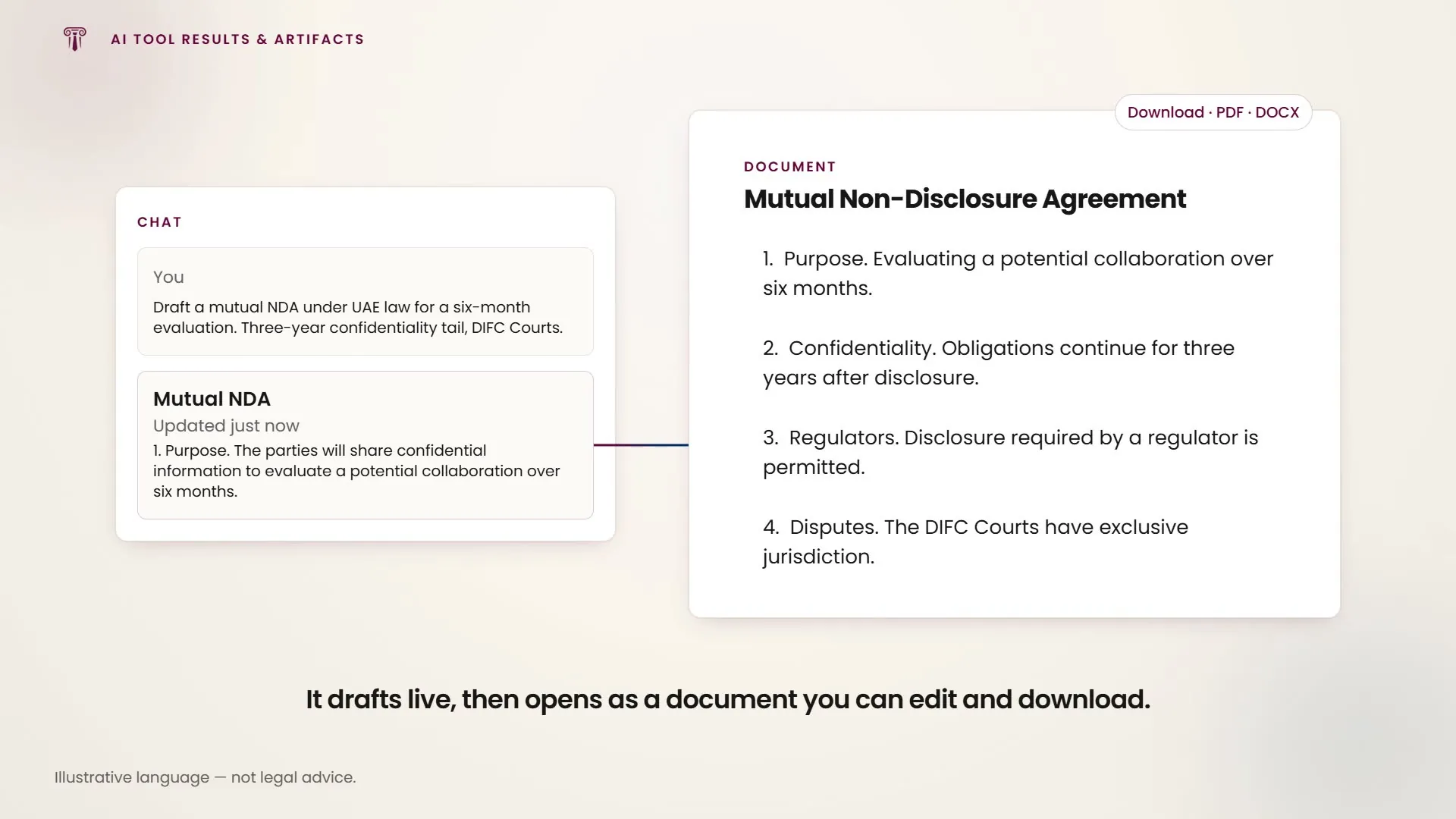
The moment the assistant creates or updates a document, an inline card appears in the conversation with its title, kind and a body preview. While it's still being written, the preview grows live and auto-scrolls to the newest text. You can't scroll or select it yet, and a status line says whether the assistant is creating a new document or updating an existing one. Maximize and Download stay disabled until drafting finishes; the moment it does, the card becomes clickable. Writing a document does not open it by itself: the card stays in the answer until you click it.
Each answer shows one card per document. If an update to a document fails, its card stays in the answer.
Once finished, the card shows a clamped preview, a stamp for how long ago it was last updated, a Maximize action, and a Download menu for PDF or DOCX, disabled while there's no content yet. You can also copy the document's content directly from its card, and a download from the card applies all of your export settings. If that same document is already open, the card in the conversation collapses to a single line instead of repeating the preview. For how a first draft gets generated in the first place, see AI Drafting.
Opening a document
There is no separate Artifacts panel. Clicking the card, or Maximize, opens the document out of its card, and closing it folds it back into the card. The header shows the title and either a “Saving changes” note or how long ago it was last updated, with a close control.
Every document HAQQ writes in a chat is also listed in the Chat files panel, so you can find it again without scrolling back to the answer that produced it. See Using the Chat Interface.
| Action | What it does |
|---|---|
| View changes | Toggles a diff highlighting insertions in green and deletions struck through in red, against the version before it. Disabled on the first version. |
| Previous / Next version | Steps through saved versions. Previous is disabled on the first version, Next on the latest. |
| Copy to clipboard | Copies the document's current content. Disabled while there's no content. |
| Download | Exports to PDF or DOCX with a progress toast. Disabled while there's no content. |
The body is an editable rich-text view of the document, but only while you're looking at the latest version. While the assistant is actively writing, the body switches to a read-only rendered view, and editing resumes once it stops.
Version history and comparing versions
Stepping to an older version makes the document read-only, dims the conversation column behind an overlay, and adds a footer reading “Viewing previous version” with a version indicator and a “Back to latest” button that returns you to the current version and to edit mode.
Asking the assistant to revise the document, from the conversation beside the open document, is the other way a version changes, distinct from editing the text yourself directly. While it works, a status banner tracks progress through analyzing the request and applying each change, then confirms once every change is applied, dismissing itself after a few seconds. If nothing needed to change, it says so and dismisses the same way.
What to know before you rely on it
- Edits to the latest version save on their own, a short pause after you stop typing. There is no save button and no confirmation.
- Only the latest version is editable; open an older one and you're read-only until you return to latest.
- A read-only viewer (someone on a shared, read-only conversation) can open a document, browse and compare versions, copy and download, but can't drive new edits.
- A document can't be opened while it's still being written; the inline card carries the live progress instead. Once drafting finishes, the document stays in its card until you open it.
- Text documents, meaning essays, emails and general writing, are what actually open as editable documents today. A spreadsheet is referenced by its own icon in a tool result card, but its editor isn't enabled yet, so it doesn't open the same way. Tables and line breaks in a text document are kept, both in the open document and when you edit it.