

Client Portal
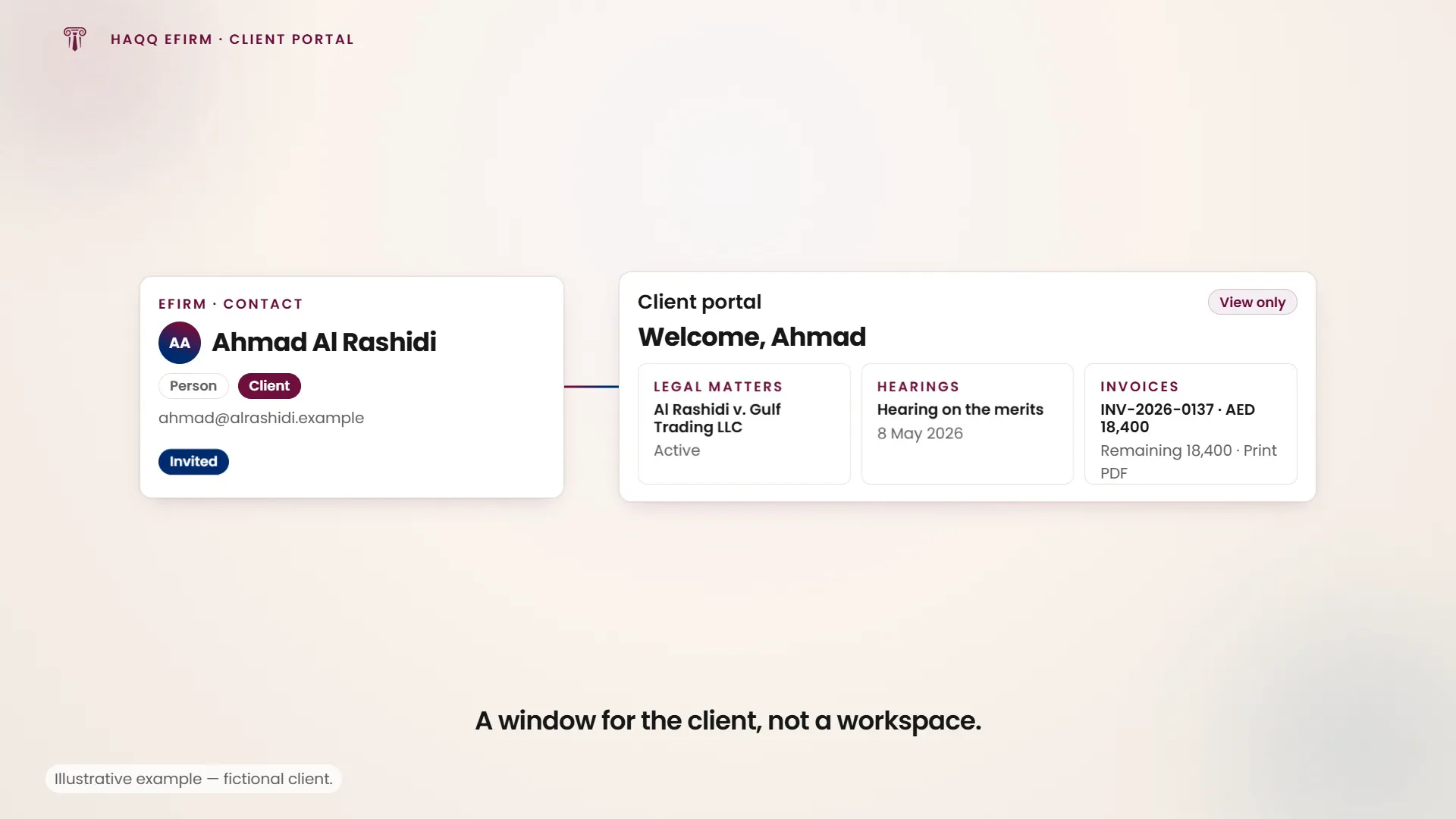
eFirm has a client-facing portal: a client the firm invites signs in and sees their own matters, hearings, calendar, files, invoices and identity-verification forms, in read-only form.
How a client gets access
Access starts on the firm side, on the contact. Open the person or organisation in Contacts and use Invite to client portal on the contact detail. Two things have to be true for the action to appear: the contact must have at least one email address, and you must have the right to update contacts. Without update rights the action is not shown; see Roles and permissions.
Choosing it opens a dialog to pick which of the contact's email addresses the invitation goes to. When the contact has only one address it is selected for you. When the contact has none, the dialog says so rather than sending anything. Once a contact has been invited the button is replaced by an Invited badge, so the state is visible on the contact record itself and nobody has to remember.
The two portals stay apart. A member of the firm who lands on a client-portal address is redirected to the firm dashboard, so firm staff never browse the client view by accident and a client never reaches the firm side.
What a client sees
Nine surfaces. Everything on all of them is scoped to the signed-in client: their matters, their hearings, their calendar, their files, their invoices, their forms. A record that is not theirs does not render a partial view. It resolves to a not-found message, which is how one client's matter stays invisible to another.
| Surface | Path | What it exposes |
|---|---|---|
| Home | /client/home | A greeting by first name and three widgets: up to five recent legal matters, up to five recent hearings, and up to five upcoming calendar events. Matter and hearing rows open their detail page. |
| Legal matters | /client/legal-matters | The client's own matters as a sortable table, and a three-tab detail: Info, Calendar and Hearings. |
| Hearings | /client/hearings | Hearings the firm has shared, with free-text search and per-column filters, plus a two-tab detail and a link up to the parent matter. |
| Calendar | /client/calendar | The client's own calendar items (hearings, tasks, milestones and other events) with the record each one hangs off. |
| Files | /client/files | A read-only document centre in two tabs, My Files and System Files, above a storage-usage gauge. Files open or download; nothing uploads. |
| Financial | /client/financial | Every invoice the firm has issued to this client, with what has been paid and what is still owed, and a printable PDF of each. |
| KYC | /client/kyc | The identity-verification forms the firm has sent, each with its status, and a view-only rendering of the form's contents. |
| Legal directory | /client/legal-directory | A searchable directory of the legal organisations on the platform: name, country, type and member count. |
| Profile | /client/user-info | The client's own details, interface language and password. The only surface in the portal where a client changes anything. |
Home
The dashboard greets the client by first name and carries three widgets, each capped at five rows and each resolving on its own. One being empty says nothing about the others. Legal matters shows a name, falling back to the reference ID, with a status badge when the matter has one. Hearings shows a name and the start date when it is set. Both link into their detail pages. Upcoming calendar events show a title and start time but are display-only: there is no calendar detail page to open.
A fourth widget, Announcements, always reads as unavailable rather than empty. Announcements belong to a firm, and a client is not inside one, so there is nothing for it to show.
Legal matters
The list is a table of the client's own matters, loading more rows as they scroll. It carries reference ID, name, status, specialization, category, court case number, and the created and updated dates; reference ID and name stay pinned while the table scrolls sideways. Every column sorts. Clicking a row opens that matter.
There is no search box, no filter, no create button and no export. The only toolbar control is column settings, and those choices are held for the current visit rather than saved.
The matter detail has three tabs and opens on Info, a labelled list of every field the matter actually carries: reference and name, status, specialization, category and sector, court, court case number, jurisdiction and region, the representing and opponent contacts, judge, point of contact, assigned team, opponent lawyer, outcome and outcome date, estimated duration, notes, and the start, end, due, created and updated dates. Empty fields are not shown as blanks. They are left out. Calendar lists the events linked to the matter with their start and end times, and Hearings lists the matter's hearings with a status badge, start date and court. Each tab has its own empty-state message. The firm-side view of the same records is on Legal Matters.
Hearings
Hearings is the only client surface whose columns filter individually. Alongside the toolbar search box, filters are available on reference ID, title, hearing date, end date, court, court case number, jurisdiction and status. Legal matter and judge are shown but do not filter. Everything on the table sorts, including those two.
Clicking the reference or title opens the hearing; the linked matter and judge cells jump to their own records instead. The detail shows the title with a status badge when one is set, and, when the hearing belongs to a matter, a link up to that matter inside the portal. Its Information tab lists only the populated fields: reference ID, hearing and end dates, legal matter, court, court case number, judge, representing and opponent contacts, jurisdiction, region and notes. Its Calendar tab lists the events linked to that hearing.
Scope is the point: a client sees the hearings the firm has shared with them, never another client's and never the firm's internal-only ones. The firm-side module is Hearings.
Calendar
A single table of the client's own calendar items (hearings, tasks, milestones and other events shared with them). Six columns: title, start time, end time, item type, location, and the linked item, meaning the record the event hangs off. That linked item can be a contact, a hearing, a legal matter, a task or a milestone, and it is shown by name; where there is no linked record, or it has no name, the cell shows a dash, as do a missing type and location.
Only title, start time and end time sort. Rows load twenty-five at a time as the client scrolls. There is a column-settings control and nothing else: no search, no filters, no create, no export, and no row opens an editable detail.
Files
The document centre opens on a storage gauge and two tabs. The gauge reflects the firm's storage allocation rather than a per-client one. Where the allocation is unlimited it collapses to a single line with no bar. Where a limit applies it shows used against total in MB with a percentage and a progress bar, which turns a warning colour at 75% and a critical one at 90%; a warning notice appears between 75% and 89% and is replaced by a stronger one at 90% and above, never both at once. An upgrade prompt sits under the gauge whenever a limit applies, regardless of how full it is.
My Files, the default tab, lists the client's top-level storage categories with a count of the folders and files inside each. Opening a category shows each of its root folders as its own browseable section, plus any files attached to the category itself; files open in a new tab. A back control returns to the category list, and there are separate empty states for having no categories at all and for opening a category that turns out to be empty. If the category list fails to load it offers a retry.
System Files holds a fixed set of system-record folders: Contacts, Legal Matters, Leads, Hearings, Tasks, Members, Invoices, Expenses and Receipts. Each starts collapsed and loads its contents when expanded, with its own loading, empty and error states.
A client browses and opens or downloads. Nothing else: no upload, no rename, no move, no delete, no new folders. The firm-side file manager, which does all of that, is on Documents.
Financial
The client sees every invoice the firm has issued to them, one row each, with invoice number, title, status, approval status, invoice date, payment due date, customer name, total, paid amount, remaining amount, currency and created date. Approval status reads Voided, Approved or Pending, derived from the invoice's own state. Amounts render in the invoice's currency, falling back to USD when none is set. The list searches and sorts and pages in twenty-five rows at a time; status is a column, not a filter.
Two row actions: View opens the invoice, and Print opens the print and PDF preview. Print appears only on invoices that carry a shareable document. Where there is none, no print option is offered, in the list or on the detail header.
The invoice detail shows the dates, the customer name and email, the totals before and after discount, the paid amount and the remaining balance, and, when the invoice uses a secondary currency, the converted amount against the default one. Below that sit the line items, the tax items, the receipts recorded against the invoice, and the note blocks: the general note, terms and conditions, payment details and signature note. Every one of those sections is conditional: it appears when the invoice carries that data and is omitted entirely when it does not.
Invoices are created, approved and voided on the firm side only, in Financial. In the portal a client consumes them and prints them, and cannot change anything.
KYC
The forms table lists the identity-verification forms the firm has sent this client, with the form name, its status, and the submitted, reviewed and created dates. Status is one of Not started, Submitted, Approved or Rejected. There is no search, filter, create or export; there is a column-visibility setting, held for the visit rather than saved.
Opening a form renders it whole, in the order the firm defined, with a View only indicator and the current status badge. Section headings, descriptive text, yes/no answers, list answers and plain text all render in place; attachments appear as a download link where the firm has stored a file, and as a dash where it has not, as does any field with no answer.
Legal directory
A single tab, Legal Organizations, listing the legal organisations visible to the client with four columns: name, country, type and member count. Type reads either Organization or Individual, and a missing type, country or member count shows a dash rather than a blank.
Search filters by firm name and is matched against the whole directory, not only the rows already loaded, so a name deep in the list is still findable. The name column sorts and stays pinned while the table scrolls sideways; the others are display-only. Results arrive twenty-five at a time as the client scrolls. The toolbar carries search and column settings and nothing else: no advanced filters, no create, no export, and no action on any row.
Profile
This is the one surface where a client changes something. They can edit their title, first, middle and last name, and phone number, and set a timezone; Save turns on only once something actually differs. Their email address is shown but cannot be changed here. An avatar can be uploaded (images only, up to 5 MB, both checked before the upload starts) and removed, though the remove action only appears when there is an avatar to remove. Where no avatar is set the portal shows their initials, taken from their name or, if that is blank, their email.
The interface language selector lists every supported locale and applies the moment it is chosen: no Save, the portal re-renders in the new language. Every other profile edit waits for Save.
Password changes ask for the current password, the new one and a confirmation. Strength is scored on a 0-to-4 meter as they type, and the requirements come from the firm's password policy, each rule showing a live pass or fail; where no policy applies, a minimum of eight characters is enforced instead. Submit stays off until every applicable rule passes and the confirmation matches, and the form clears on success. Each save, avatar change, language switch and password change reports back with its own confirmation or error.
What a client cannot do
The boundary is worth stating plainly, because it is what makes the portal safe to hand to a client. Outside their own profile and password, a client cannot change anything in eFirm:
- No creating, editing or deleting. Not matters, hearings, calendar items, files, invoices or KYC decisions. There is no inline cell editing, no row selection and no bulk action on any client table.
- No uploading. Files can be opened and downloaded. They cannot be uploaded, renamed, moved or deleted, and folders cannot be created.
- No submitting a KYC form from the portal. The authenticated view is read-only; the fillable form is the separate public link the firm sends.
- No confirmation dialogs anywhere. Not because they were skipped, but because nothing in these surfaces changes data, so there is nothing to confirm.
- No visibility past their own records. A matter, hearing or invoice that is not the client's resolves to a not-found message rather than exposing any of its data.
- No saved preferences. Column choices on Legal matters and KYC are held for the current visit only and reset on the next one.
What the firm gives a client, then, is a window rather than a workspace, and what a client sees through it is decided entirely on the firm side, by what is linked to that client and shared with them.