

Team Chat
Team Chat is eFirm's own in-app messaging for the firm (direct messages, group chats, and threads tied to a task or a legal matter) with file attachments, read receipts and realtime delivery.
Where it lives
Team Chat opens two ways (as a full page and as a slide-over from the topbar) and both surfaces share the same state, so the selected conversation and its unread status stay in sync whichever one you're in.
Chat also appears on the records it's linked to: a conversation tied to a task or a legal matter shows up directly on that record, alongside an activity feed of changes to it, grouped by day. A user who isn't already a participant in that record's conversation sees a Join prompt and has to join before posting; once joined, the same message list, composer, invite and leave controls apply as anywhere else in Team Chat.
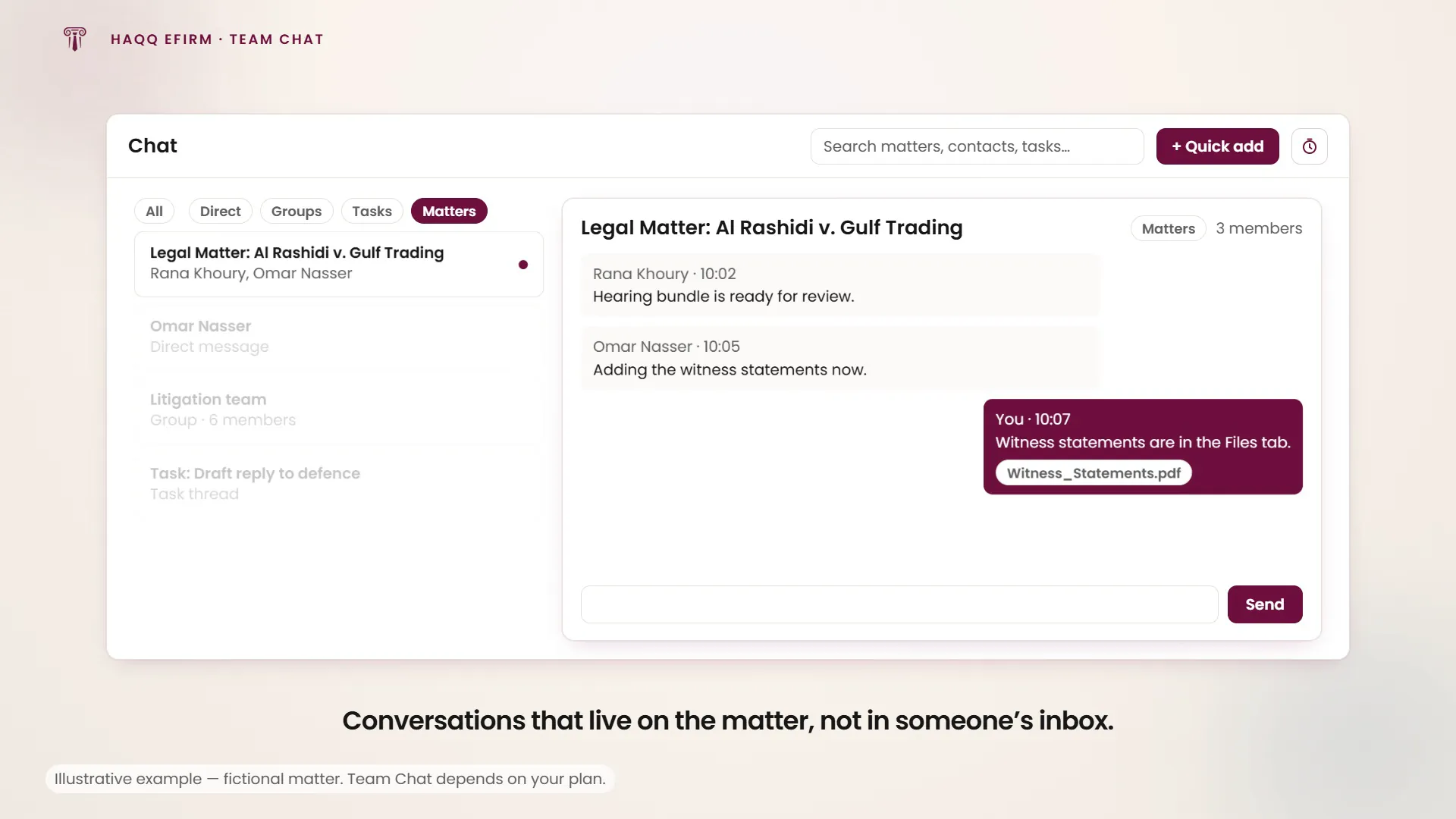
Conversation types
| Type | Started from |
|---|---|
| Direct message | The new-chat dialog. Search for a person and start a one-to-one conversation. |
| Group chat | The new-chat dialog. Name it (or accept a default name) and add members. |
| Task thread | The task's own Chat tab. |
| Matter thread | The legal matter's own Chat tab. |
The conversation list on the left filters by type (All, Direct, Groups, Tasks, Matters) and can be searched by title or participant name. Each row shows the conversation's avatar, title, participants or last-updated time, and the last-message time; an unread dot marks any conversation whose newest message arrived after you last opened it (your own messages never count as unread).
Starting a conversation
The New chat button opens a dialog with two modes. Direct searches members and starts (or reopens) a one-to-one conversation the moment you pick someone. Group takes an optional name (a default is used if you leave it blank), a multi-select of members, and requires at least one before Start group is available. In both modes, you're excluded from your own member picker.
Sending and managing messages
- Messages are grouped by day, each bubble showing its author and time. Your own messages sit on the trailing side with an actions menu to edit (inline) or delete; other people's show their name and avatar.
- The composer attaches one or more files alongside text; Enter sends, Shift+Enter inserts a line break. Send stays unavailable with an empty draft and no attachments, or when no conversation is open.
- Attachments render as file chips that open the file in a new tab.
- A message that's sending shows a pending state; a failed send offers Retry.
- Only your own text messages can be edited. An attachment-only message has no text to edit but can still be deleted.
- Deleting a message asks for confirmation first. Every other action here (editing, sending, starting a chat) applies immediately.
Conversation details
A details panel toggles open next to the thread, showing the conversation's avatar, title and type. For a group, it adds a name field with its own save action, the member list with a count, an Invite members search (existing participants and you are excluded from the picker), and Leave conversation, which removes you and clears the selection. Renaming a group, inviting members and leaving all apply immediately. None of them asks for confirmation.
Who can use it
Team Chat sits behind two gates. The chat experience as a whole requires a plan that includes it. Without that plan, the topbar chat button and slide-over don't appear at all. Separately, the firm's workspace needs an active eFirm subscription; without one, chat isn't reachable and the user is routed to where a plan can be purchased. See Subscription plans.