

KPI Targets
KPI Targets sets a measurable goal for a member or a team, and tracks how each period's actual results land against it.
Setting a target
The create dialog collects a name, an optional description, an assignee type (Member or Team), an assignee, a frequency, a target type, a target value, and a start and end date.
| Type |
|---|
| Number of calendar items |
| Tasks completed |
| Matters won |
| Leads won |
| Time billed |
| Utilization rate |
- Choosing Member as the assignee type lists company members; choosing Team lists teams instead. Switching type clears whichever assignee was already picked, and when there is nothing eligible to assign to, the picker shows an empty note.
- A currency field only appears for the monetary target type (time billed). It is hidden for count and percentage target types.
- Frequency runs daily, weekly, biweekly, monthly, bimonthly, quarterly, semi-annually or annually.
- Name, assignee, target value, start date and end date are all required, and the target value must be a valid number, before Create is enabled. A toast reports success or failure, and the dialog closes on success.
Browsing targets
A left-hand rail lists an All row, every company member, and a Teams group. The Teams group only appears once the firm has at least one team. Selecting a member or team filters the target list to that assignee, and the page subtitle names whoever is selected; choosing All clears the filter.
Each target in the list shows its name, which links to the detail view, its assignee, its start and end dates (a dash when missing), its frequency, its target value, and a truncated description where one exists. A keyword search and a sort selector (by name, target type, frequency, target value, start date or end date, with an ascending/descending toggle) narrow and order the list; changing the search, the assignee or the sort resets back to the first page. Pages are a fixed 25 rows, with previous/next controls once at least one target exists.
Add, shown to users with create access, opens the create dialog; when a specific member is already selected in the rail, the new target is pre-filled with that member as the assignee. Delete, shown to users with delete access, always asks for confirmation first.
Exporting
Export writes the currently filtered set (respecting the active assignee, search and sort, but ignoring pagination, so it always covers the whole filtered list) to an XLSX spreadsheet with a fixed column set: name, assignee, target type, target value, frequency, and start/end date. A toast confirms the export started, or reports an error.
Target detail and progress
A target's own page shows its assignee, frequency, target type, period (start and end date), target value, and currency code where one applies. Unset fields render as "None". A bar chart plots achievement per period against the target value, with a dashed reference line at the target itself; bars are coloured to show whether that period met or exceeded the target versus fell below it, with a legend. A target with no periods yet shows an empty message instead of a chart.
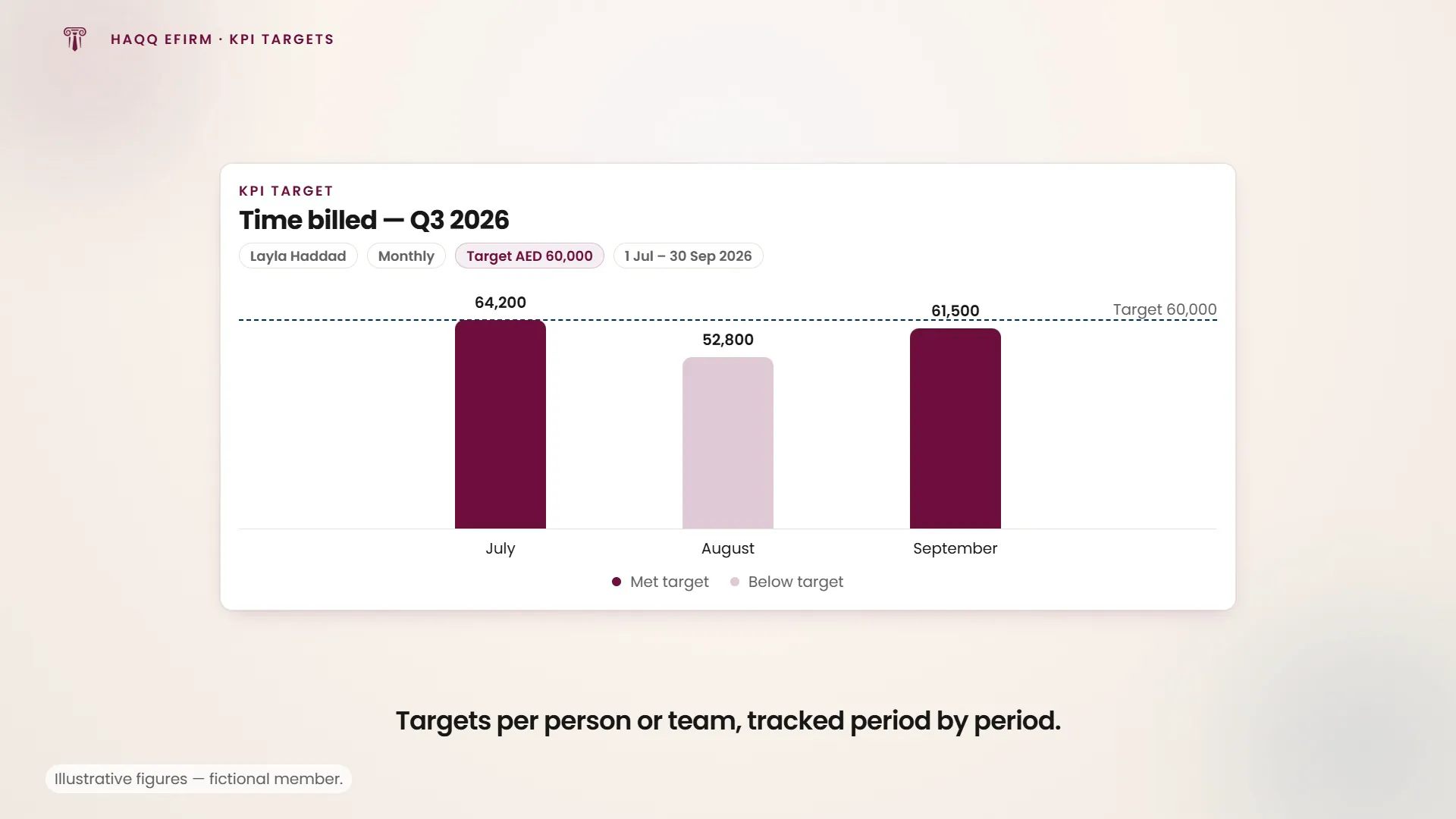
The detail view is read-only. There is no edit or delete control on it. Every configuration change happens from the list, through create and delete, not here.
Who can see and manage targets
Read access gates both the list and the detail view. Without it, a "no access" screen replaces the page entirely, resolved behind a brief loading placeholder rather than flashing the denial straight away. Create access gates the Add buttons, on the header and in the empty state. Delete access gates the per-row delete control, and deleting always requires confirmation.
Where to go next
Performance reviews in HR are scored against the targets set here, and time-billed targets read from the same logged hours as Financial. For the wider firm setup this page sits inside, see eFirm Overview.