

Time Sheet
Time Sheet is the firm-wide view of logged hours (by member, as a workload chart, a flat list, or a pie breakdown) built from entries every member logs through the Time Tracker.
Logging time: the Time Tracker widget
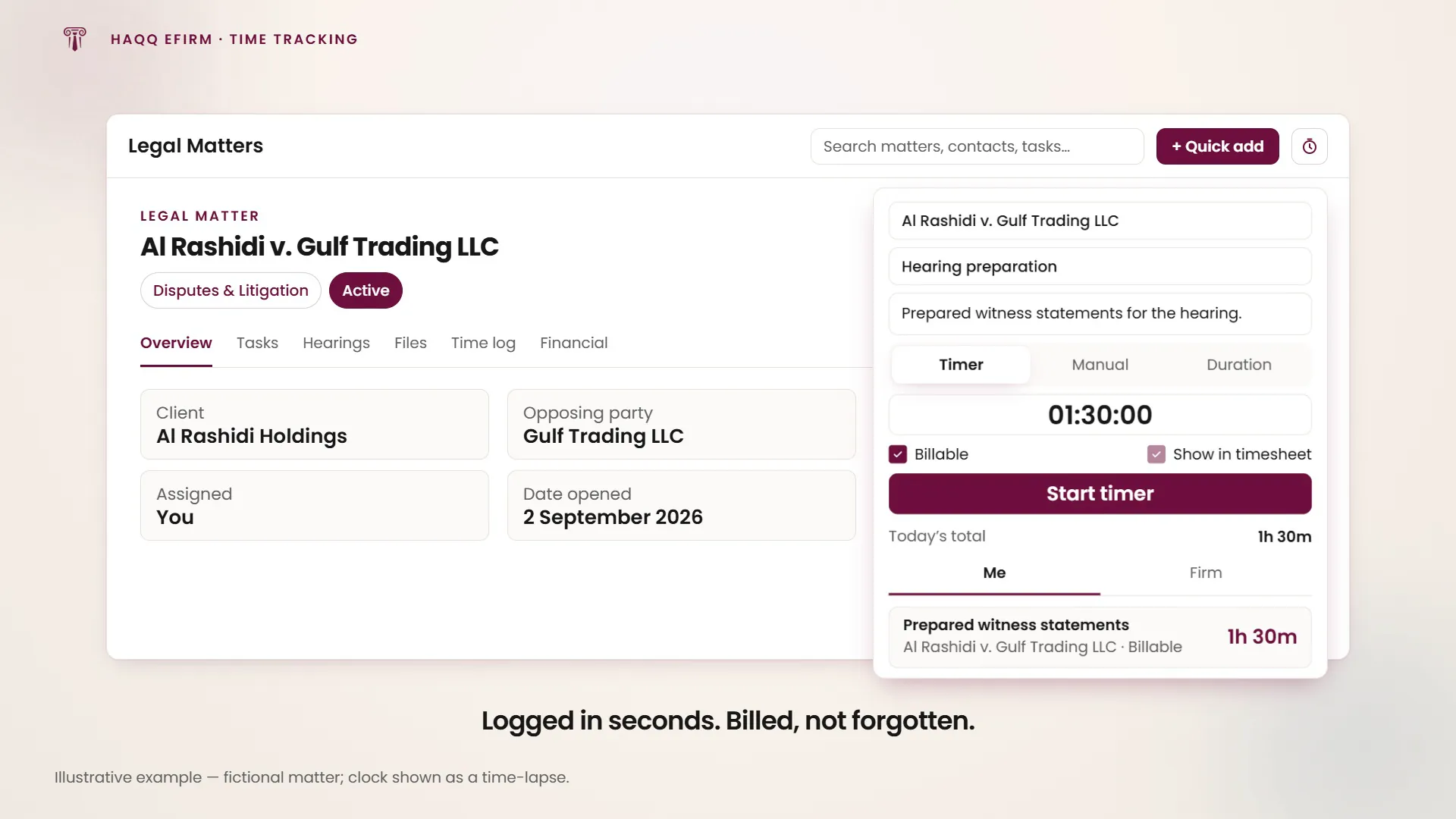
The Time Tracker is launched from the sidebar and is available across eFirm. It is the companion surface where the entries that feed the timesheet are actually created.
| Mode | How it works |
|---|---|
| Timer | A live timer that starts now and is stopped later. |
| Manual | Explicit start and end times. A start time is required before it can be added. |
| Duration | A date plus hours and minutes. A date and a non-zero duration are both required. |
Every entry can carry an optional link to one or more records (contacts, matters and so on), a category or item type, and a description. A billable toggle is on by default, alongside a show in timesheet toggle; when an entry is billable, "show in timesheet" is forced on and locked, with an explanatory hint, since billable time always appears on the timesheet.
A records list shows today's entries with a Me / Firm scope toggle and a running total for the day. A running entry shows a live clock; each row can be stopped, resumed, or deleted. Resuming a stopped entry starts a new one. It copies the original's title, description, category and billable/timesheet flags rather than reopening the original. Deleting an entry is immediate, with no confirmation step.
A separate attendance strip in the same widget offers check in / check out and start / end break, with a live work clock and a summary of the day so far. Checking out while on a break ends the break first, and a rejected punch surfaces the server's own message and resyncs the displayed status.
The firm-wide Time Sheet page
Reaching the page at all requires access to the timesheet. Without it, a locked "no permission" state shows and nothing else loads. A date-range picker defaults to the current calendar month and only applies once a complete from/to selection is made. A member filter, defaulting to "All members", appears only for users who can see the whole firm's timesheet; without that access, both this page and the tracker's Firm scope resolve to the signed-in user's own entries only.
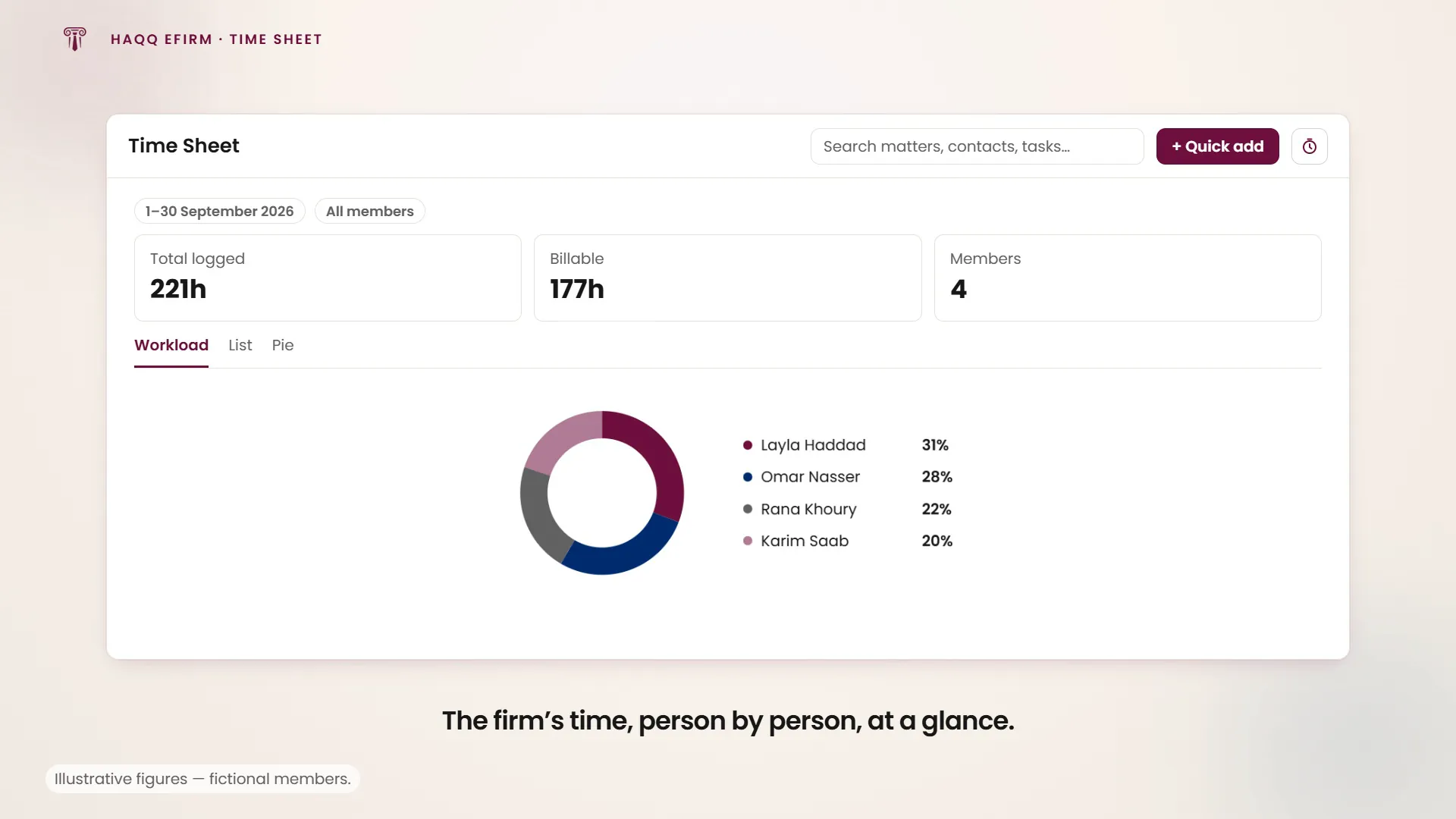
Once data has loaded and is non-empty, summary stats show total logged time, total billable time, and the member count for the current range and filter. Only entries flagged to show in the timesheet are included: because that flag is forced on for billable time, every billable entry is always counted. Three tabs switch the view: Workload (the default), List and Pie.
Workload view
One card per member, sorted by most time logged, each with a colored progress bar sized relative to the busiest member. A card shows that member's entry count, total duration, billable duration, and billable amount. The amount is hidden when it is zero. An empty state shows when nothing matches the current range and filter.
List view
A flat table of individual entries: member, title, date, item type, linked record, location, duration, billable flag and billable amount, with a toolbar search and per-column filters that narrow the already-loaded set on the client. There is no column-configuration control.
Pie view
A donut chart of time share per member, alongside a compact summary table of member, duration and percentage share.
Where to go next
Billable time and its currency conversion connect to Financial, and time billed is one of the target types available on the firm's KPI Targets page. For the firm's people-management module more broadly, including its own attendance register, see HR.