

Using the Chat Interface
This page covers everything around a conversation: the sidebar you navigate the app with, your chat history, attaching files, and the panel that shows what is informing the chat you have open.
The sidebar
A persistent sidebar sits on every chat screen, shown as a floating panel on the left. Its header shows your current workspace name and a collapse control; clicking the workspace name opens a switcher to move into another workspace or create a new one. While your account and workspace data are still loading, the header shows placeholder loaders rather than blank space.
| Area | What it does |
|---|---|
| New Chat | Starts a fresh conversation. If your workspace requires every chat to belong to a project, this button opens project creation instead of a blank chat. |
| View All Chats | Opens your full chat history. |
| Projects | Lists your active projects, up to five inline; open one to see the chats filed inside it. A + control creates a new project, and once you have more than five, a link opens the full projects list. |
| Recent Chats | Conversations that are not filed into any project, most recent first. Drag a chat onto a project row to file it there. You are asked to confirm before the move happens. |
| Collapsed rail | Narrows the sidebar to icons only, keeping New chat, All chats, New project and All projects. Your active workspace's avatar takes the header's place. |
| Footer | Go to eFirm opens eFirm in a new tab without closing your conversation, shown only when your workspace has an active eFirm subscription. Below it sits your account menu: edit profile, settings, language, and log out. |
When you click New Chat or open an existing chat, the cursor is placed in the message box so you can start typing right away. A chat you start in the current tab is highlighted in the sidebar.
Chat history
Your past conversations live at /chats, grouped under relative headers (Today, Yesterday, Last 7 days, Last 30 days, Older), with the most recent conversation first inside each group. A conversation moves between groups as it ages. Chats are titled automatically by topic, based on your own wording. Each row shows its title, a one-line preview of the last message prefixed with “You” if you sent it, a relative time, and, on larger screens, a message count and a document count, each shown only when it is above zero.
Search filters your history against your full conversation set, not only what has already loaded on screen. Scrolling near the bottom of the list loads older conversations automatically, with a loading indicator while the next page is fetched.
Chats you start but never send are archived automatically.
Renaming and deleting a chat
Each row has an actions menu with Rename and Delete. Rename switches the row into an inline editor pre-filled with the current title; confirm to save, or cancel to back out. A blank title is rejected, and confirming with no change closes the editor with nothing updated. Delete asks you to confirm before anything is removed and cannot be undone. Renaming carries no such confirmation step. Both actions report success or failure with a toast.
If you have no conversations yet, the list shows a prompt to start one. If a search matches nothing, it shows a different message with no such prompt. The two empty states are deliberately not the same.
Answers
While HAQQ works on an answer, its thinking and search steps sit in one line that shows the step under way. Once the answer is ready, the line reads “Thought for N seconds”. Click it to list every step.
When HAQQ writes a document, the answer shows it as a card, one card per document. Writing a document does not open a panel by itself. Click the card to open the document: it opens out of its card and closes back into it. Every document HAQQ writes in a chat is also listed in the Chat files panel. See AI Tool Results & Artifacts.
Your thumbs-up and thumbs-down ratings on answers are kept after you reload the page.
Arabic answers display right to left on the web, and arrows, table menus and tooltips follow the right-to-left layout. Arabic typed into the question box also runs right to left, and a sent message keeps the direction it was typed in.
If your connection drops
If your connection drops while an answer is being generated, the answer is recovered when you reconnect. If an answer was interrupted, click Retry to generate it again. An answer that stops making progress ends automatically, so the chat doesn't keep waiting.
Attaching files
Open Attach Files from the composer's compose menu, from the context panel's Attach file button, from a project's files section, or while creating a project. A left rail lists your storage categories; your personal files folder, if you have one, is pinned above them and selected by default. The center pane browses folders with breadcrumbs, a grid/list toggle, and a search box that filters by name within the open folder. Upload and New Folder stay disabled until a category or folder is open.
You can upload by button or by dragging files onto the picker; either way, a supported file is auto-selected up to whatever room is left in your selection. Selected files collect in a bar at the bottom with per-file removal and a clear-all; Attach stays disabled until you have picked at least one.
You can also paste a file, or a long block of text, straight into the composer. Either one lands as a fixed-size card, in a single row above the message box, rather than as a wall of text inside it. A file over your plan's size limit is refused with a message that says so and offers an upgrade, and the same limit applies however the file reaches the chat.
The assistant can read PDF, Word, Excel, PowerPoint, CSV, HTML, Markdown, plain text, and images (JPEG, PNG, GIF, WebP, BMP, TIFF), the same list everywhere a file is attached, including a data room. A file outside that list is rejected with a message naming it; the rest of the batch still uploads.
Attaching a file never drops it into the message itself. It always lands in a data room. In a chat, that is your Chat Files, created automatically the first time you add something; on a project page it is the project's own data room, kept separate from any individual chat's files. How many files you can hold depends on your plan (some plans cap it, some do not), and a file moves through pending, processing and ready, or lands in failed; only ready files are usable by the assistant.
Not sure whether a document belongs in a chat, a project or the Data Room? See Uploading Documents.
The context panel and data room
A folder icon in the chat header opens the panel showing what is feeding the current conversation. It is hidden on a brand-new, empty chat and appears once the chat has files or is under way; while it is closed and files exist, the icon carries a badge with your file count.
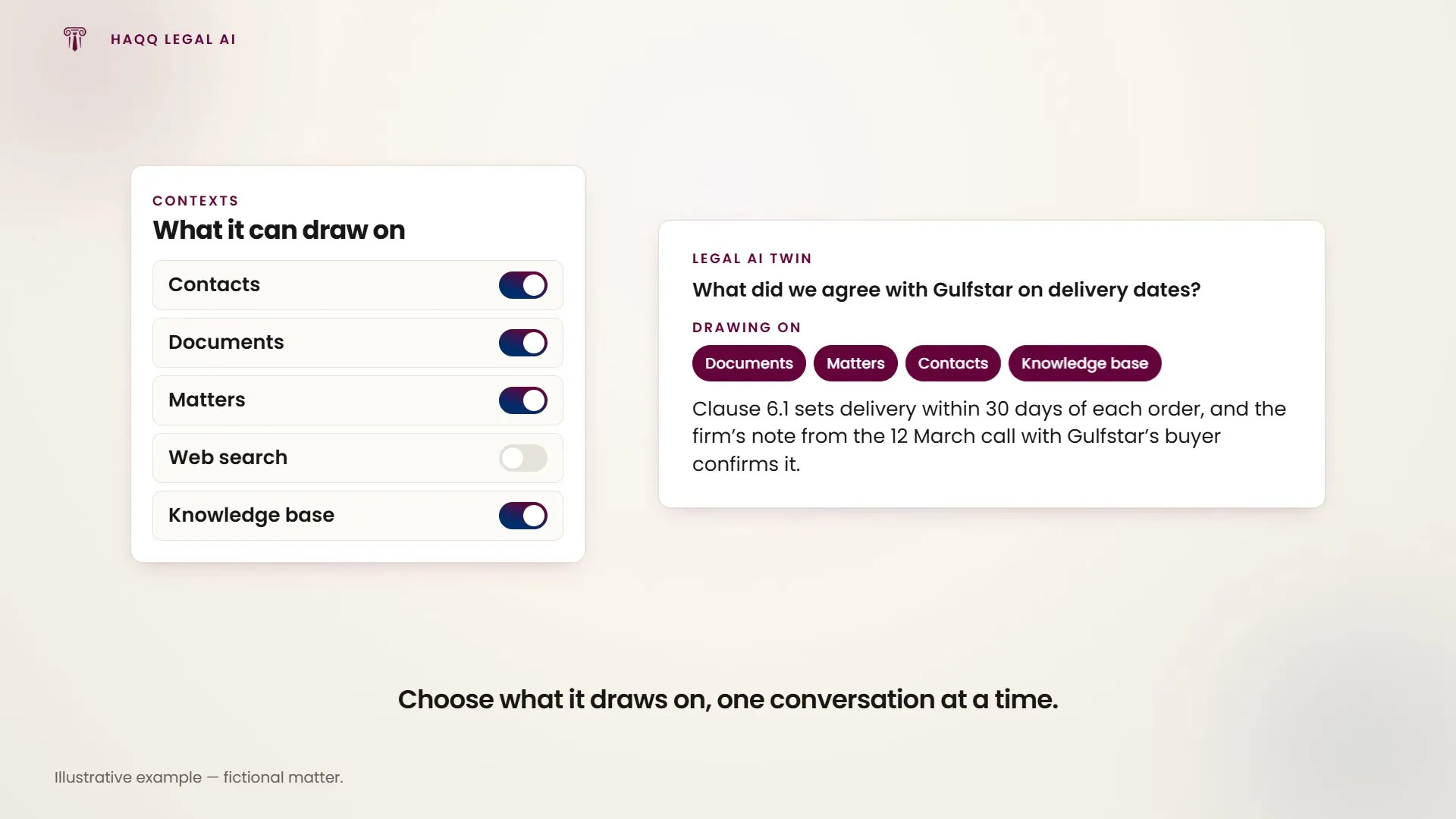
The panel shows one of two views, chosen automatically. In a project chat, it is Context: the project's name and icon, a summary of total, ready, processing and failed files, up to five of the project's most recent files, and links to the project dashboard and its file manager. A separate Chat files section sits below for anything you attached to this specific chat, since composer uploads always go to the chat's own store, never straight to the project. In a standalone chat, it is the lighter Chat context view: just your chat's files, an Attach file action that stays visible even when the list is empty, and prompts to fold the chat into a project, either by picking an existing one (archived projects do not appear in that picker) or by naming a new one inline.
Every file row shows its status, opens the original file in a new tab when clicked, and can be removed with no confirmation step.
For how AI document review works against everything sitting in a data room, see AI Document Review.