

Sections & Stages
Sections & Stages is where a firm shapes two things every pipeline module depends on: the fields a record captures, and the ordered stages it moves through.
Two screens, one job
A section is one configurable pipeline or form for a module. A firm can run more than one section per module, not just one. Two screens configure it from different angles: Section Stages sets the ordered stages a section's records move through, and Section Builder sets which fields exist on those records in the first place.
Section Stages
A left-hand menu lists the three modules whose pipelines have stages: Legal Matters, Leads and Tasks. Selecting one shows that module's sections on the right, each rendered as a card holding its ordered list of stages. A count badge appears next to a module only once it has more than one section, and a section card is only labelled with a name once its module has more than one. A module with a single section shows its stages with no name header at all. A module with no sections yet shows an empty message instead of any cards.
| Control | What it does |
|---|---|
| Colour | A colored dot with a preset-swatch palette plus a free color picker. |
| Name | An editable text field. |
| Drag handle | Reorders the stage within its section. |
| Delete | Removes the stage. |
Add stage appends a new blank stage, and Save persists the whole list at once (names, colors and the current order together). A section with no stages yet shows a "no stages" message in place of the list, with Add and Save still available to start one.
Duplicate, on a section card, opens a confirmation dialog pre-filled with "<section name> (Copy)"; the name can be edited before confirming. Confirming clones the section and refreshes the list.
Section Builder
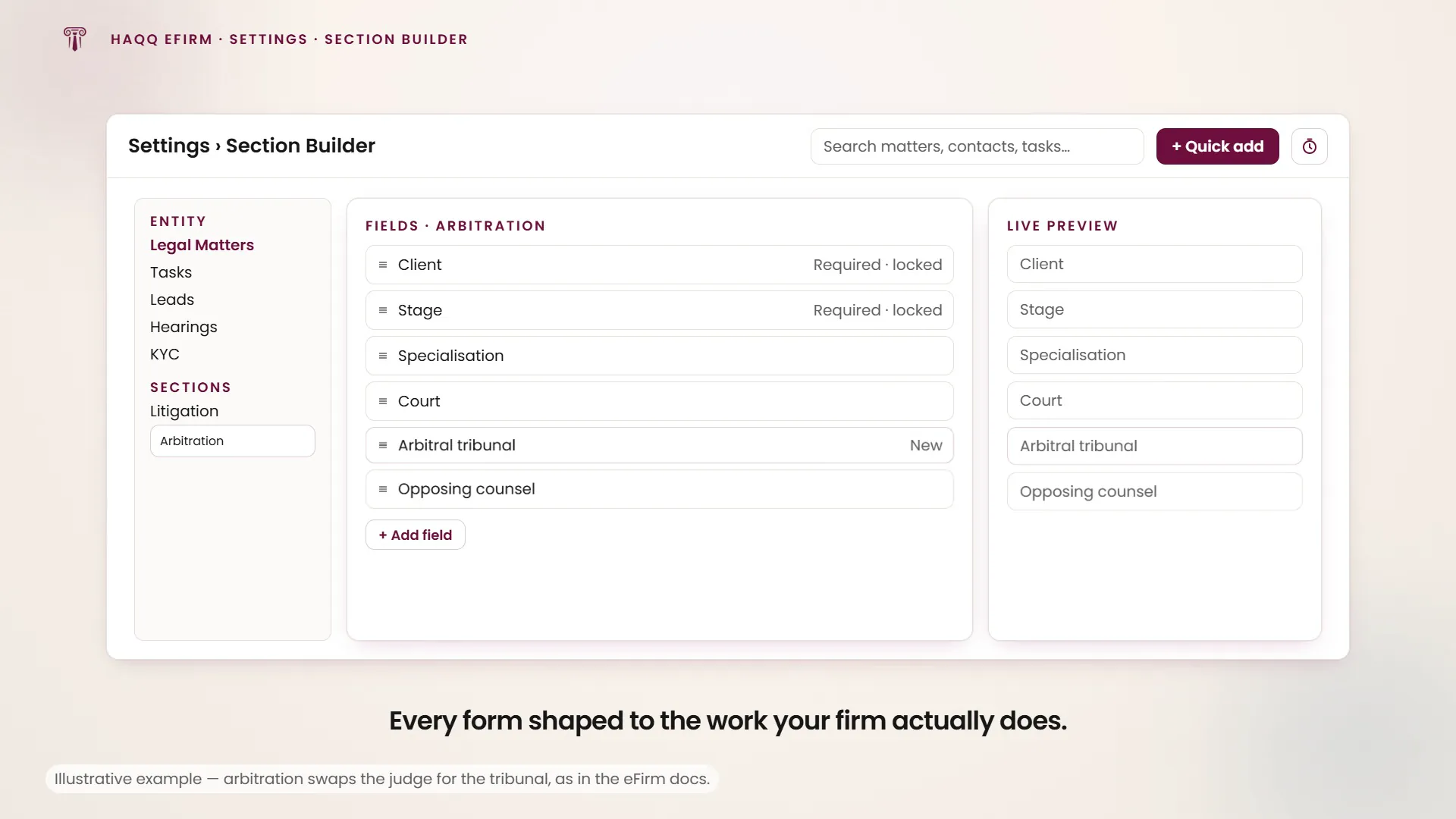
A three-panel layout: an entity and section picker on the left, the field editor in the middle, and a live preview on the right that mirrors unsaved edits as they happen.
Picking an entity and a section
Tabs across five configurable entity types (Legal Matters, Tasks, Leads, Hearings and KYC), each carrying a count badge, with that type's sections listed below the tabs. Switching entity type or section while there are unsaved edits triggers a discard confirmation first.
Editing fields
The selected section's fields render as an ordered, drag-to-reorder list. Each field carries a Required toggle and either a delete control or a lock icon.
- Add field lists only the fields not already on the section, plus a "select all" option that adds every remaining field at once. It becomes unavailable once every field has been added.
- Locked fields (canonical, undeletable ones) show a lock instead of a delete control and cannot be removed.
- Fields that are always required have their Required toggle fixed on and disabled.
- Reset reverts the working copy to the last saved state; Save persists field selection, order and required flags. Both are available only while there are unsaved edits.
- A field name left over from a stale saved layout that no longer exists in the catalogue is silently dropped from the editor.
The third panel is a live preview of the section's form as end users will actually see it, reflecting the current unsaved edits. It shows an empty message when nothing is selected.
Entity types don't all behave the same way
| Entity type | Sections behave like… |
|---|---|
| Legal Matters, Tasks, Leads | Full sections. An admin can create a new one, rename, duplicate and delete it, on top of editing its fields. |
| Hearings | One fixed configuration, not a real section. Its fields are editable, but it can never be created, renamed, duplicated or deleted. There is no New Section button and no row actions for it. |
| KYC | The firm's KYC document templates, not sections. New Template and Edit open the full KYC template editor rather than the generic field editor. See the “Configuring Templates” section on KYC. KYC entries aren't created, renamed or deleted through the ordinary section actions. |
Creating or renaming a section opens a small name dialog; deleting opens a confirmation dialog naming the section first. The builder also accepts a target entity type and section id in the URL, so a specific section can be deep-linked directly (a manual selection afterwards is unaffected).
What this configures downstream
This page is not a self-contained settings screen. It shapes two of eFirm's pipeline modules directly. The stages a lead moves through in Leads and the fields available on a Legal Matter are both defined here, not fixed by the product. A firm that wants a different pipeline for each (or more than one pipeline for the same module) builds it on this page.
Who can change this
A single permission (the right to manage firm configuration) gates every mutation across both screens: editing stages, adding, removing or reordering fields, saving, creating, renaming, duplicating and deleting. Members without it get a fully read-only experience on both screens; the underlying data stays visible throughout.
Where to go next
See Leads and Legal Matters for the pipelines this page configures, and KYC for the document-template editor Section Builder reuses. Who can reach this page at all is set in Setup Roles & Permissions.