

Setup Roles & Permissions
Permissions in eFirm answer two separate questions: what a person can do, and which records they can do it to. Both are set on the role, not on the person, in the firm's roles manager at /firm/roles.
Roles, not people
Two roles are built in (SUPER ADMIN and User), and the rest are the firm's own. Create one with + Add Role. Most firms end up with Partner, Associate and Paralegal, because those match how they already work; a role is meant to describe a job, not an individual.
Permissions attach to roles, not to people. Change the role and everyone holding it changes with it. That is the whole reason to spend twenty minutes getting the role set right rather than editing members one at a time. It is also why an administrator testing a restriction on their own account usually concludes, wrongly, that it does not work.
The screen is two panels: every role down the left, and the selected role's editor on the right. The editor holds the role's name, the members it is assigned to, and the permission matrix. A role can also be duplicated, which copies its permissions into a new role you then adjust, usually faster than building a near-identical role from nothing. Edits to a role are staged: nothing applies until you save, and switching to another role with unsaved changes asks first.
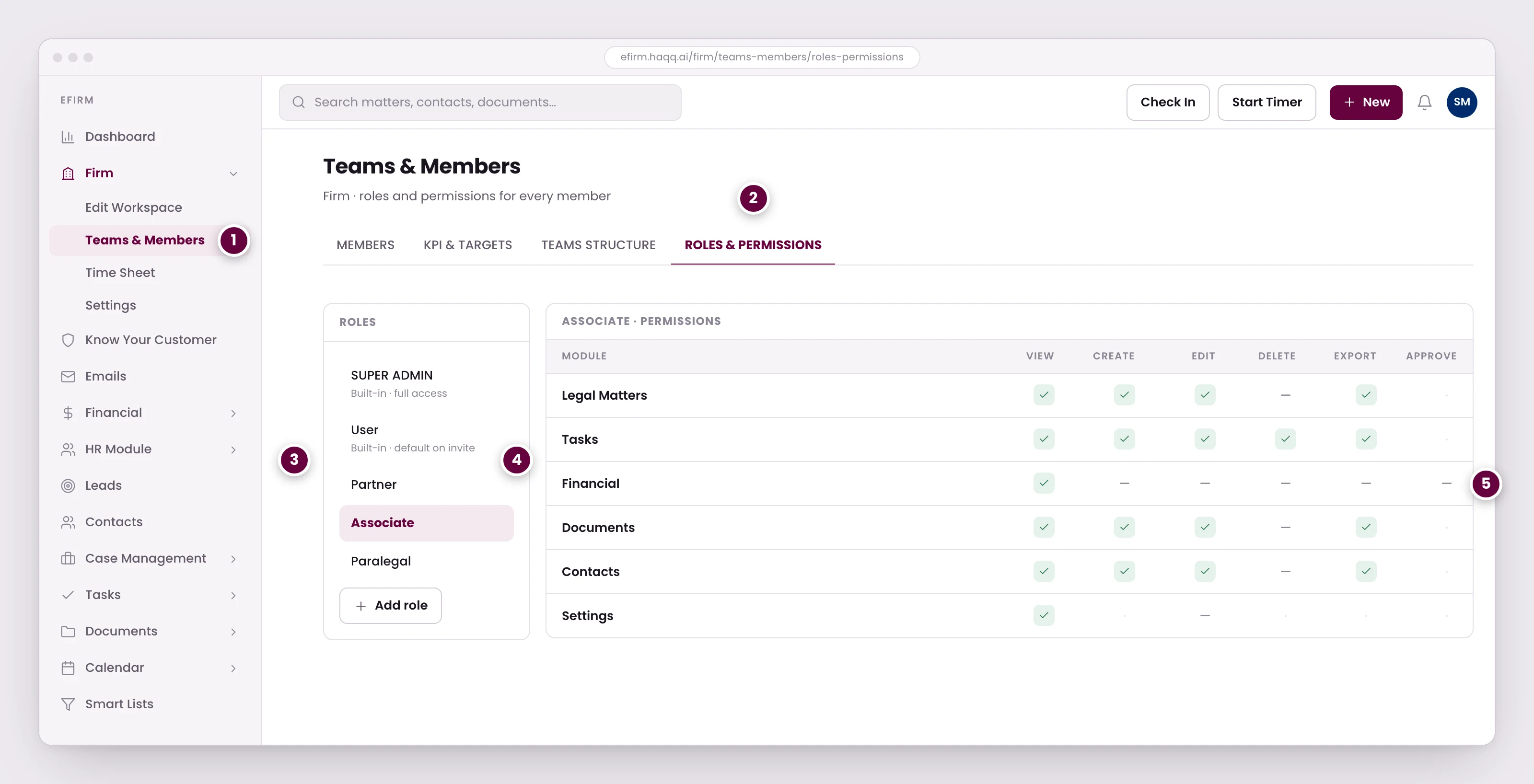
- Members, roles, team structure, and targets are managed here. Removing someone revokes access but leaves their name on the matters, invoices, and time entries they worked on.
- Permissions attach to roles, not to people. Change the role and everyone holding it changes with it.
- Two roles are built in; the rest are the firm's own. Most firms create Partner, Associate, and Paralegal to match how they already work.
- Each role is granted module by module. An associate can have full run of matters and tasks while seeing nothing in Financial beyond a read-only view.
- Approve exists only on Financial. It is the control that separates raising an invoice from posting it.
The permission matrix
The matrix lists every module in the product, grouped into Core, Case Management, Financials, Administration, HR & People and Other. A search box filters modules by name and expands whatever matches, which is the fast way through a long list.
Every module carries the same four actions: Read, Create, Update and Delete. There is no fifth verb on any module. An associate can have full run of matters and tasks while seeing nothing in Financial beyond a read-only view.
| Action | What it gates |
|---|---|
| Read | Whether the module is reachable at all. Without it the module's screens show a no-access message instead of data. |
| Create | The New buttons, the create forms behind them, and importing records from a spreadsheet. |
| Update | Saving changes to an existing record: the editable fields, inline edits in a list, the quick-edit chips, status toggles, and lifecycle actions such as approving or voiding an invoice. |
| Delete | Deleting a record: from a row, from its detail page, and in bulk. |
Actions a role cannot perform are hidden rather than shown greyed out. This is worth knowing before you go looking for a button in a support call: a missing control is the normal way eFirm expresses a missing permission, so “I don't have that button” and “that feature doesn't exist” look identical from the user's side.
Clients is its own feature. Clients, Contacts and Leads used to be one bundled permission; each is now a separate toggle in the matrix, so a role can create leads without being able to touch the client list, or the other way round.
Exporting a list is not a separate permission. Export sits in the toolbar of the lists that offer it, next to Import, and it downloads the list as currently filtered. There is no export toggle in the matrix to grant or withhold, so a firm that needs to stop a client list leaving as a spreadsheet has to work with what the role can reach in the first place.
Approve is not a verb in the matrix either. Approving an invoice or an expense is a lifecycle action on that record, and it is gated by Update on the module it belongs to. So a role that can edit invoices can also approve them: there is no setting that grants editing while withholding approval. A firm that wants raising and approving to be two pairs of hands has to withhold Update from the role that raises, and let the reviewing role hold it. See Financial for what approval actually does to the record.
Record scope: who sees which records
The matrix decides what a role can do. Scope decides which records it can do it to, and it is set on each action separately rather than once for the module. That is the part worth slowing down for: a role can read every matter in the firm and still only be able to update the ones it is staffed on, because Read and Update carry their own scopes.
| Scope | What the action reaches |
|---|---|
| All | Every record in the module, firm-wide. |
| None | No records at all. In practice, the action is switched off. All and None are the two base levels, and they are mutually exclusive. |
| Assigned | Only records the user is directly linked to: matters they are staffed on, their own timesheet entries, their own expenses. Optional, and offered only by the modules that support it. |
| Inherited | Falls back to a parent or default rather than carrying a value of its own. Also optional, and combinable with Assigned. |
An action counts as granted whenever it is anything other than None. Inherited still grants access, through whatever it inherits from. Clear the Assigned and Inherited chips off an action and it falls back to None. Choosing No access is recorded deliberately rather than left blank, so it survives a reload instead of drifting back to the module's default.
Quick-sets and scopes are not two generations of the same idea; they sit on the same screen and do different jobs. The quick-set is a fast way to fill in the four scopes, and you can then adjust any one of them on its own.
Worked example: associates should not see each other's time
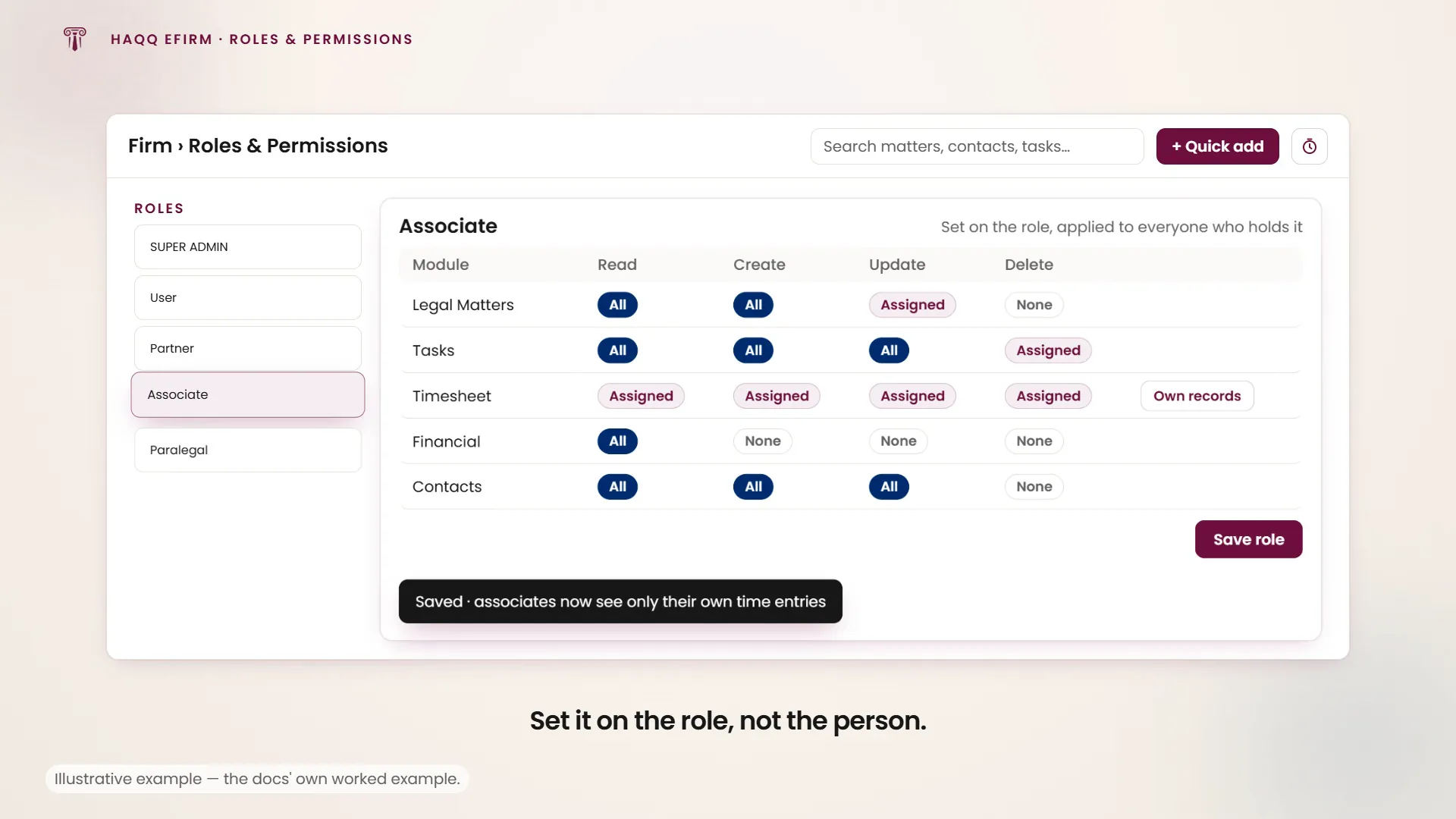
A firm bills by the hour and does not want associates comparing timesheets, or seeing what the partners logged. Open the roles manager, select the role the associates hold, find the Timesheet module in the matrix and set its actions to Assigned. The Own records quick-set does all four at once. Save.
Each associate now opens the timesheet list and sees only entries linked to them. Partners on an All scope still see everything, and firm-wide reports are unaffected. The restriction is on what a person can reach, not on what the firm can measure.
Hiding individual fields
Scope controls which records a role reaches. Field visibility goes one level finer and controls which values it sees inside them, on the modules that expose it. The clearest case is money: monetary amounts on HR Time & Attendance can be hidden from a role that still has to work the module, so the people managing attendance do not also see what each person is paid for it.
The control sits inside the role's own permission matrix, on the module the field belongs to, not on a separate screen. It is independent of the four actions: a module can be fully readable and still have a sensitive field hidden on it.
Firm-wide visibility, and where it is set instead
Two visibility settings are deliberately not on this screen, because they apply to the whole workspace rather than to a role: Calendar View Permission (Restrictive, meaning role-based, or Permissive, meaning everyone sees every calendar) and Task View Permission. Both live at Firm › Edit Workspaceand are covered in Settings and Customizations. If a role looks correctly restricted and a calendar is still visible to everyone, that pair of toggles is why.
Seats
A HAQQ subscription includes a set number of seats, and each active team member uses one. Current usage is visible in the account administration panel (25 used out of 50 available, for instance), and seats are added from the subscription management panel. See Manage subscription.
Scaling for a mandate. A firm that wins a large mandate and needs five contract lawyers for three months adds five seats, creates a Contract Lawyer role limited to assigned matters with no financial access, and invites the five against it. The team is working the same day. When the mandate ends, removing them frees the seats and leaves their work on the file.
Troubleshooting
| Symptom | Cause | Fix |
|---|---|---|
| No Approve button on an invoice | Approving is part of Update on the invoices module, and the role does not hold it, or holds it on a scope that does not reach this invoice. | An administrator grants Update on that module to the role, at a scope that covers the record. |
| Cannot see a colleague's calendar | Calendar permissions are set to Restrictive mode. | Administrator: Firm › Edit Workspace › Permission for Calendar View, and adjust the setting. |
| Seat count does not match the number of active members | Removed members may still hold seats if they were not fully deactivated. | Check each member's status in the team panel. |
What this model does and does not cover
Roles, record scope, field hiding and seats are the access controls a firm administrator configures. They are enforced on the routes themselves, so a member only reaches what their role allows rather than merely not seeing a menu item. Two things sit outside them:
- Per-document access. A single file can be restricted to the matter team, and download permissions control who can take it out of the system. That is set on the document, not on the role. See Documents.
- Workspace isolation. Nothing on this page crosses a workspace boundary. A role grants access inside one workspace only; separating data between entities is a workspace decision, not a permissions one. See Data Architecture.